v1.10.0 ·
Bulk patient intake invitations, smarter assistant workflows, and expanded chart management
Send e-Intake invitations to large patient groups, use voice during patient onboarding, approve multi-step assistant plans, merge duplicate patient records, and manage encounters and order sets with new clinical workflows.
Send eIntake invitations to groups of patients
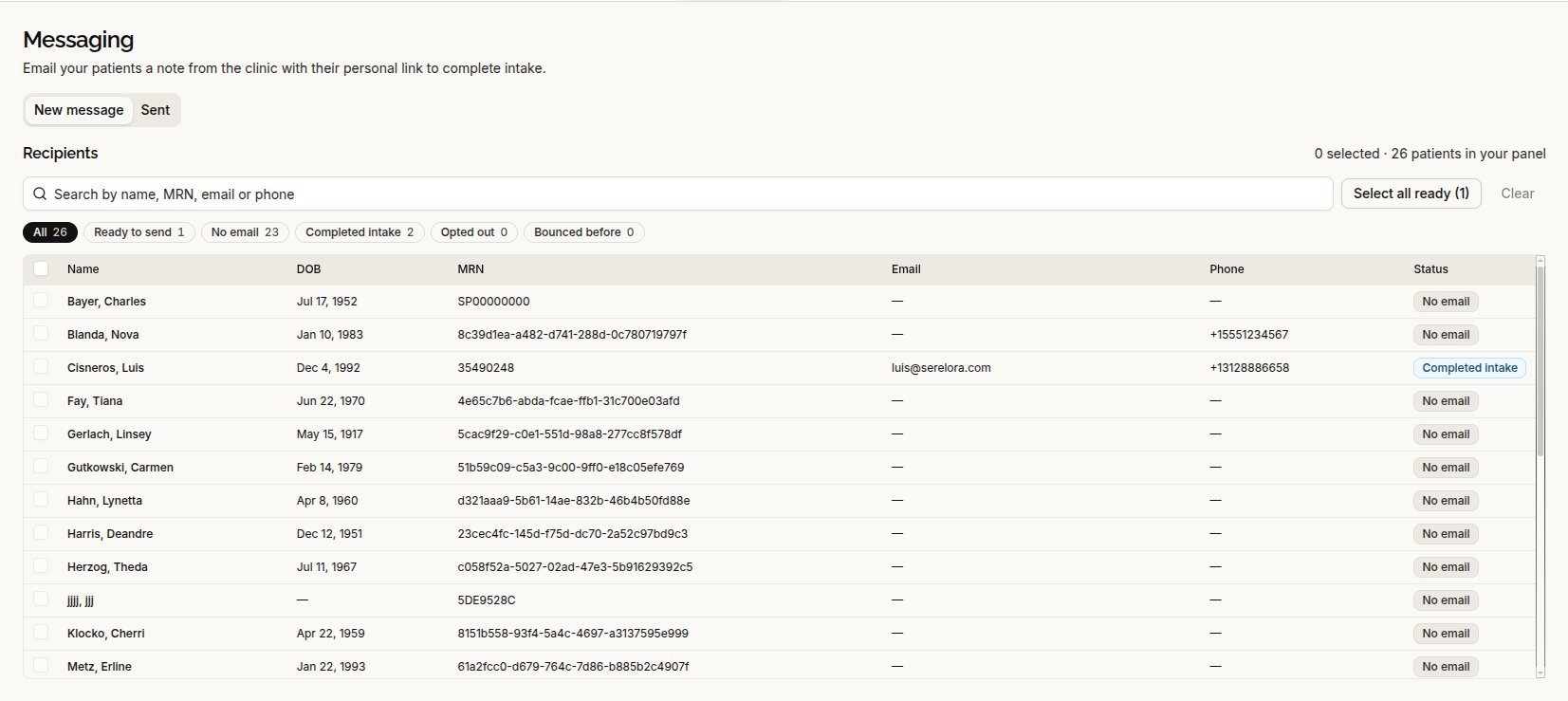
A new Administrative → Messaging area lets authorized staff send personalized eIntake invitations to selected patients or an eligible patient panel.
You can search by name, MRN, phone number, or email, filter the recipient list, and select all patients who are ready to receive an invitation. Patients who cannot be contacted are clearly identified, including those with missing email addresses, completed intake, communication opt-outs, or suppressed email addresses.
Before sending, you can:
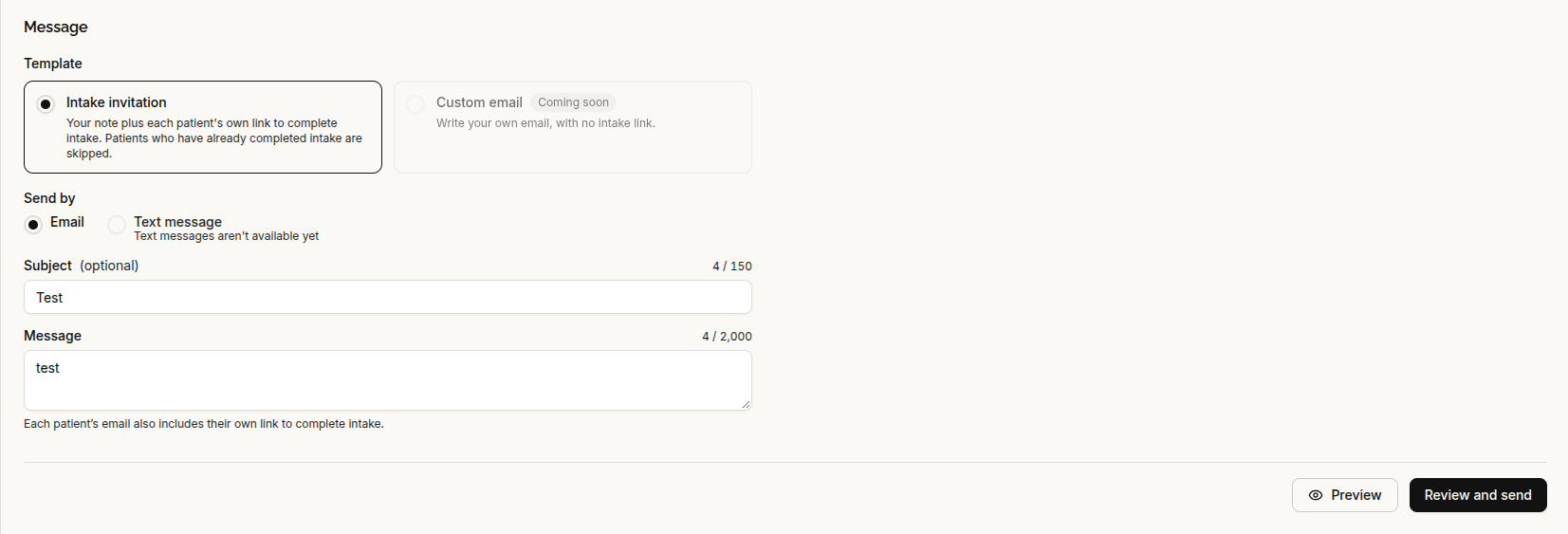
- Add an introductory message and optional subject
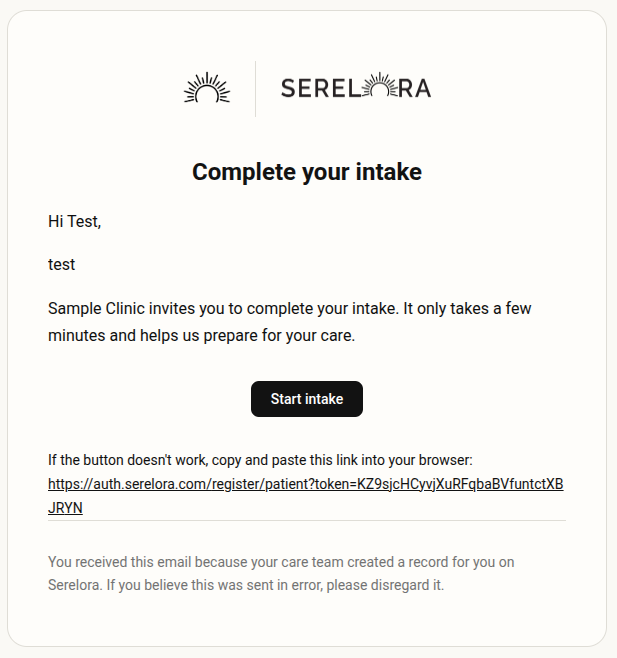
- Preview the clinic-branded email
- Review the number of recipients
- Confirm which patients are eligible
Each patient receives an individual intake link. Patients who already created an account but have not finished intake receive a sign-in link so they can continue onboarding.
The Sent tab tracks campaign progress and individual outcomes, including delivered, bounced, skipped, complained, or failed messages.
Current scope: Bulk messaging is available for eIntake invitation emails only. SMS and general-purpose bulk email are not included.
Simpler provider registration
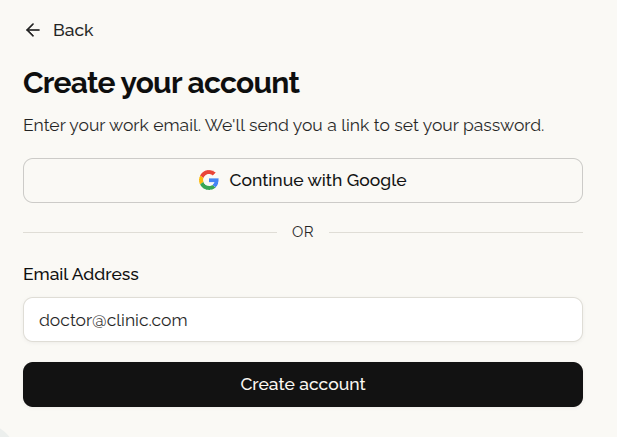
Provider registration is now email-first, with fewer fields required at signup.
Providers no longer need to enter an institution access code, NPI, legal name, or professional profile information just to submit a registration request.
Continue with Google is also available for provider sign-in, registration, and staff-invite acceptance on the web.
Joining a clinic still requires an invitation or an administrative grant, and provider approval and deactivation controls remain in place.
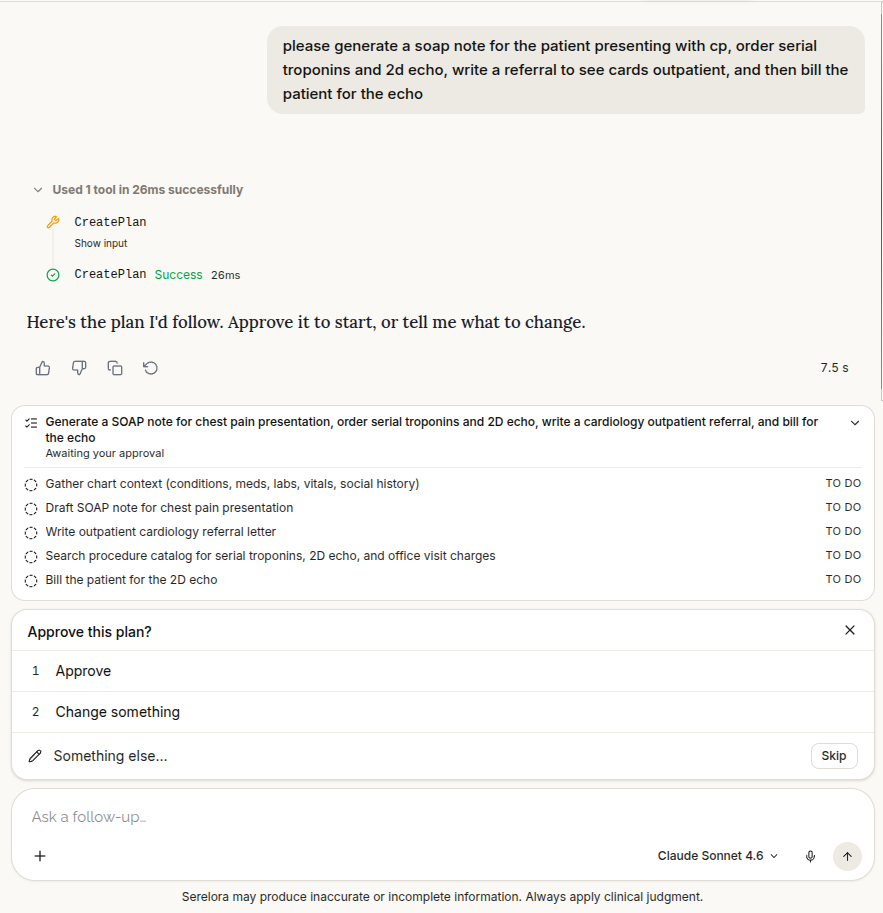
Approve a plan before the assistant works through complex tasks
For more complex requests, the clinical assistant can now propose an ordered plan before taking action.
You can review the proposed steps, approve the plan, or request changes. Once approved, a live checklist above the chat input shows progress as the assistant works through the task.
Approving the overall plan does not automatically approve later write actions. Any action that normally requires clinician review or confirmation still presents its own approval step.
Plans retain their progress and revisions, including across longer multi-step workflows.
Assistant responses also stream progressively as they are generated, reducing the wait for a complete response to appear all at once.
Merge duplicate patient records
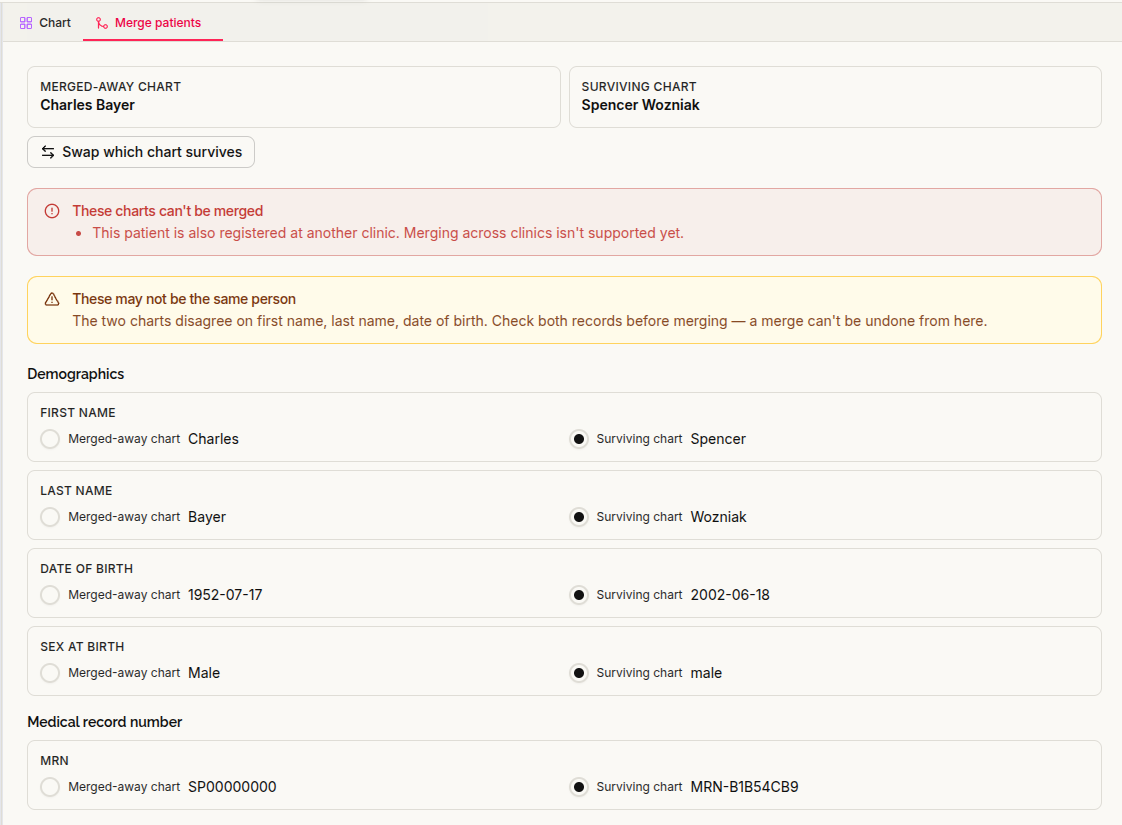
Authorized users can now merge duplicate patient charts from either the patient list or the patient chart.
The merge workflow lets you:
- Select which chart should remain
- Compare conflicting demographic information
- Choose which values to keep
- Review identity warnings before proceeding
The surviving record consolidates eligible information across documents, encounters, billing, orders, conversations, and outreach history.
The merged-away record is retained as a traceable historical record, and authorized attempts to open its old chart redirect to the surviving patient.
Some merges are intentionally blocked when they cannot be completed safely—for example, when both records have activated patient portal accounts, when conflicting open encounters exist, or when the records belong to unsupported clinic configurations.
Patient merging has no one-click undo. Review the comparison carefully before confirming.
Better duplicate finding review in Manage Claims
The Manage Claims workflow now gives clinicians more control when reconciling duplicate clinical findings.
Duplicate groups include clearer explanations of why entries are considered related. You can choose:
- Which finding to keep
- Which duplicates should be merged
- Whether the displayed claim name should be corrected
Approved merges preserve relevant evidence and links rather than simply discarding duplicate information.
Duplicate detection has also been improved during parallel document processing, reducing the chance that the same clinical concept becomes multiple chart entries.
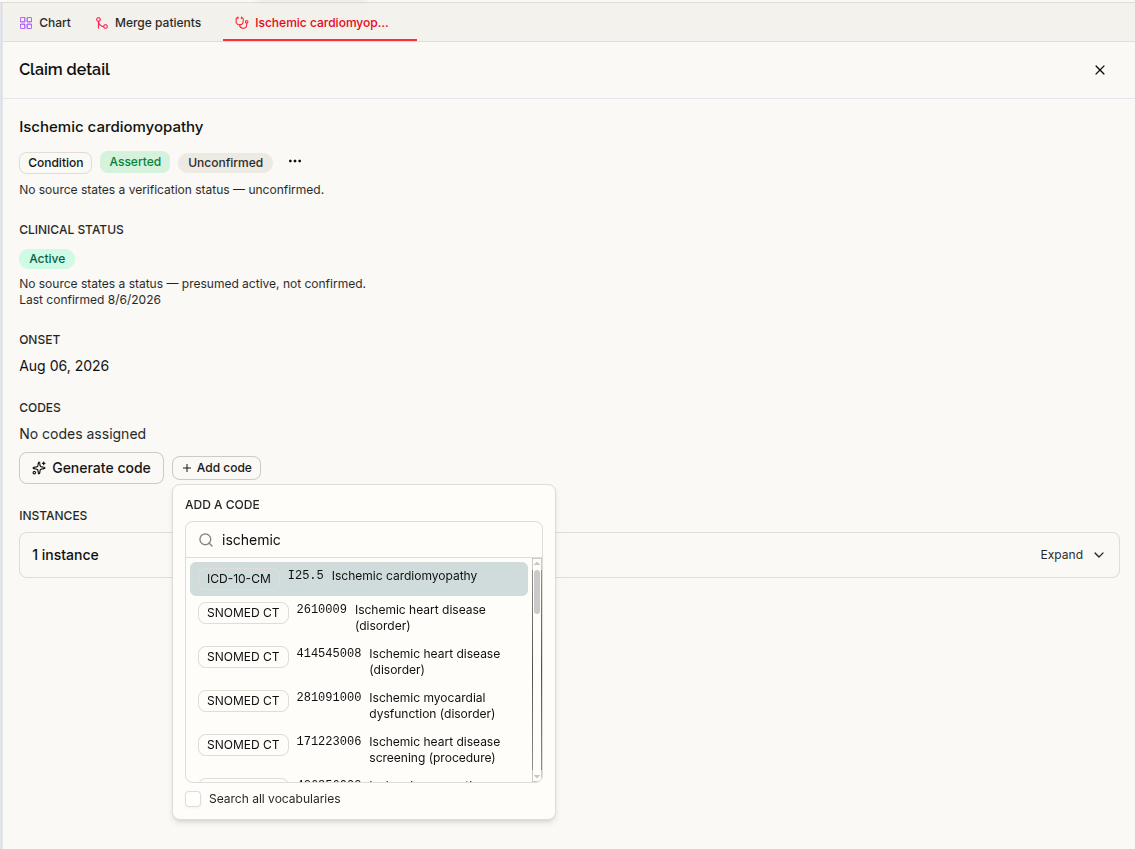
Add and manage terminology codes from claim detail
Clinical findings can now be searched against available medical vocabularies directly from claim detail.
Use + Add code to search for and attach an appropriate code, including reactivating a code that was previously removed.
Expanded encounter management
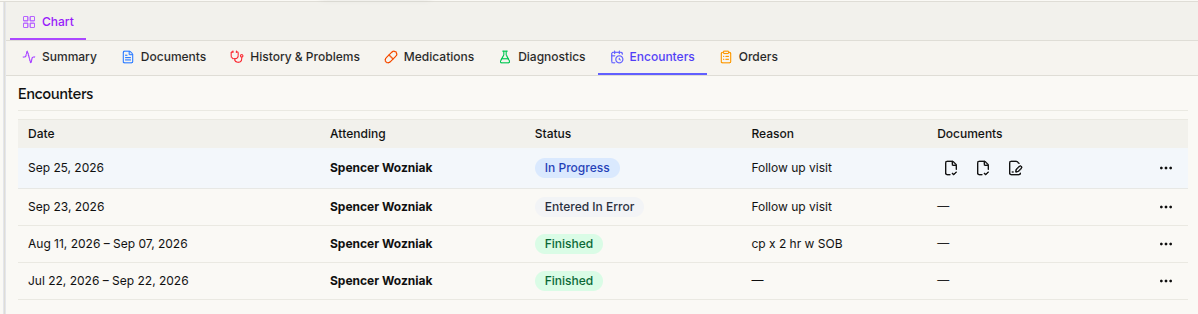
The chart now includes an Encounters tab showing local visits with:
- Attending clinician
- Participants
- Visit status
- Linked documents
Linked notes and documents can be opened directly in the workspace.
New encounters require an eligible attending physician. Check-in and walk-in workflows now include an attending selector, and authorized staff can reassign the attending when needed.
Correct mistaken check-ins
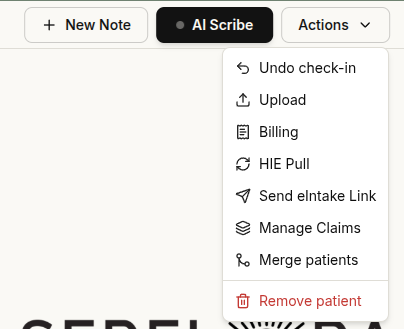
Authorized staff can now Undo check-in / void encounter from the interface.
A reason is required, and the workflow handles the related appointment outcome so staff can correct situations such as:
- Mistaken check-in
- No-show
- Documentation error or other supported correction
File notes under the appropriate encounter
When encounter management is enabled for the clinic, notes created through the editor, scribe, or assistant can be associated with the patient’s active visit.
The note header shows the linked encounter, and authorized users canattach, change, or removethe association. Finished encounters can also be selected when correcting or filing documentation retrospectively.
Existing encounter selections are preserved on later saves. If automatic encounter filing fails, the note itself can still be saved.
Build and manage reusable order sets
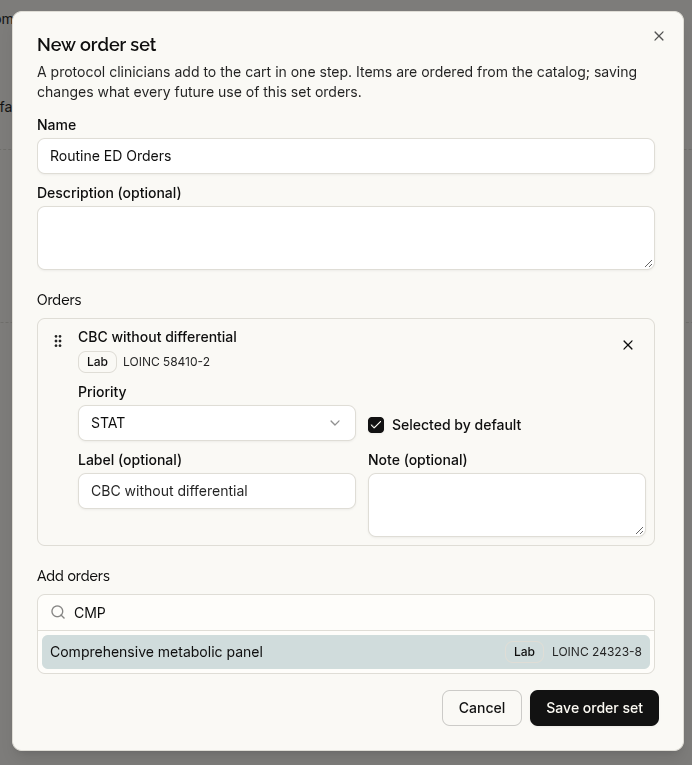
The ordering system now includes Administrative → Orders, where authorized users can manage clinic order sets and preferred orderables.
You can:
- Create and edit order sets
- Clone existing sets
- Retire and reactivate sets
- Choose clinic defaults
- Reorder preferred items
Within the order composer,Save as order set ;ets you turn a reproducible group of orders into a reusable protocol. If part of the current cart cannot be safely reproduced, Serelora identifies the affected rows rather than silently creating an incomplete order set.
Patient-specific notes are not copied into reusable order sets.
The platform also records when an order set was applied to a patient and which orders were created from it.
External order fulfillment is still not live. These tools extend order preparation and management inside Serelora but do not transmit orders to a pharmacy or laboratory.
Retry failed document extraction
Documents that fail during clinical extraction now include a Retry action directly in the document interface.
Extraction capacity has also been increased for longer documents, reducing cases where large records are cut off during processing.

Safer note signing
Note signing is now completed as a single protected operation: the signature, signed status, and signing record succeed together.
This prevents a failure partway through signing from leaving a note in an inconsistent partially signed state.
Patients can dictate answers during onboarding
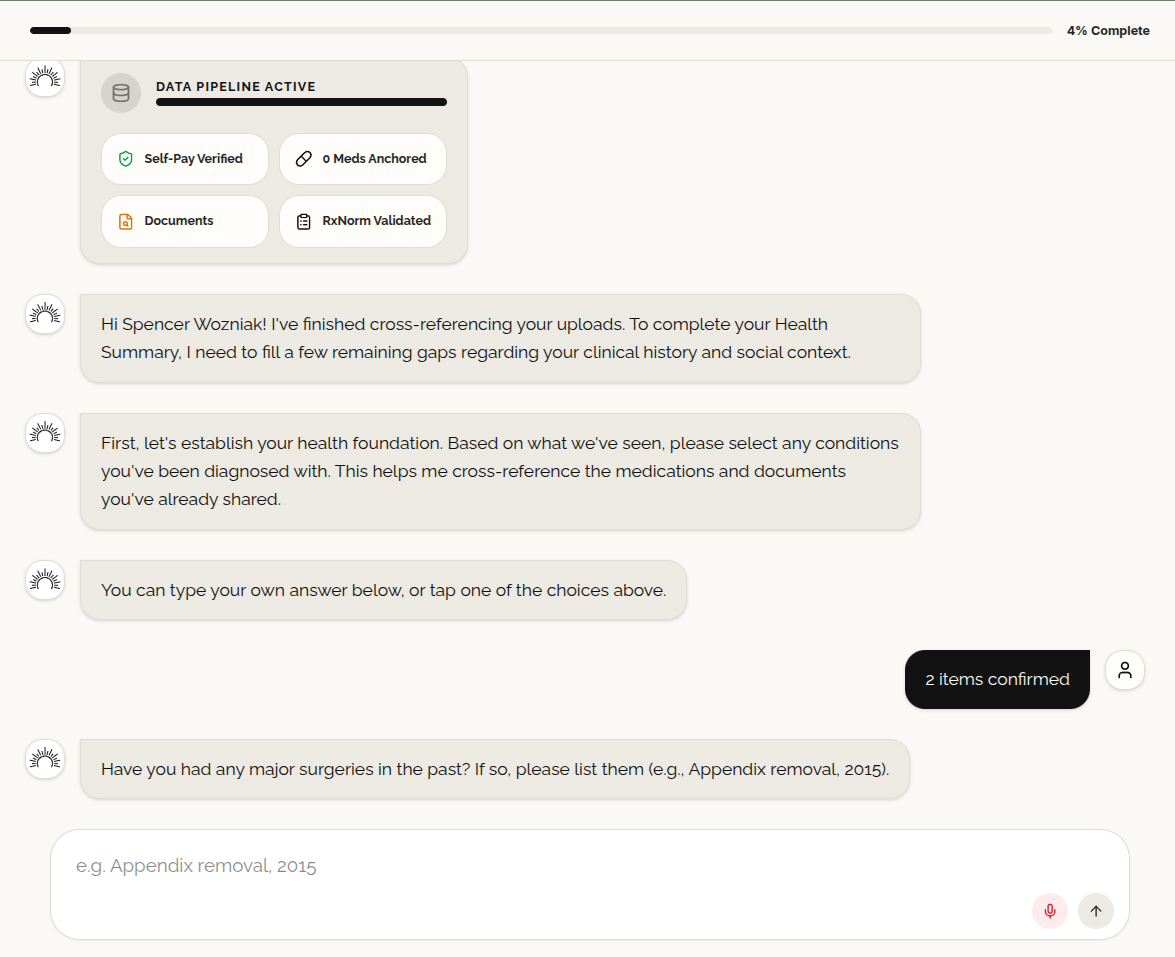
Patients can now use voice dictation in portal chat and in free-text responses during conversational onboarding.
Patients can speak their response, review the transcription, edit it if needed, and then submit it. Moving between assessment questions or ending a recording preserves text that has already been dictated.
Free-text response options are also more clearly presented, making it easier for patients to understand when they can answer in their own words rather than selecting only structured choices.
Additional billing safeguards
Several checks have been added to reduce duplicate or stale billing actions:
- Retrying the same approved charge no longer creates a duplicate charge.
- A charge proposal is refused if its price changed after you reviewed it.
- Invoice generation is refused if the selected charges changed after review.
- A payment-link proposal is refused if the intended recipient changed before approval.
These protections are especially relevant when approving billing actions from assistant workflows or retrying a request after a network or service interruption.
Other improvements
- Image expansion now preserves your position on the page when you close the image.
- Document-search excerpts have been visually simplified so matching content is easier to scan.
- Assistant action proposals now require their preparation record to be successfully captured before they are presented for approval.
- Reliability checks have been improved so temporary dependency problems can remove an unhealthy instance from traffic without unnecessarily restarting it.