v1.12.0 ·
Text-message intake campaigns, NextGen Office imports, and expanded patient records
Send eIntake invitations by text and track delivery for each recipient. Import NextGen Office patient rosters, record additional demographic and insurance details, and work with stronger protections against conflicting edits.
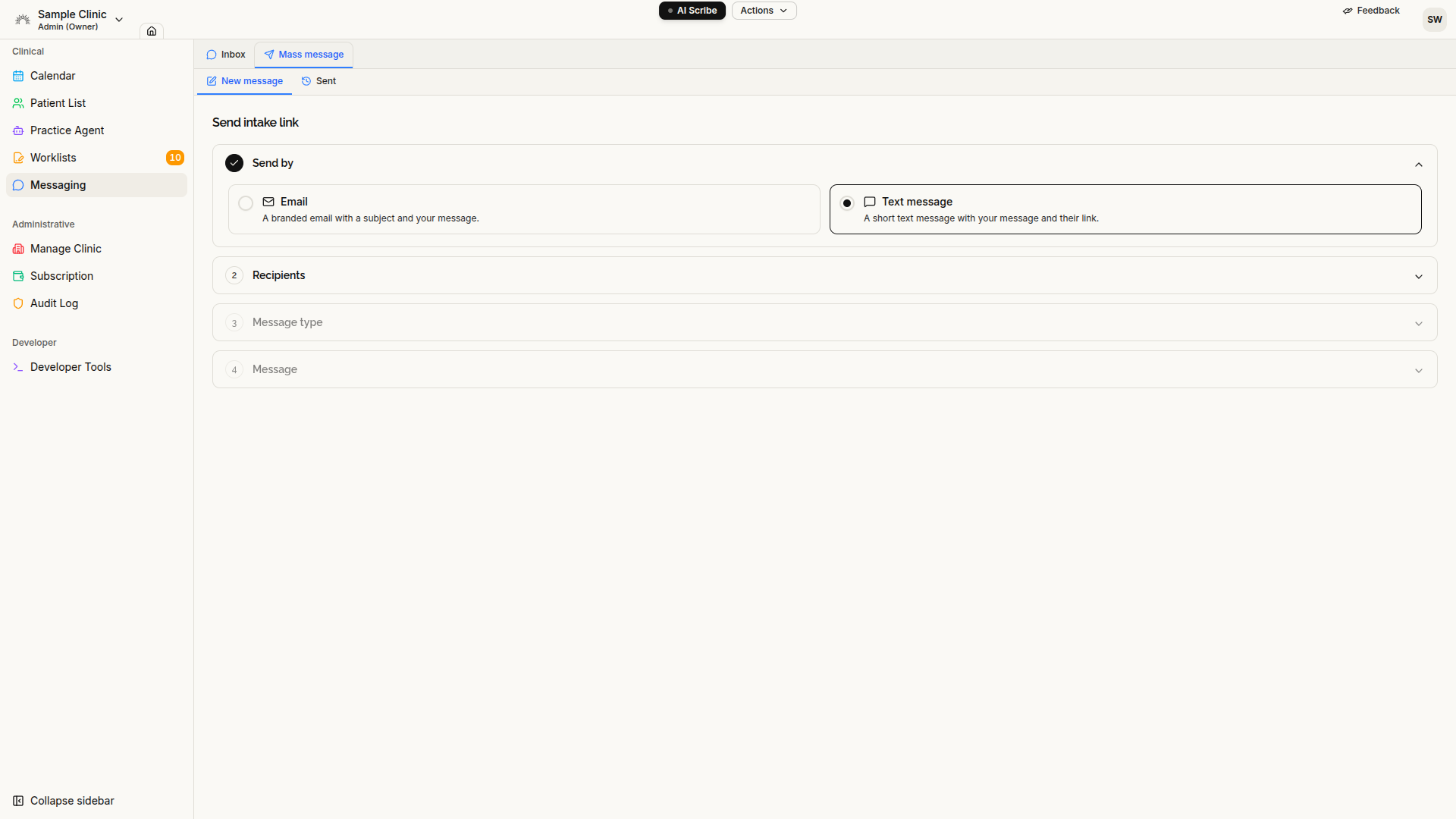
Send intake invitations by text message
Administrative → Messaging now supports text-message eIntake campaigns, alongside email invitations.
When text messaging is enabled for your clinic, you can select it in the campaign composer, preview the message, and check which patients are eligible before sending. Patients are skipped when they have no usable phone number, have completed intake, or have opted out of SMS.
The composer includes a live character counter. Your introductory message can contain up to 143 characters, leaving room for the clinic name, the patient’s intake link, and “Reply STOP” instructions.
In the Sent tab, campaigns show which channel was used, with Delivered / Not delivered outcomes for individual text recipients.
Text-message campaigns must be enabled for your clinic and require the existing bulk-messaging permission. Email remains enabled by default for clinics already using Messaging. Text campaigns are for intake invitations, not general-purpose messaging.
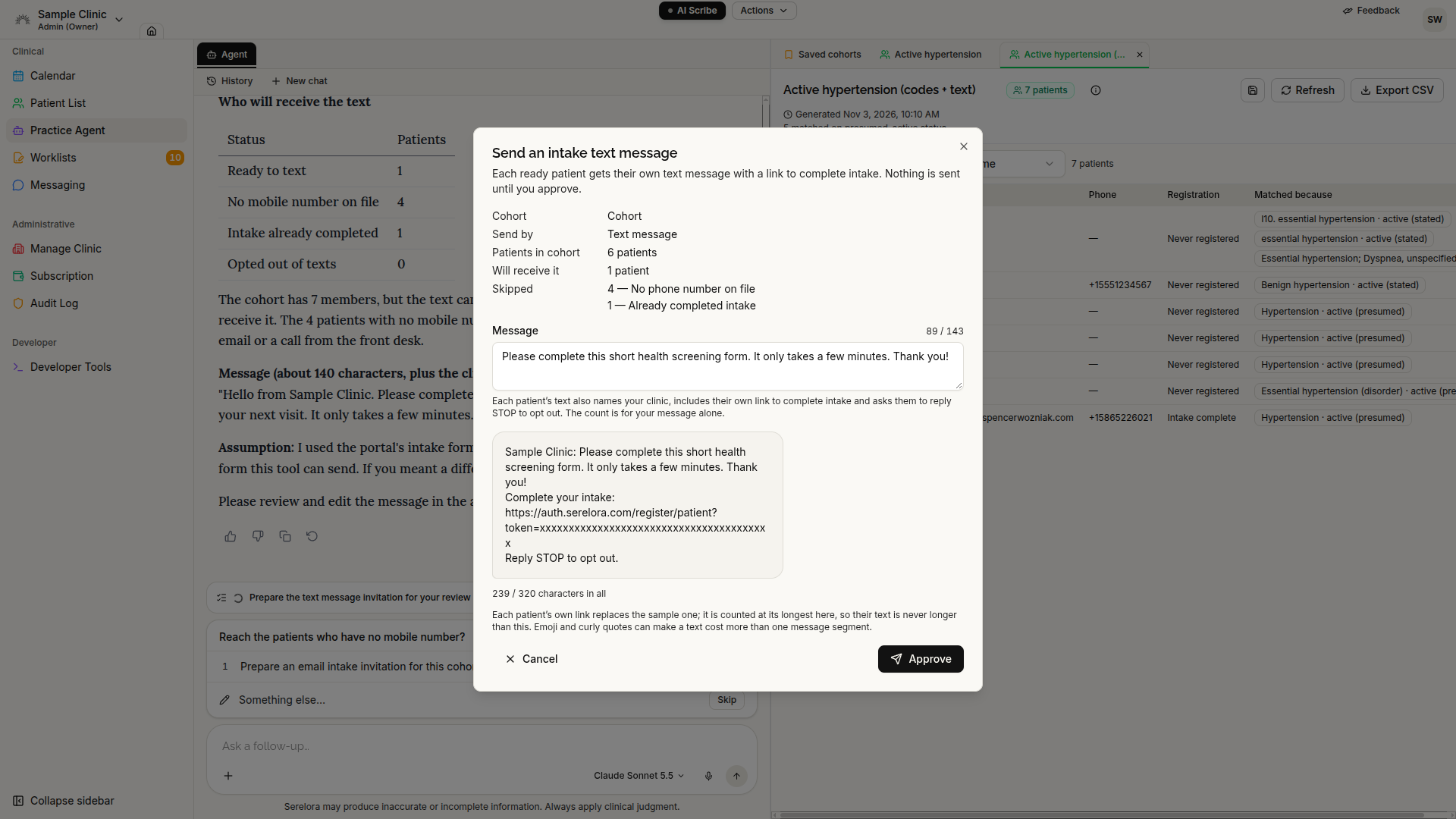
Propose text campaigns from the Practice Agent
The Practice Agent can now propose an intake campaign by text as well as email.
The approval dialog shows the selected channel and text preview before you approve the campaign. The approved campaign uses that same channel and appears in Messaging for progress and delivery tracking.
Demo patients are now excluded from bulk campaign selection and recipient counts for both email and text.
Text sending restored
This release also fixes a bug that prevented outgoing text messages from being sent, including individual intake invitations and appointment reminders.
Individual Send eIntake Link errors now distinguish a rejected or opted-out phone number from a service problem. A technical sending failure is no longer incorrectly presented as a problem with the patient’s number.
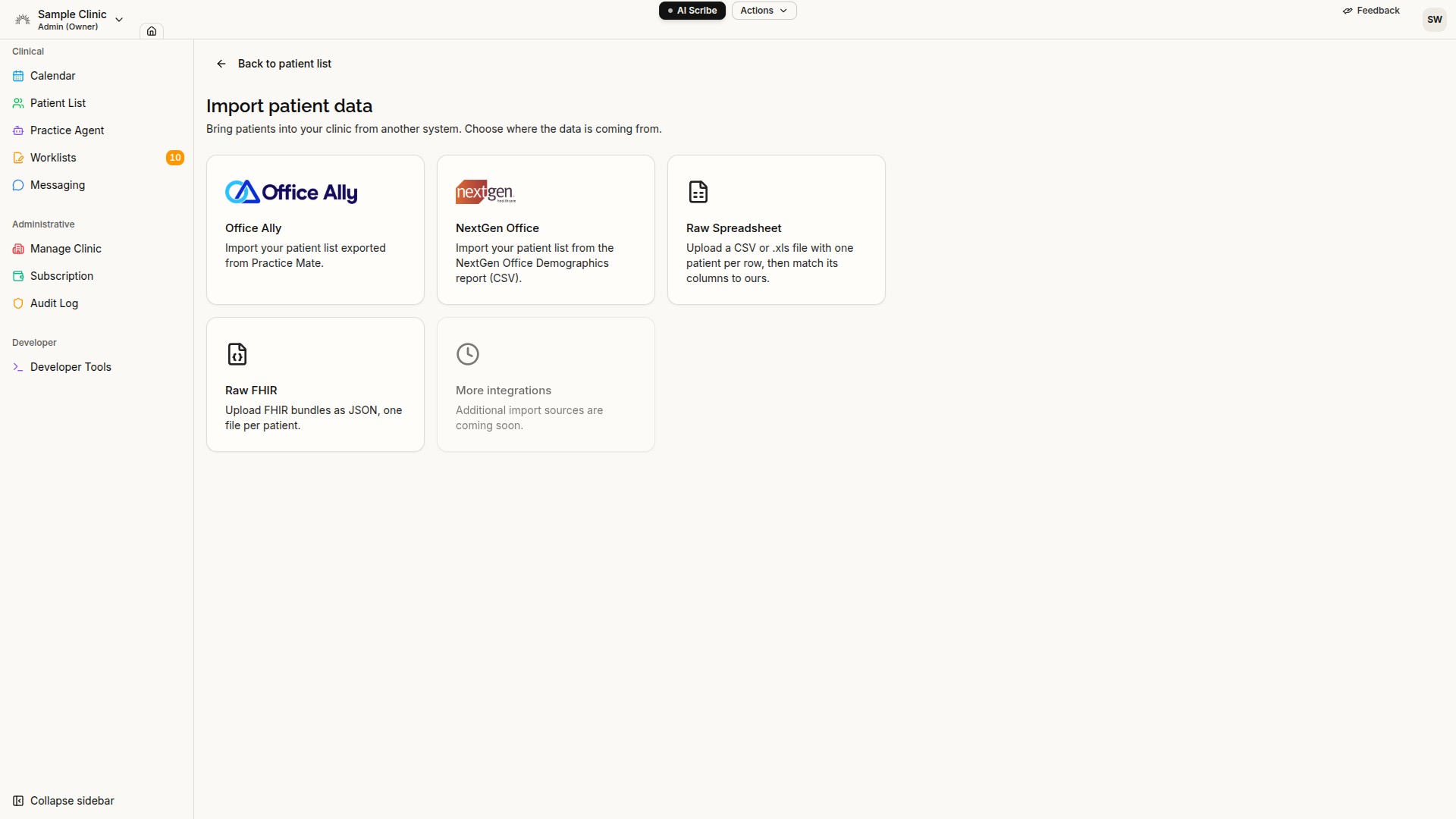
Import patient rosters from NextGen Office
The Import page now includes a NextGen Office option with step-by-step instructions for exporting a patient roster as a CSV file.
Upload the file, review the preview, and confirm the import. Processing continues in the background, using the same preview-and-confirm workflow available for Office Ally rosters.
The importer brings over supported demographic, contact, insurance, referral, and employment information. Unsupported marital-status or sexual-orientation values are left out with a warning. The NextGen “Patient Pregnant” field is not imported through this roster workflow because it represents clinical information rather than a demographic field.
For both NextGen Office and Office Ally, missing optional columns no longer cause the entire import preview to fail.
Record more patient, insurance, and contact details
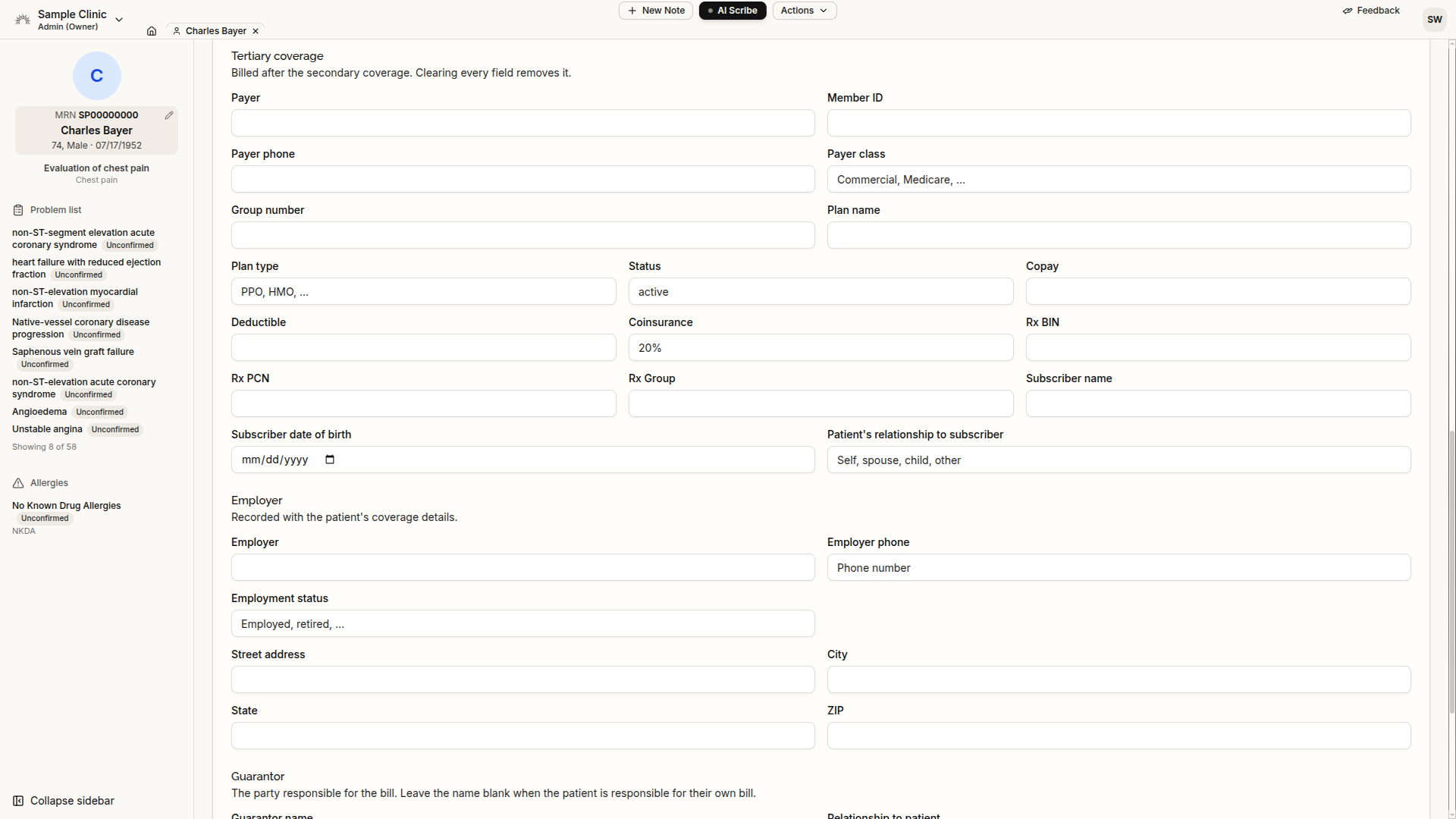
The patient record editor now supports additional information brought over by roster imports or entered directly by staff:
- Patient details: Previous family name, separate home and work phone numbers, resident location, and additional registration information.
- Insurance: A third, or tertiary, coverage block, plus coinsurance, payer phone number, and payer class.
- Contacts and employment: Guardian and Healthcare proxy contact types, contact comments, and employment status.
- Referral and administrative details: Referring provider, outside primary care provider, last-seen-by-PCP information, prior authorization, and signature-on-file fields.
The new patient-level details are also available for comparison when merging patient records. The assistant can update tertiary coverage and preserves the additional coverage fields when making insurance edits.
Further protection against conflicting edits
More workflows now detect when information has changed since you opened or reviewed it, rather than silently replacing another person’s updates.
Chart reconciliation: Renaming or recategorizing a finding no longer reverses a status change or merge completed in the meantime. A duplicate-finding merge proposal also cannot be both approved and rejected by two reviewers acting at once.
Order preferences and favorites: Saving from an outdated tab no longer overwrites another user’s additions. Conflicting favorite changes revert and refresh, and affected saves ask you to reload. Refresh tabs left open from before this release to use the updated safeguards.
Assistant plans: Completed steps no longer restart because of overlapping updates. Canceled plans stay canceled, and completed steps cannot be changed to skipped by an outdated update.
More reliable intake uploads and connected records
Patient onboarding now handles repeated submissions and retries more reliably. Uploading an ID or insurance image twice no longer leaves duplicate or incomplete image records.
Record imports and health-information exchange updates now fill empty demographic fields without replacing information entered by a clinician at the same time. Simultaneous imports also no longer create duplicate contacts, and medication-label processing handles failed saves and retries more reliably.
Additional safeguards protect patient removal from conflicting uploads, appointments, or merges, reducing the risk of a patient disappearing from the clinic roster while new records are being added.
For connected imaging archives, changing the configuration during Test connection now prompts another test rather than marking the changed connection as verified. Relaunching Serelora from an external EHR also better preserves the newly established connection.