v1.15.1 ·
Lab-table extraction, vital-sign flowsheets, and a flexible chart workspace
Review lab-table results with their reported ranges and flags, record vitals in a flowsheet, and arrange chart tabs across two panes. This release also updates PDF forms, patient-record editing, insurance workflows, and clinic email.
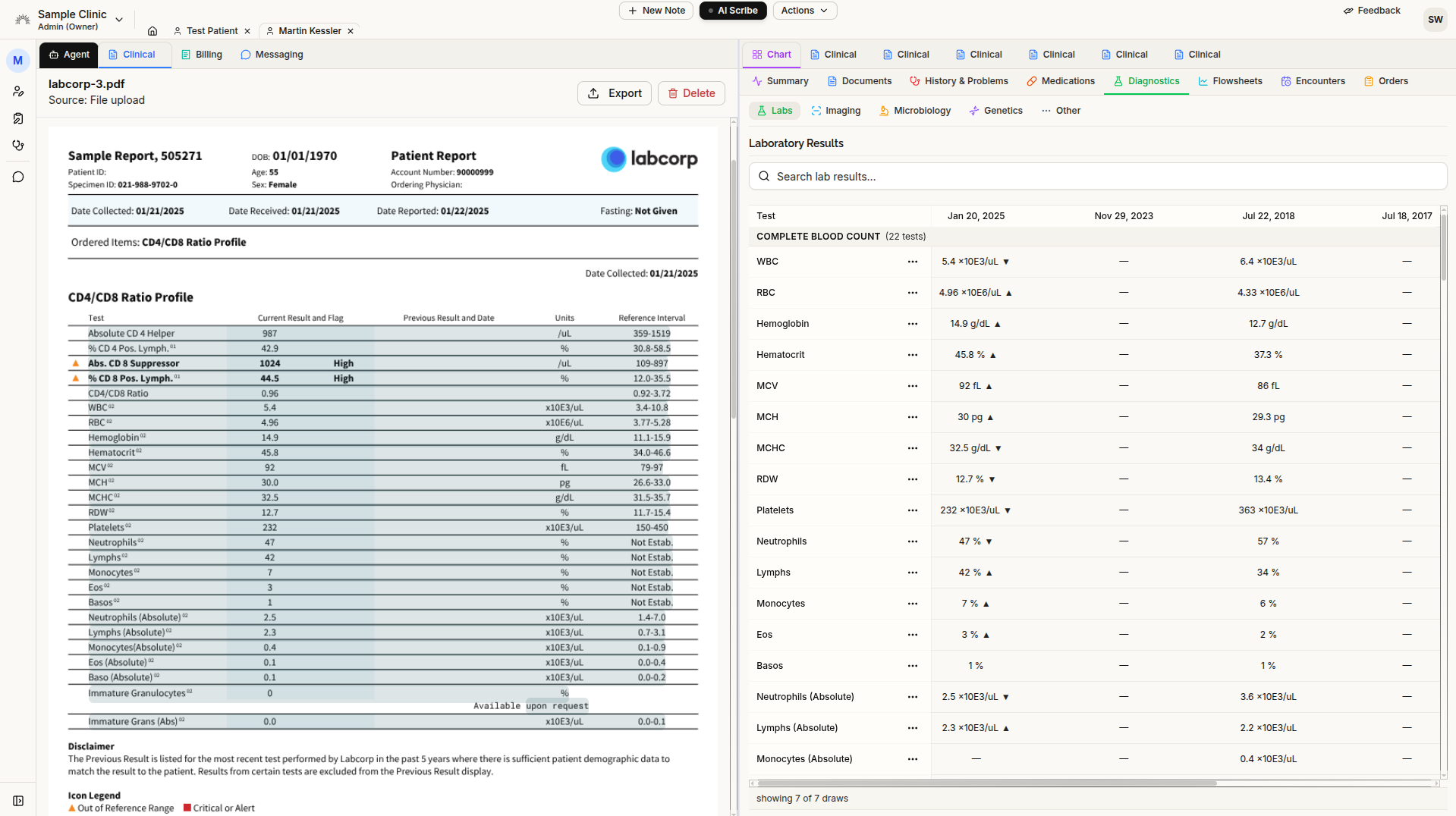
Extract lab results row by row
Lab PDFs and images now use row-by-row table extraction, capturing results as labs, vital signs, or observations. The report’s own reference ranges and interpretation flags are retained alongside the results.
Result dates come from a collection, receipt, or report date stated in the document. The upload date is no longer substituted for a missing result date.
Rows are outlined in the original PDF so you can compare extracted findings with their source. Printed panel names also help group related results.
Important limitations: Medication, problem, and allergy tables inside PDFs are not extracted by the new workflow in this release. Values shown only in graphs and the handling of undated results are also not fully supported. Review the original report for information that may be absent from the extracted chart.
Existing documents keep their previous panel groupings until re-uploaded. The new extraction workflow does not yet cover chat-only attachments.
Record and review vitals in Flowsheets
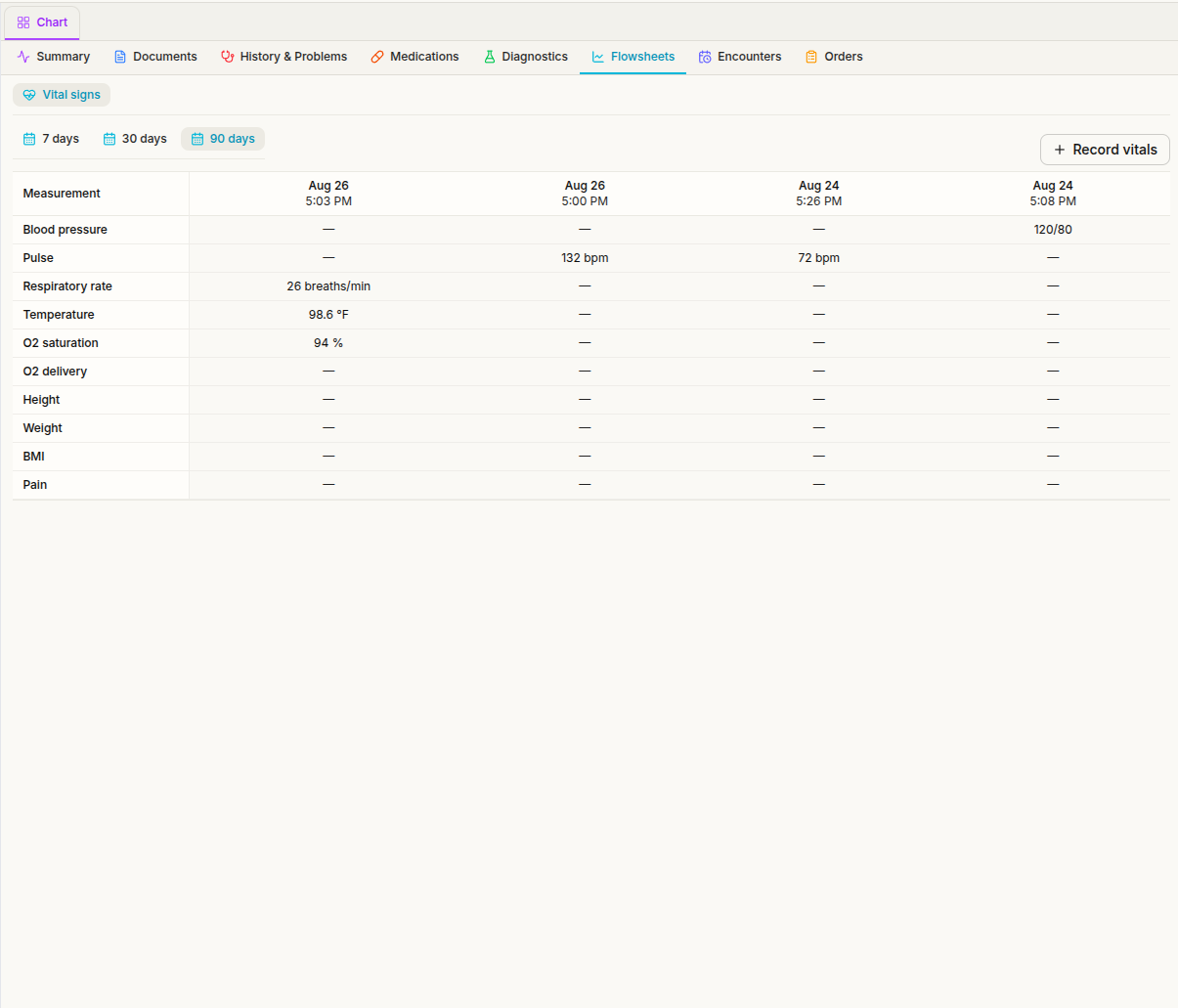
When enabled for your clinic, the new Flowsheets chart tab provides a Vital signs grid for reviewing and entering measurements over time. A Flowsheet button in the Summary vitals widget opens the same view.
Choose a 7-, 30-, or 90-day window. Columns group measurements by minute in the clinic’s timezone. The view displays up to 50 columns and identifies when additional columns are omitted.
Click an individual cell to enter a value, or use Record vitals to enter a set of measurements together. Corrections preserve the prior entry in the record’s history.
Vital-sign updates also include height, weight, pain, and calculated BMI. Numeric entry checks reject text such as a number followed by unrelated letters. Clinical validation of the pain scale and entry limits was still outstanding at release.
Arrange the workspace around your workflow
You can now drag tabs to reorder them or move them between the chart’s two panes, including the Agent chat.
An empty pane collapses. During a drag, an edge target lets you reopen a second pane. The arrangement of Agent, Chart, Messaging, and Billing is remembered in the same browser.
Moving a tab preserves an ongoing assistant response and unsaved patient-record edits. You can also reorder open-patient tabs in the header; Home remains first.
The patient record editor now opens as a closeable workspace tab alongside the chart, with a floating save control replacing the button at the bottom of the page.
Improved form detection and provider details
Form filling now better recognizes scanned PDFs and blanks drawn as boxes or table cells.
The assistant can use your stored individual provider NPI when a form asks for your NPI. This uses your personal NPI, not the clinic’s organizational NPI.
If completing a form reveals a condition or medication that you agree should be added to the chart, the assistant can propose an entry in the existing Add condition or Add medication dialog. You select the code and confirm the addition.
If a chart-entry confirmation is interrupted, check the chart before repeating it; a repeated submission can create a duplicate entry.
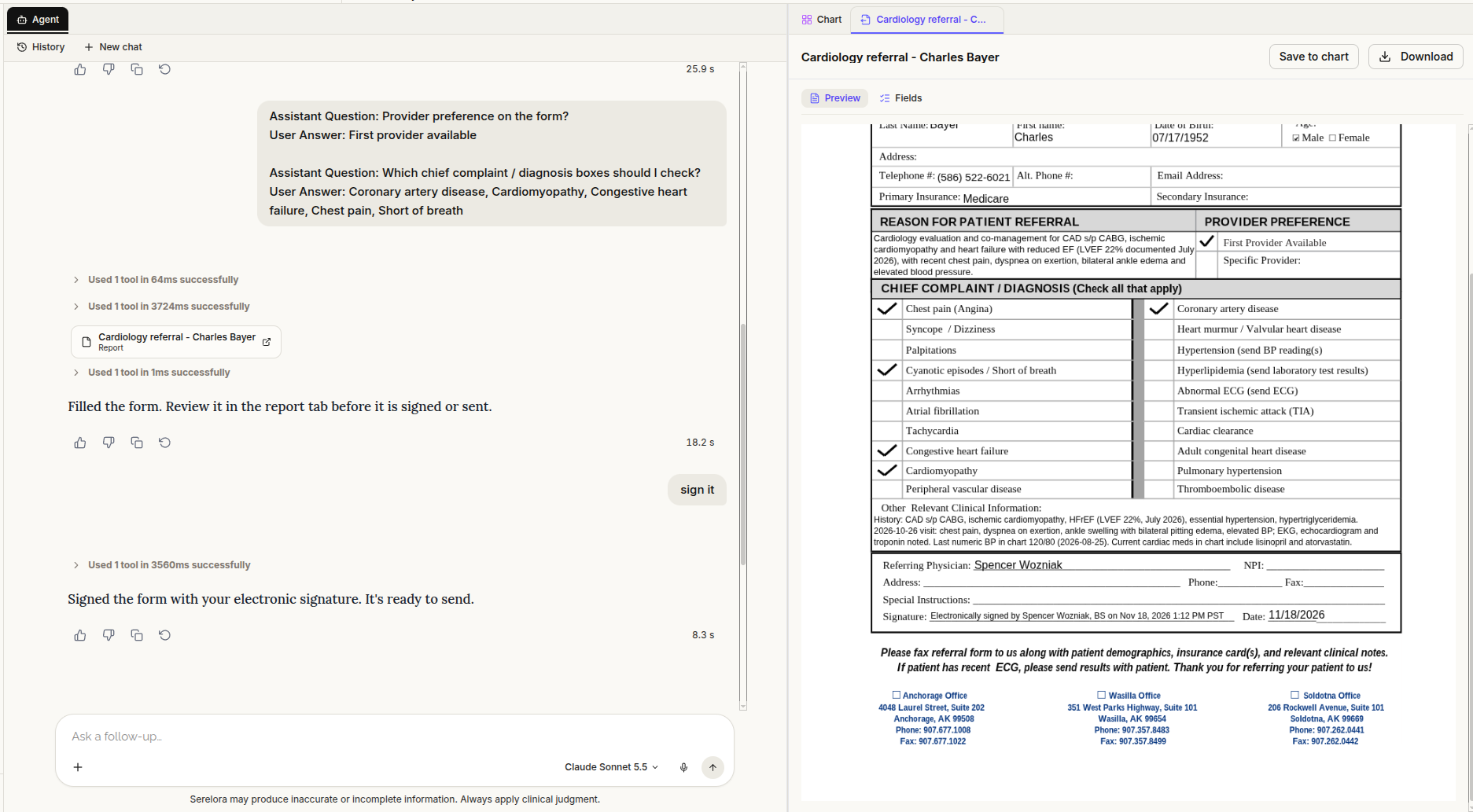
Ask the assistant to apply your signature
This release changes the form-signing workflow: a direct request in chat can now apply your electronic signature to a completed form.
Review the completed form before asking the assistant to “sign it” or “add my signature.” Signing uses the signed-in provider’s identity and requires order-signing permission. Instructions inside a form, saved skill, or another assistant workflow do not authorize a signature.
Sending remains a separate action—you must still click Send. There is currently no individual setting to disable signing by chat request.
The new assistant-signing and chart-entry proposal workflows still required validation in live use at release.
Scan identification and insurance cards into the patient record
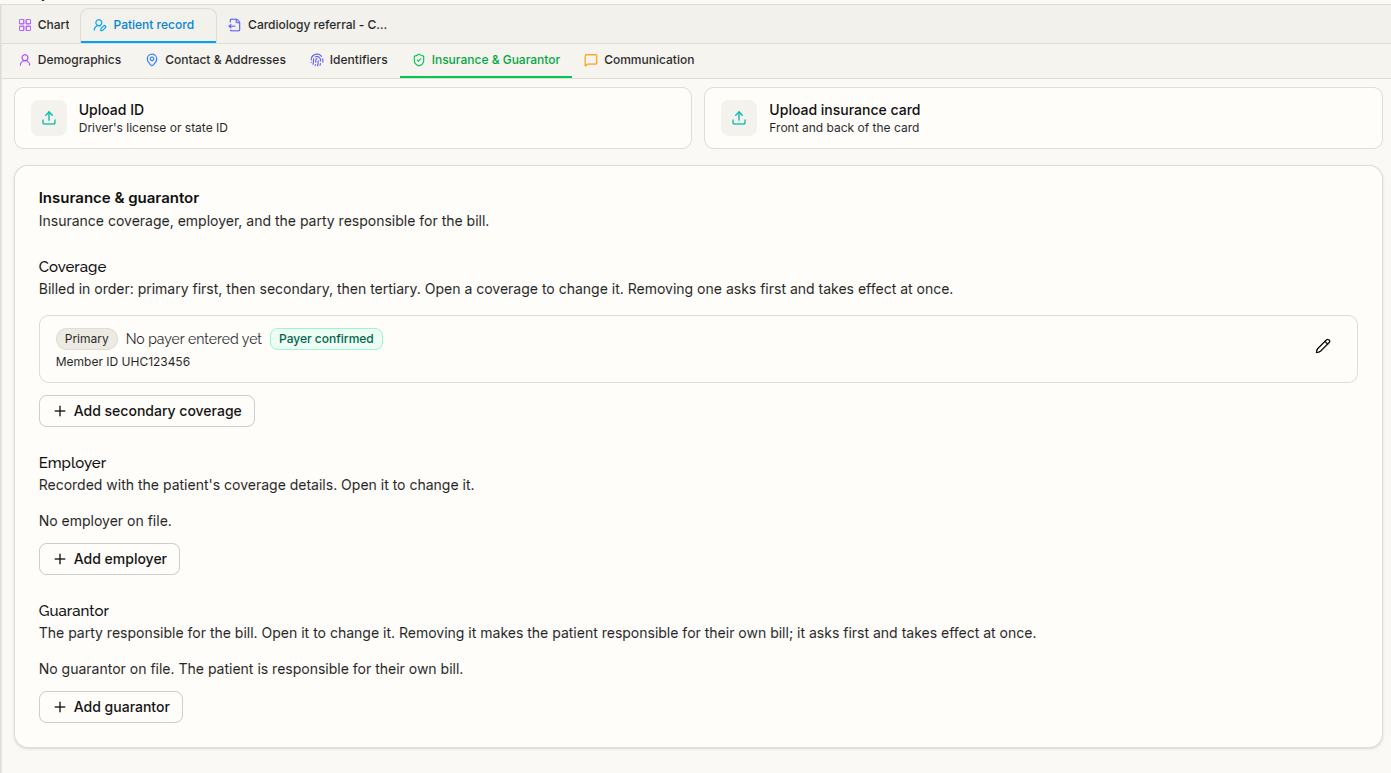
Authorized staff can now upload the front and back of an ID or insurance card from the patient record editor.
Review the extracted information field by field before confirming it. The uploaded image is filed in the patient’s Documents immediately, before you confirm the extracted fields. Confirming the fields and storing the image are separate steps.
Insurance coverage now appears as collapsed cards, with clear Add secondary coverage and Add tertiary coverage actions. New coverage defaults the subscriber to the patient.
Review eligibility results and prepare insurance claims
For clinics with the relevant insurance-billing services enabled, saving coverage now confirms the payer and opens an eligibility dialog. The check starts when you choose to run it.
After reviewing the response, Apply saves the plan name and group number only. Plan numbers and plan dates may be displayed but are not saved through this action.
The assistant can also read existing insurance claims and help create draft claims. Claim checking, attestation, and Submit remain actions performed by the user. Visit charges can be prepared as a claim from the visit’s Claim section, with a Ready to send? review panel.
Financial history is easier to reach through Billing → History and a Summary card with View all.
These changes remain subject to the clinic’s insurance-billing configuration and rollout. They do not establish general availability of live payer transactions.
Use clinic branding and a connected Gmail sender
Clinic-scoped emails now display the clinic’s logo when a suitable logo is configured.
Support has also been added for sending clinic email from a provider’s connected Google Workspace Gmail account, including reviewed assistant emails, invoices, and intake links. Automated notices sent on that provider’s behalf can use the same address.
Existing Gmail connections need to be reconnected to grant sending access. Account emails such as verification and password resets continue to use Serelora’s standard sender.
Sending through a connected Gmail account had not yet been verified with a real send at release. Confirm the connection before relying on the new sender behavior.
Review signed-note transcripts and edit document categories
A signed scribe note can now display its transcript with the same click-to-trace links available while the note was a draft. The signed note and transcript remain read-only.
Authorized staff can also edit a document’s category inline. Double-click the category in the Documents table or on a document or note tab, then press Enter to save.
Other improvements
- Integration setup: Connections open in closeable tabs within Integrations. A fix addresses failed Gmail and Google Drive connection attempts caused by the sign-in return flow.
- Staff lists: Email addresses now appear beneath names in Role Management and Manage Clinic.
- Clinical-status review: Bulk approval preserves decisions on rejected rows.
- Privacy: External images embedded in assistant, note, or document Markdown now display as descriptive text instead of automatically loading.