Search documentation
Find a documentation page by the words on it.
Documentation
Employer Reporting for DPCs
Step 1: Open the Practice Agent
Navigate to the Practice Agent in the Serelora platform to begin generating the employer report.
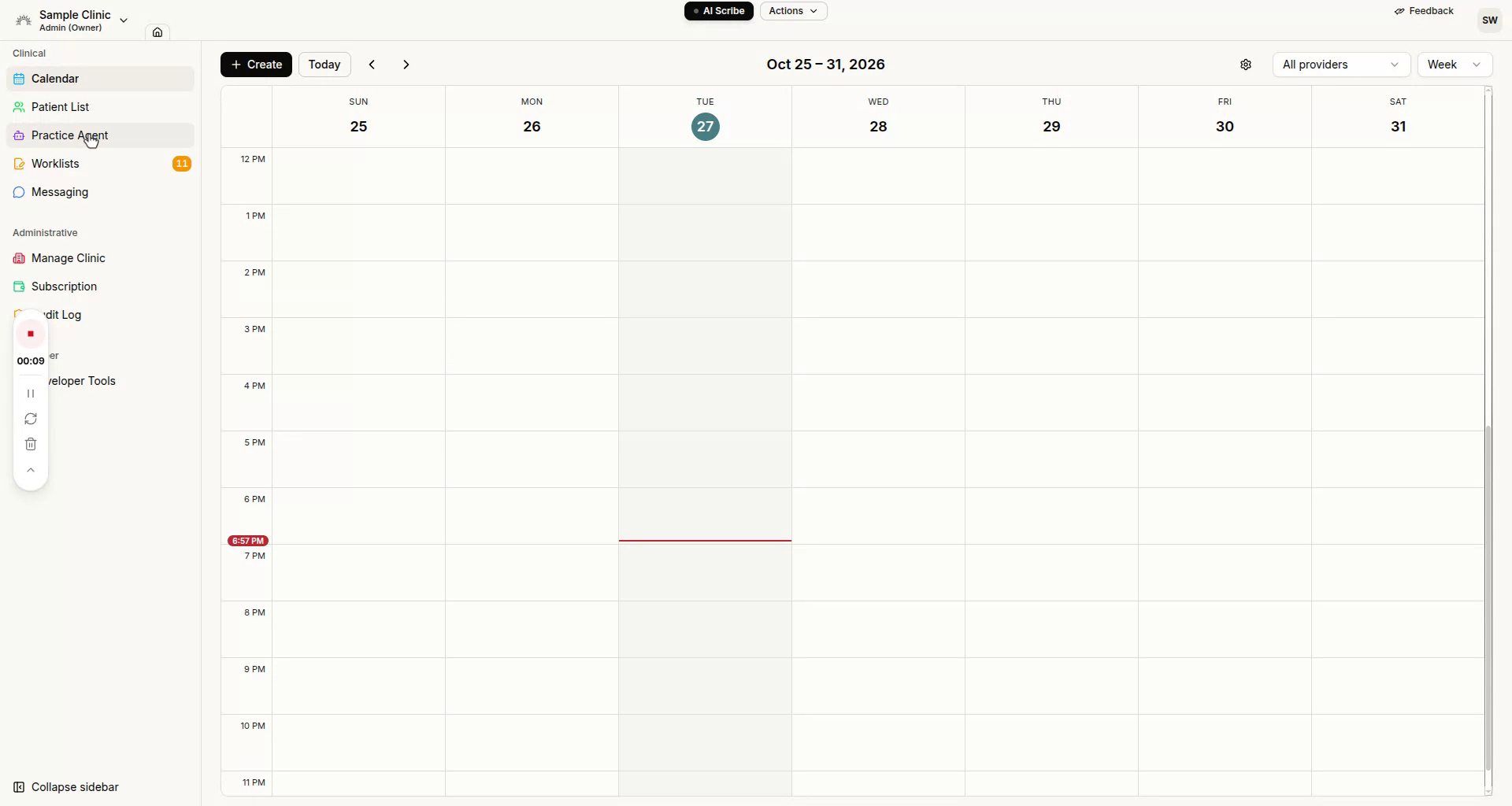
Step 2: Generate the Employer PDF Report
From the Practice Agent, select the option to generate a PDF report for an employer who is considering whether to renew with your DPC. Confirm that you want the system to create this employer report and allow the process to start.
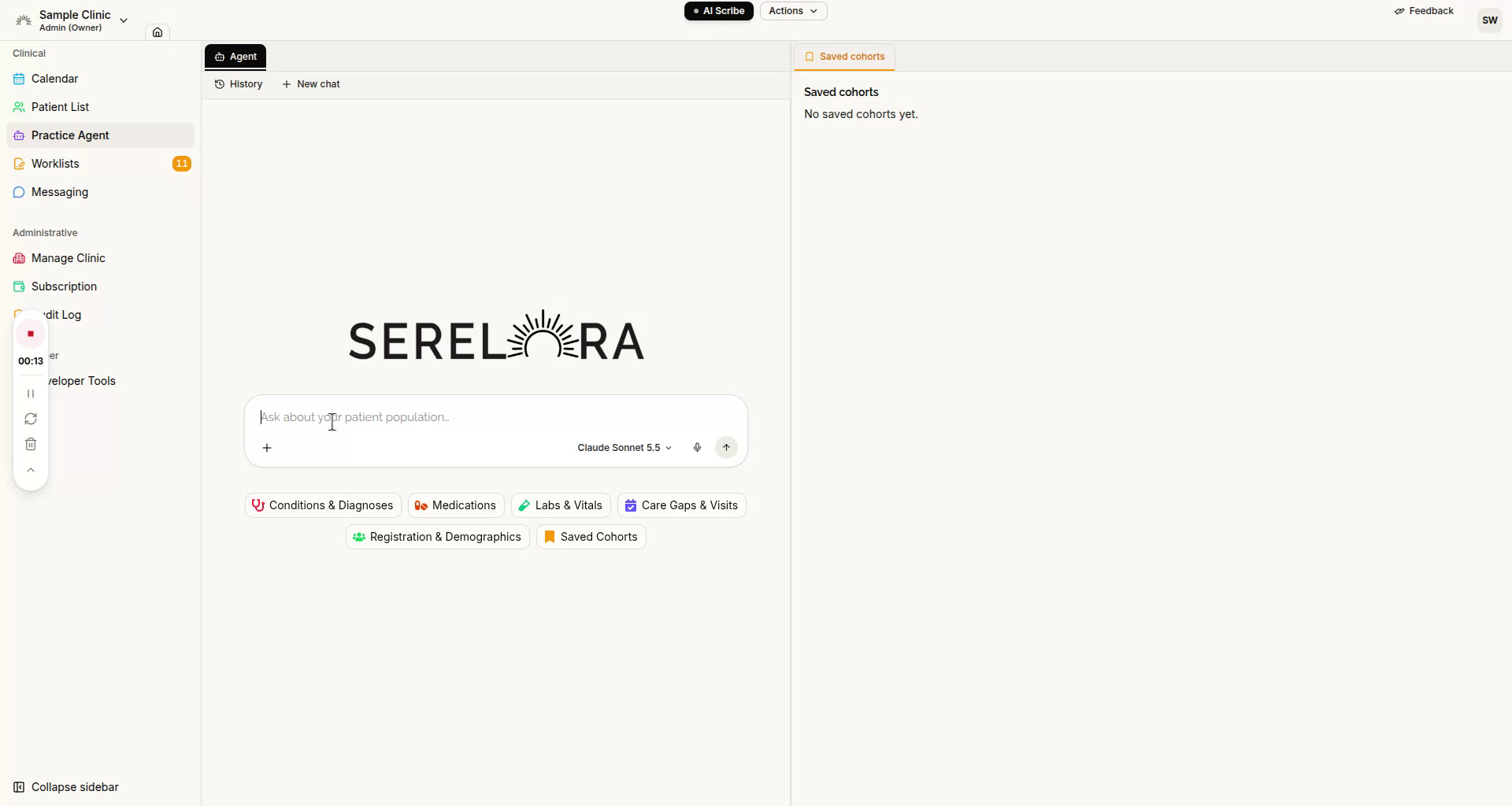
The system will then query your entire patient panel in the clinic and compile all relevant factors needed for the employer report.
Step 3: Increase Specificity of the Report
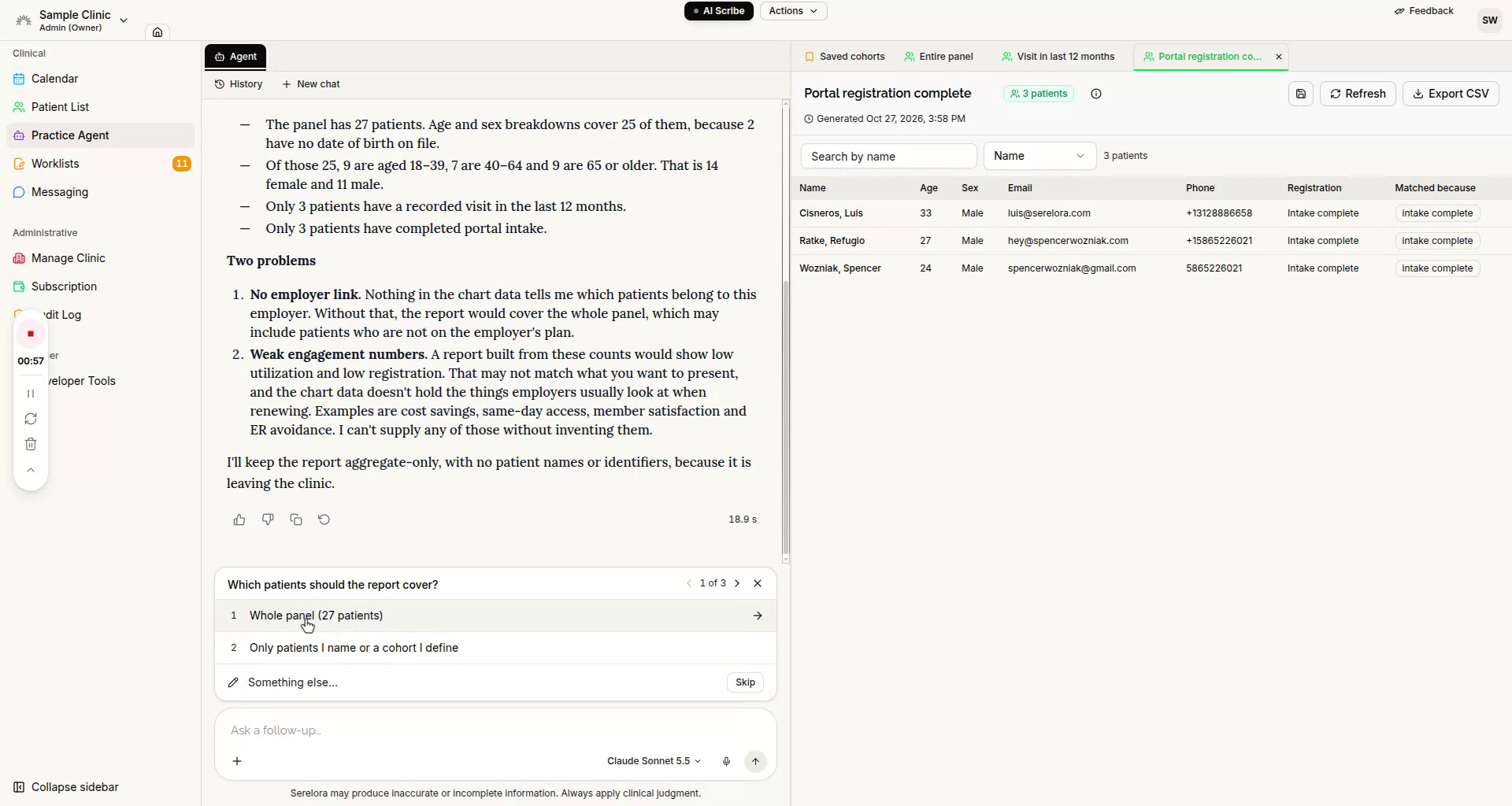
Answer any questions the agent asks you. For example, the agent may ask about which patients to include in the report:
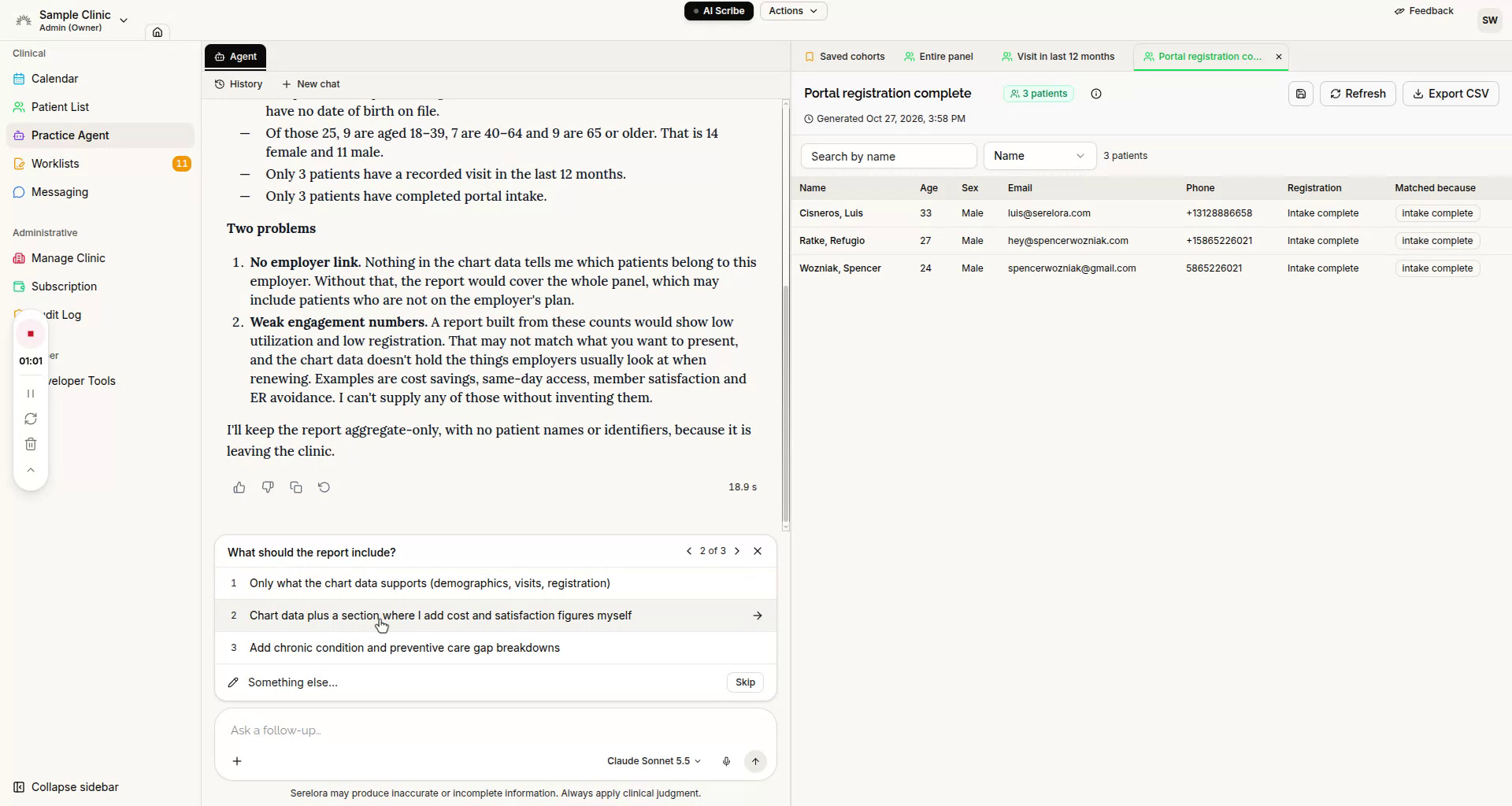
It may ask what kind of information you want in the report:
And the agent may ask about the time period you want for the report:
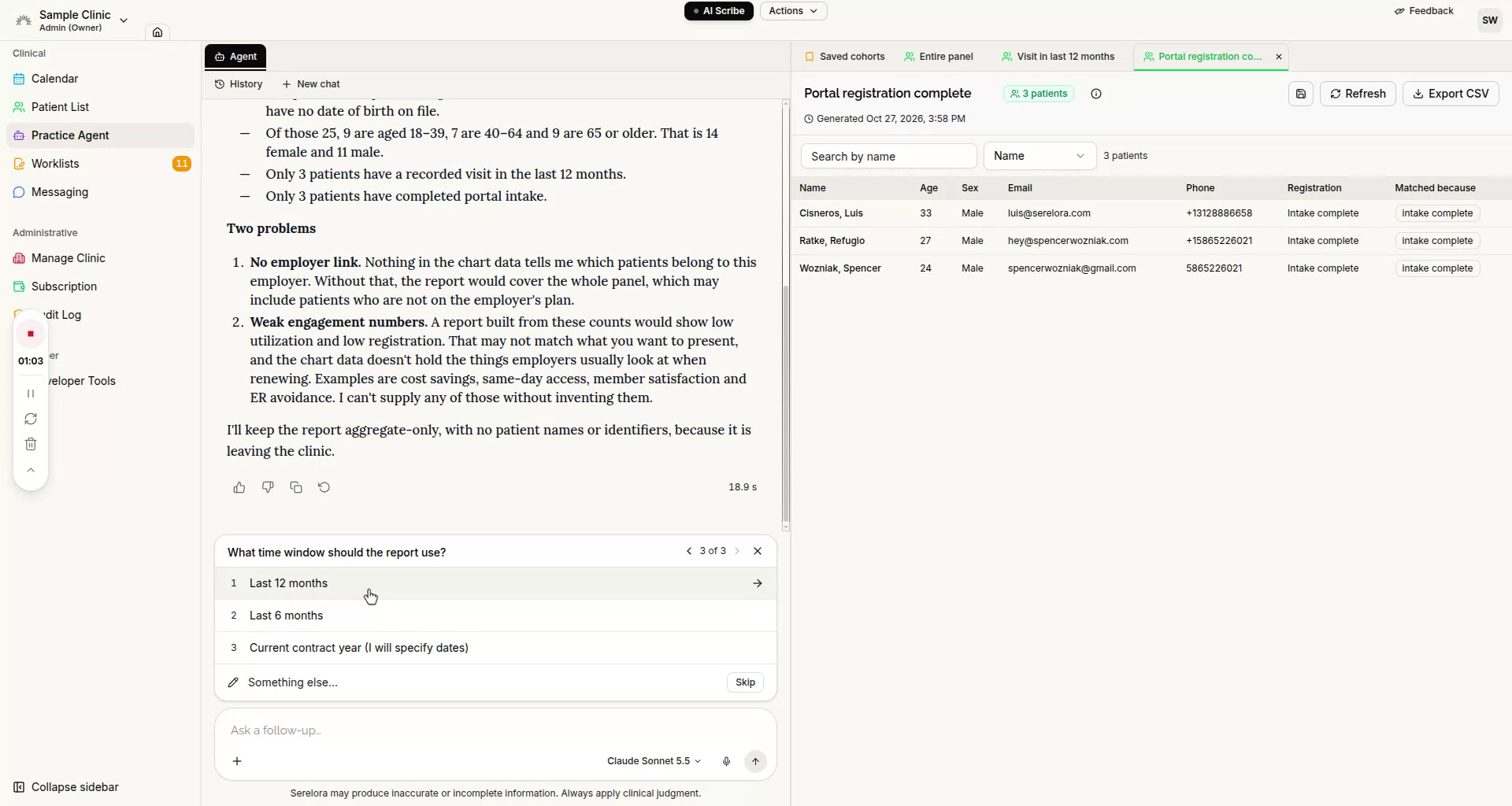
Answer any remaining questions the system presents, then allow it to continue processing and generating the structured PDF report.
Step 4: Review the Generated Employer Report
Once generated, review the PDF employer report. The example uses Serelora branding, but for your clinic this report can be white-labeled with your logo and brand guidelines.
In the report, you can typically see:
- Panel information at a glance
- Distribution details
- Care activity metrics
- Patient portal utilization
- Additional configured metrics specific to your clinic
The exact contents of the report are configurable on a per-clinic / per-provider basis.
Step 5: Download or Email the Report
You may download the report directly from the system for your records or offline sharing.
Alternatively, choose to email the report directly from Serelora.