Search documentation
Find a documentation page by the words on it.
Documentation
Patient Wellness Reporting
Step 1: Open the Patient Record
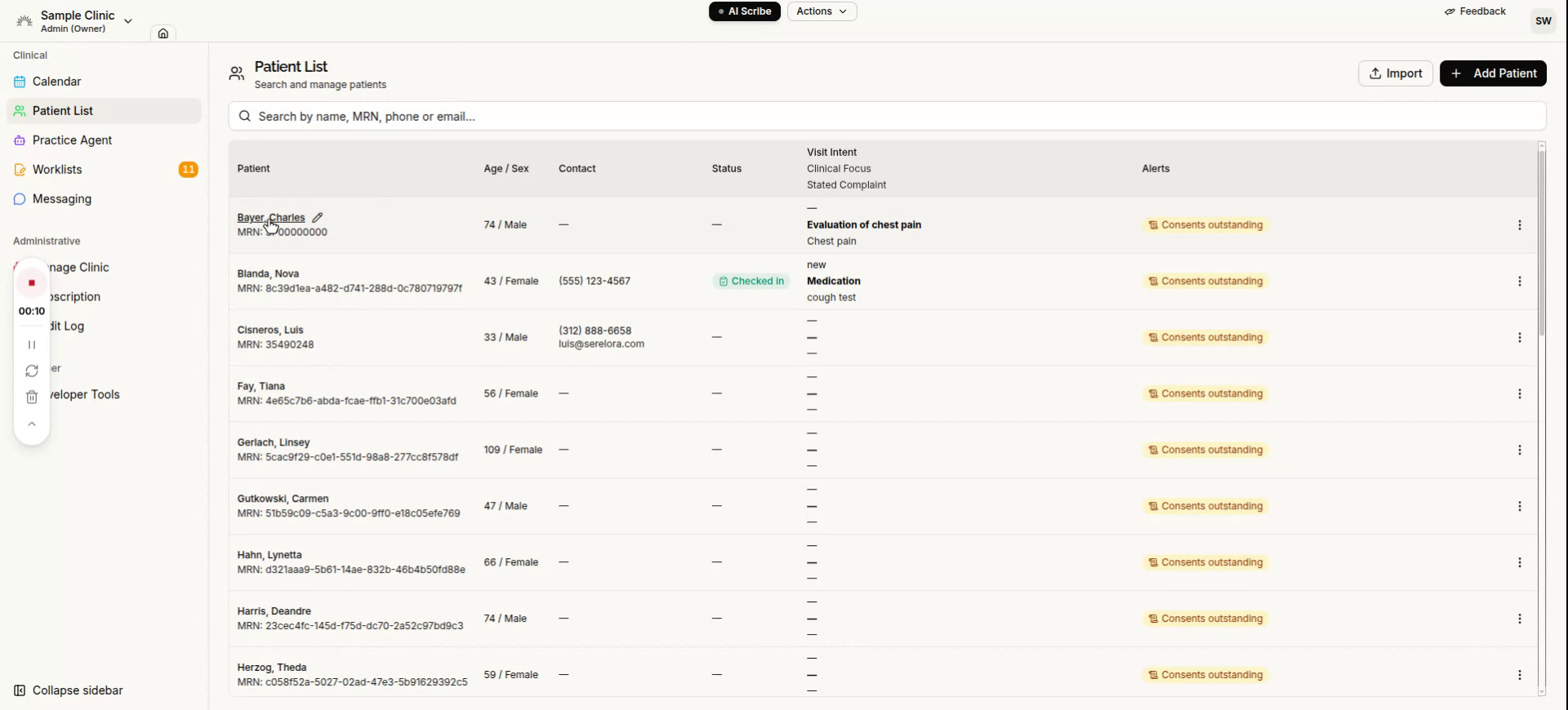
Navigate to your patient list and locate the patient for whom you want to generate a member wellness report.
Step 2: Instruct the Agent to Generate the Report
Within the patient’s record or associated workspace, instruct the agent to generate a PDF member wellness report for this patient.
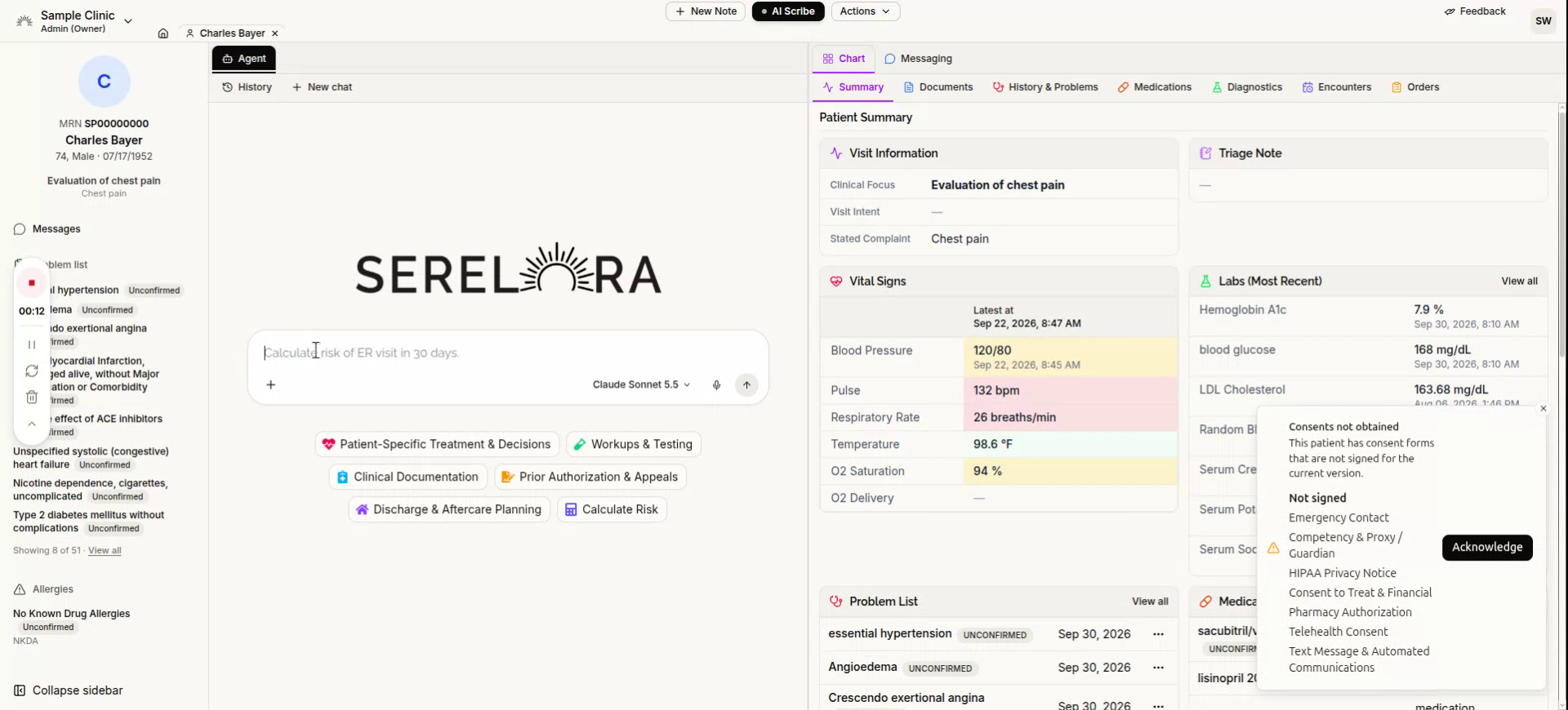
The agent will then begin working in the background. It will search through the patient’s chart and pull in all relevant data from intake forms, EHR pulls, HIE pulls, and any other configured integrations.
Step 3: Review the Report
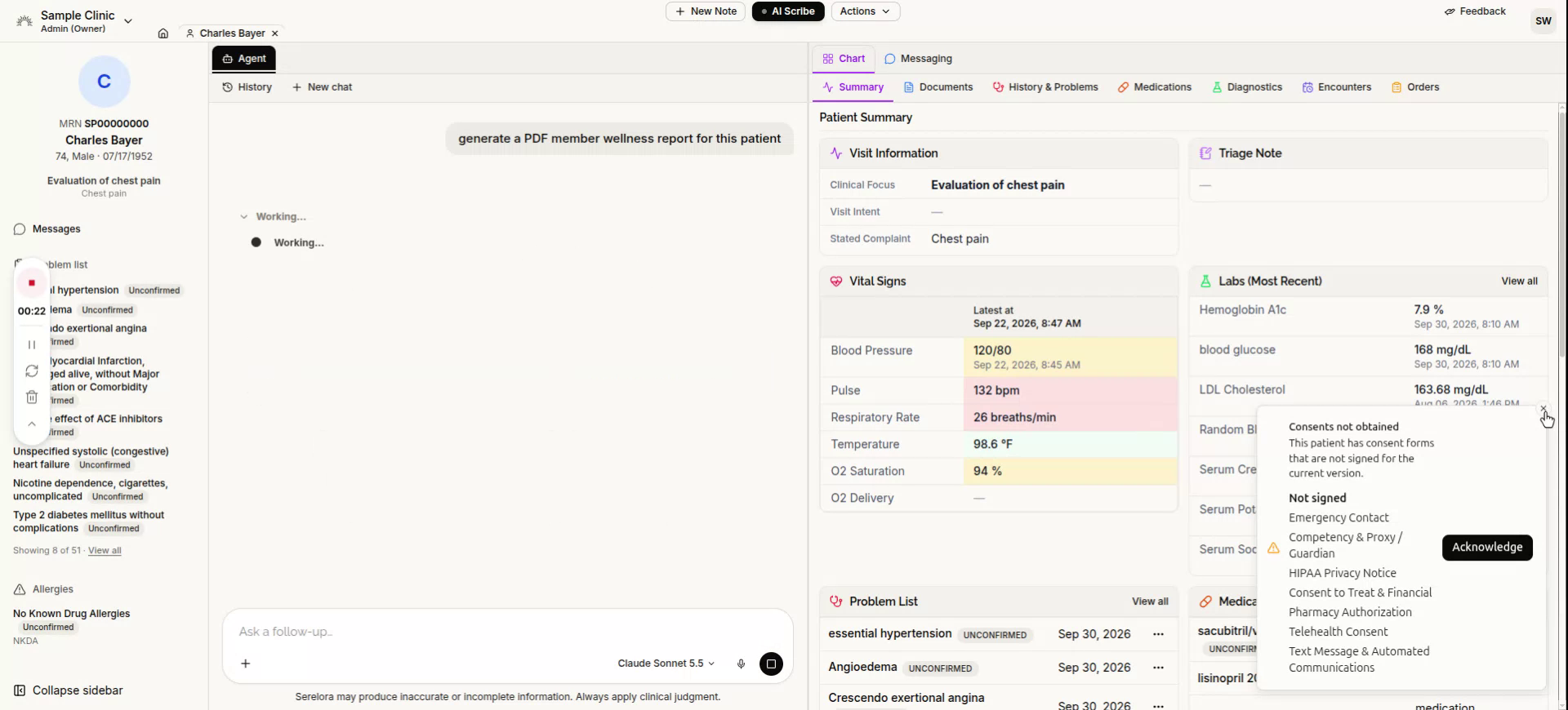
Once complete (typically in about a minute or less), the system will display a stylized member wellness report formatted according to your organization’s branding (logo, colors, and guidelines). The report will highlight key clinical details and wellness metrics that may be useful for sharing with an employer or other stakeholders.
Step 4: Save or Download the Report
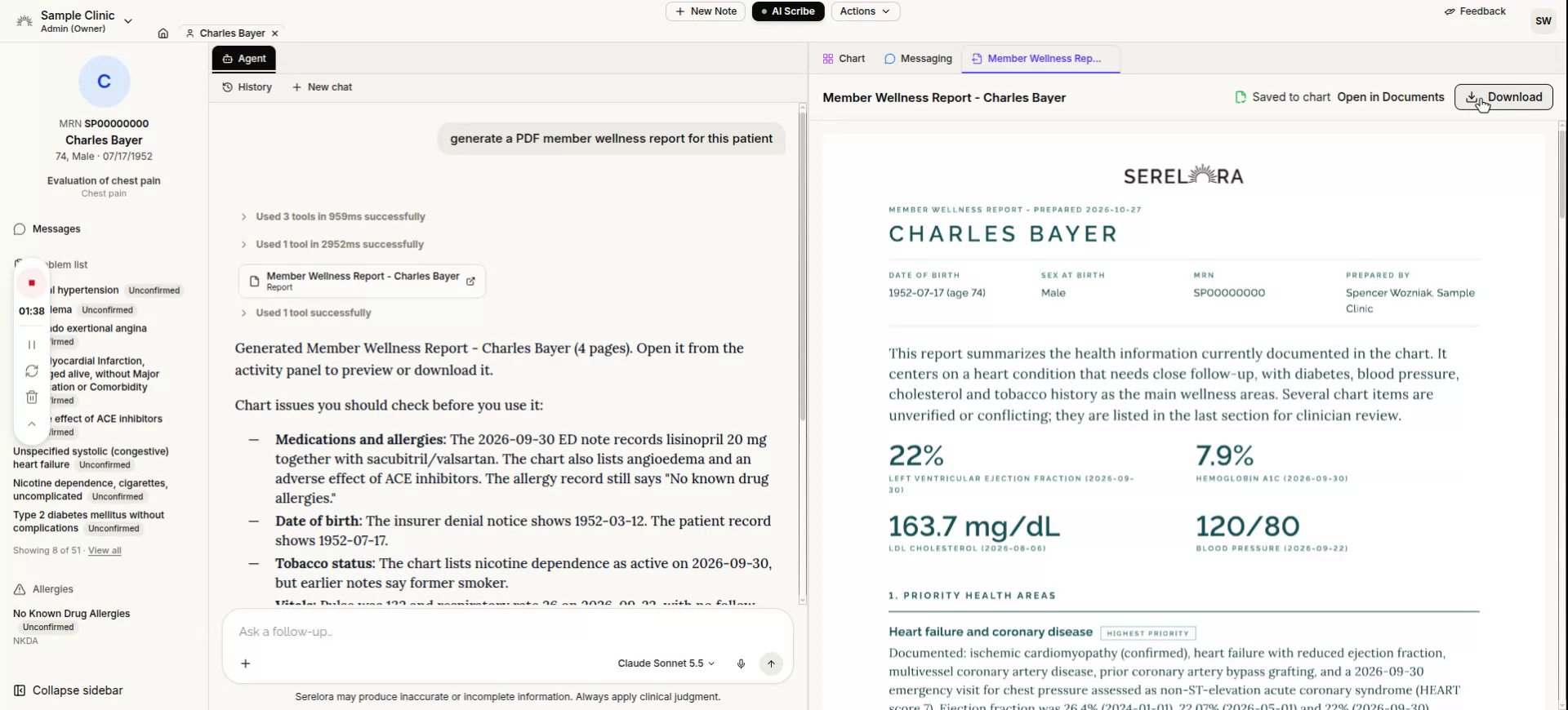
From the report view, you can save the member wellness report directly to the patient’s chart, or download the report as a PDF if you want a local copy or need to upload it to another system.
Step 5: Send the Report
If you wish to send the report via email (for example, to an employer or to the patient), tell the agent to email the report. Review the preview and then send the email. The system will process and dispatch the message, and the recipient will receive the member wellness report.
In addition to email, you can also send this report via eFax, text message, or secure messaging through the patient portal, depending on what channels are enabled for your organization.