Documentation
Approval Cards
When the assistant wants to send something or change a record, it prepares a card instead of doing it. You read the card, then approve it or cancel. Nothing is sent or saved until you approve.
How a card works
- The assistant prepares it. Its reply says the item is prepared, never sent. A chip for the card appears in the reply.
- You open the review. Select the chip. Most cards open a dialog. Chart entries and edits open in the Chart changes tab beside the chat, so you can keep chatting while you review.
- You check it. Some cards let you edit before you approve, such as the words of a secure message or the rows of a chart change.
- You approve or cancel. Approving commits the action under your own account and permissions, and it is recorded in the audit log. Cancel closes the card and changes nothing.
- The chip shows the outcome. For example a secure message reads Message sent or Not sent, and chart entries read Added to the chart, Partly added to the chart or Not added.
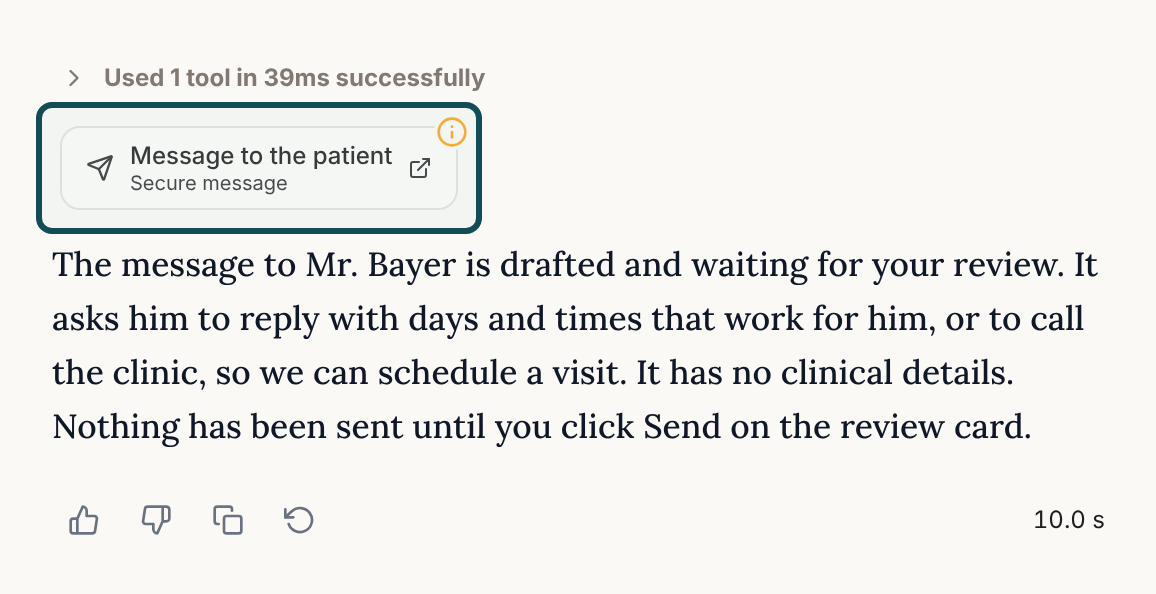
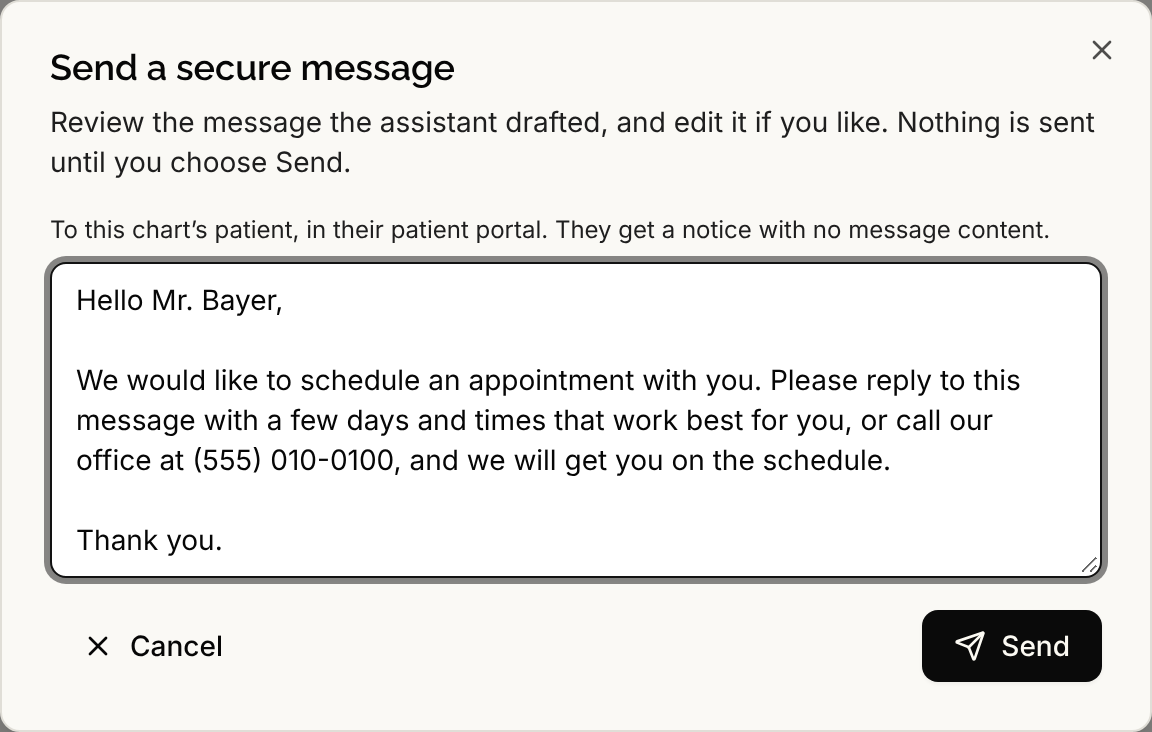
You can reopen a card from the chat later. A card you already decided opens read-only with its outcome, and cannot be run a second time. After you decide, the assistant may offer a suggested next step.
What needs approval
| Card | What you approve | Approve button | Default roles that can approve |
|---|---|---|---|
| Recipients, subject, body and attachments | Send, or Sign and Send for a form that needs your signature | All six roles | |
| Text message | The message to the patient's own number | Send | All six roles |
| Secure message | The message and any attached report or linked document | Send | Admin, Physician, Physician Assistant |
| Chart entries and edits | New entries and changes to existing ones | Add selected or Approve selected | Admin, Physician, Physician Assistant, Medical Assistant |
| Duplicate claims | Groups of claims to review for merging | Review in Manage Claims | Admin, Physician, Physician Assistant, Medical Assistant |
| Generate codes | A background job that adds codes to the chart's claims | Run | Admin, Physician, Physician Assistant, Medical Assistant |
| Patient record edits | Current and proposed values for each field | Approve | All six roles |
| Appointments | A booking, move or cancellation | Approve | All six roles |
| Skills | A new or changed skill | Approve and save | See Skills |
| Orders | The proposed orders, in the Review proposed orders window | Sign N orders or Save N drafts | Admin, Physician |
| Billing | Charges, an invoice, a payment or a payment link | Approve or Reject | Charges: Admin, Physician, Office Manager, Administrative Assistant. The rest: Admin, Office Manager |
| Intake campaign | A message to a cohort | Approve | Admin |
| Sub-agent run | A background review of a cohort | Approve | Admin |
Order and billing cards appear only in clinics that have orders or billing turned on. On a billing card, Reject records your decision to decline, while closing the card leaves it pending. See Ordering with the Chart Agent and Billing with the Chart Agent. The Practice Agent's cards are described in Intake Campaigns from a Cohort and Sub-Agents Across a Cohort.
If you do not hold the permission a card needs, the assistant is not offered that tool in your chats. Your clinic admin can see and change role permissions in Roles and Permissions. If your permissions change after a card was prepared, the card shows without its approve button, or with a notice in its place.
In the Serelora Provider phone app, you can approve a plan, but the other cards open on the web: the app shows a Continue on web card in their place.
What the assistant does without a card
A few actions happen straight away, and only when you ask for them in your own words:
- Saving a report to the chart. See Saving a Report to the Chart.
- Filing an attached file to the chart. See Attaching Files to a Chat.
- Signing a filled form as you. See Filling and Signing PDF Forms.
Filling a form, drafting a note and requesting a draft insurance claim also happen without a card, but each produces a draft that you review. A note is signed by you. A claim draft is only a draft, and submitting a claim to a payer stays your own click.
If something goes wrong
For the messages cards can show and what to do about them, see Agent Card Cannot Be Approved. Each card is recorded in the audit log. See What Is Recorded When You Use the Agents.
If an action fails, the assistant tells you it was unable to complete the request instead of saying it worked. Ask again, or open the card from the chat and retry. An email or text that was already sent cannot be sent again from its card. If Serelora cannot confirm whether a text went out, it does not send it again, and you should check with the patient before asking the assistant to prepare another.
Search documentation
Find a documentation page by the words on it.