Search documentation
Find a documentation page by the words on it.
Documentation
Starting a Visit from an Appointment
The Calendar is where the front desk sees who is expected, so it is also where a visit usually begins. From an appointment's card you can check the patient in, and when the provider is ready, start the visit.
This feature is controlled by the Encounters feature flag. If you do not see it in your clinic, contact Serelora at support@serelora.com and ask for it to be turned on.
Step 1: Open the appointment
Open the Calendar and select the appointment. The card shows the patient and provider names and the MRN. A Check in button and an Open chart button sit beneath them. Check in appears for appointments that are Booked, Pending or Arrived.
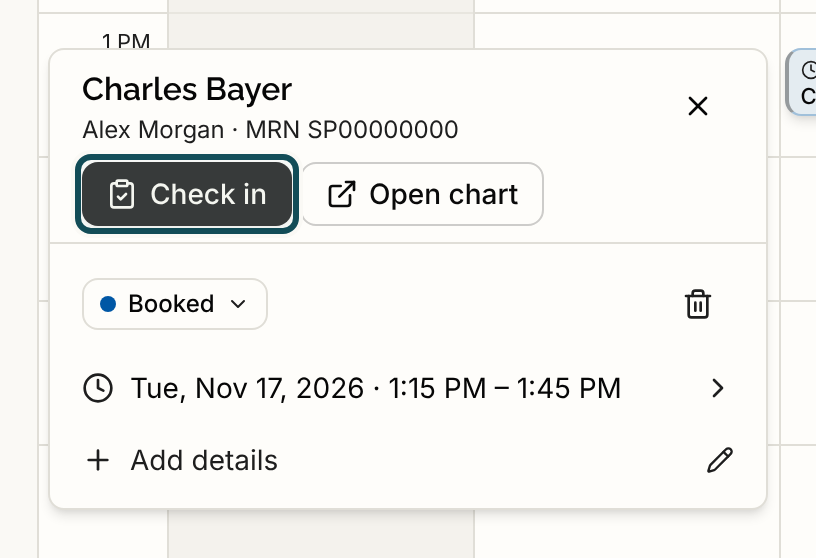
Step 2: Check the patient in
Select Check in. A dialog asks for the attending physician and the reason for visit. Fill it in and select Check in again. The details are in Checking a Patient In.
The appointment now reads Checked in. On the Calendar its block changes to show the patient is on site, and the card now offers Start visit.
Step 3: Start the visit when the provider is ready
Select the appointment again and select Start visit. The card closes and a message reads Encounter in progress. The block changes to In encounter, with a stethoscope in place of the clock, so the waiting room and the exam rooms can be told apart at a glance. See Starting a Visit.
Step 4: Let the visit finish the appointment
When the visit is finished from the chart, the appointment changes to Completed on its own. You do not set it by hand. See Finishing a Visit.
What happens if something goes wrong
- The patient checked in by mistake or never arrived. Use Undo check-in from the chart. A mistaken check-in reopens the appointment as Booked, and a no-show marks it No-show. See Undoing a Check-In.
- You need to change the appointment while the visit is open. The status is locked until the visit is finished or undone. You can still move the time or edit details.
- There is no appointment today. Use Start encounter from the chart instead. See Walk-In Visits.
If you do not see Check in on a Booked appointment, your clinic may not have visits turned on, or the patient may already have an open visit. See Cannot Check a Patient In.