Search documentation
Find a documentation page by the words on it.
Documentation
The Patient Chart at a Glance
Open a patient from the Patient List and Serelora shows their chart. This page is a map of the screen, so you know where to look before you start reading or editing.
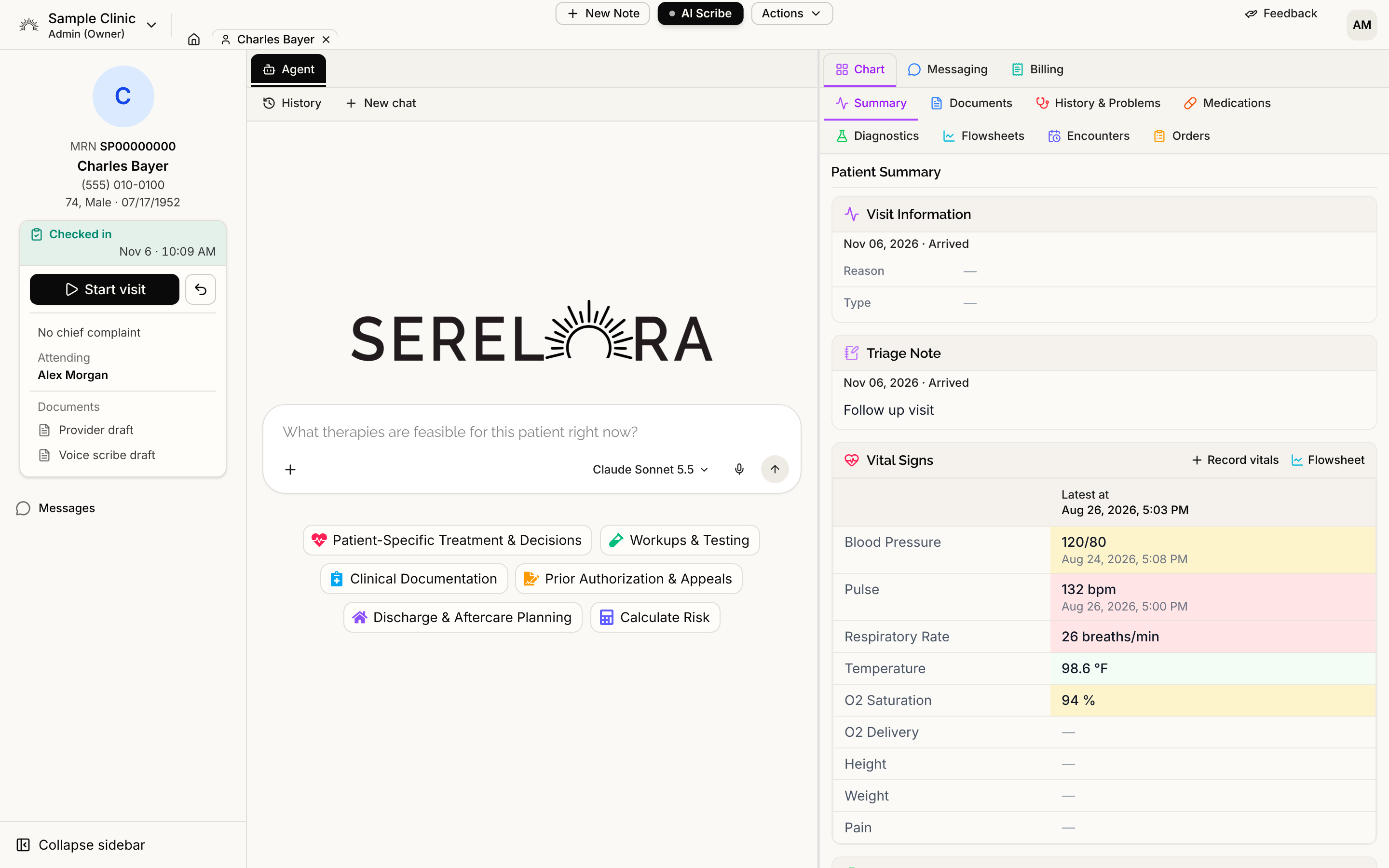
The two panes
A chart opens with two panes side by side. On the left is the Agent tab, where you chat with the chart agent about this patient. On the right are the workspace tabs: Chart, then Messaging if your role can use secure messaging, then Billing if your clinic uses billing. Documents, notes, claims and other things you open appear as extra tabs beside them.
You can drag these tabs to rearrange them. See Arranging Workspace Tabs.
The chart tabs
Inside the Chart tab is a second row of tabs:
- Summary shows the most important facts as cards. See The Summary Tab.
- Documents lists every file and note filed to the chart. See Documents.
- History & Problems holds problems, medical history, surgical history, family history and social history. See History and Problems.
- Medications lists what the patient takes. See Medications.
- Diagnostics has sub-tabs for Labs, Imaging, Microbiology, Genetics and Other. See Labs and Diagnostics and Microbiology, Genetics and Other Results.
- Flowsheets shows vital signs over time. See Vitals and Flowsheets.
- Encounters appears only if your clinic has Encounters turned on.
- Orders appears only if your clinic has Orders turned on and your role can read orders.
The sidebar and the header
The sidebar on the left shows the patient's name, MRN, age, sex and date of birth. Selecting that block (its label is Edit patient record) opens a Patient record tab where demographics are edited. If your clinic has Encounters turned on, a section for the current visit appears below it.
Along the top, New Note and AI Scribe start clinical work. The Actions menu holds the rest, such as Upload, Manage Claims and Send e-Intake Link. Which items you see depends on your role and your clinic's settings.
Searching and sorting
Each table tab has a search box at the top, such as Search medications…. Typing narrows the rows and highlights the matches.
Click a column heading to sort by it. The first click sorts ascending, the second descending, and the third returns to the default order. Sorting happens inside each section, so section headings stay where they are. The cards on the Summary tab do not sort.
If a tab says it could not load
A tab loads its rows when you open it. If a load fails you see a short message with a Retry link. Select it to try again.
Who can do what
Every role can read the chart. Adding, editing, confirming and deleting things needs permission to edit the chart, which Admin, Physician, Physician Assistant and Medical Assistant have by default. Office Manager and Administrative Assistant can read but not change clinical entries. When you do not have a permission, the button is simply not shown. See Why a Chart Button or Tab Is Missing.