Search documentation
Find a documentation page by the words on it.
Documentation
Appointment Statuses
Every appointment has a status that shows where it stands. The status sets the color of its block on the Calendar and decides what the patient is told. You see it as a badge in the appointment's card, and you change it from that badge's menu.
The statuses
| Status | What it means |
|---|---|
| Booked | The default for a new appointment. The patient is expecting to come. |
| Pending | Treated like Booked for patient messages and for checking in. |
| Proposed | An internal scheduling state. The patient gets no message about it, but it shows on their portal Appointments page with this label. |
| Waitlist | An internal scheduling state. The patient gets no message about it, but it shows on their portal Appointments page with this label. |
| Arrived | The patient is on site. The appointment can still be checked in. |
| Checked in | The patient has been checked in and a visit is open. |
| Completed | The visit took place. |
| Cancelled | The appointment will not happen. |
| No-show | The patient did not arrive. |
| Entered in error | The appointment was made by mistake. |
In encounter is not a separate status. It is how a Checked in appointment reads once a clinician has pressed Start visit.
How each status looks and behaves
- Cancelled and No-show stay on the Calendar with the time struck through. Entered in error is hidden from the Calendar, though the record is kept.
- Completed, Cancelled, No-show and Entered in error close the appointment out. A closed-out appointment cannot be checked in, and cannot be cancelled again. You can still move one back to Booked or Pending from the status menu.
- Proposed and Waitlist send the patient nothing. When one is moved to Booked or Pending, the patient's first message about it is the booking confirmation.
Changing a status
- Select the appointment on the Calendar.
- Select the status badge. It shows a small arrow.
- Choose the new status. Choosing Booked, Pending, Arrived and the other open statuses applies at once. Choosing Completed, Cancelled, No-show or Entered in error asks you to confirm first.
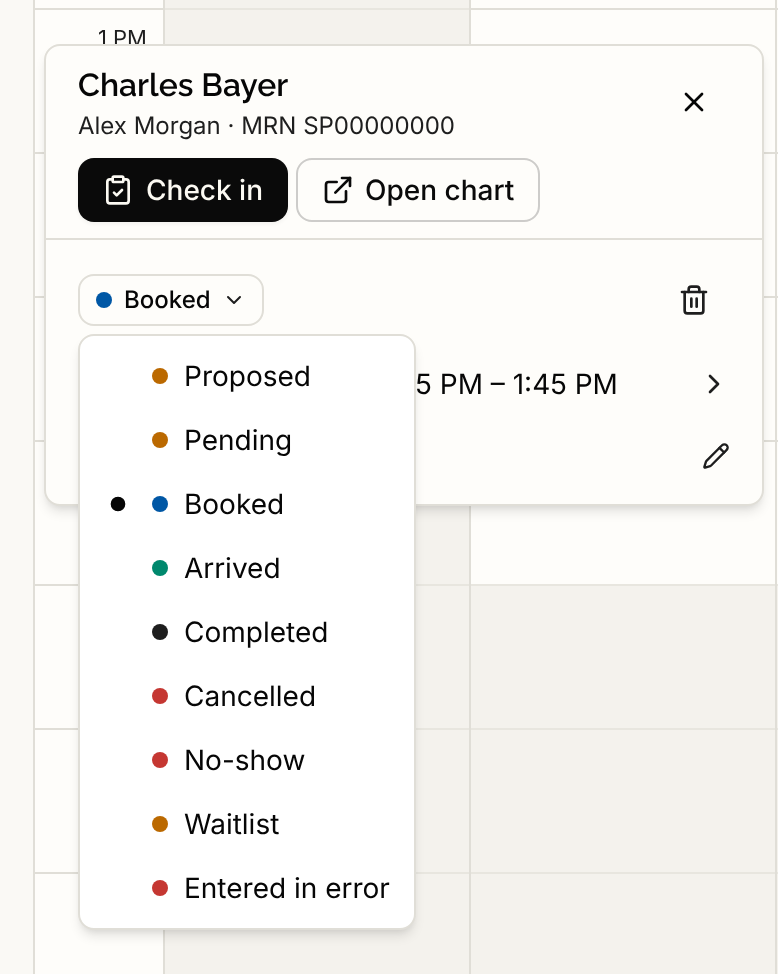
The status menu does not offer Checked in. An appointment becomes Checked in only through Check in, which also opens the visit. See Checking a Patient In. When the visit is finished, the appointment changes to Completed by itself. See Finishing a Visit.
While a visit is open, the appointment's status is locked and the badge has no menu. Use Undo check-in in the chart if the check-in was a mistake. See Undoing a Check-In.
For cancelling and moving appointments, see Rescheduling and Cancelling Appointments. For which statuses trigger patient messages, see Appointment Reminders.