Search documentation
Find a documentation page by the words on it.
Documentation
Working Hours
Your working hours are the times of the week you can be booked. Serelora uses them in two places. Your Calendar shades the hours outside them, and patients who book online can only choose times inside them. Each provider sets their own hours.
Step 1: Open Working hours
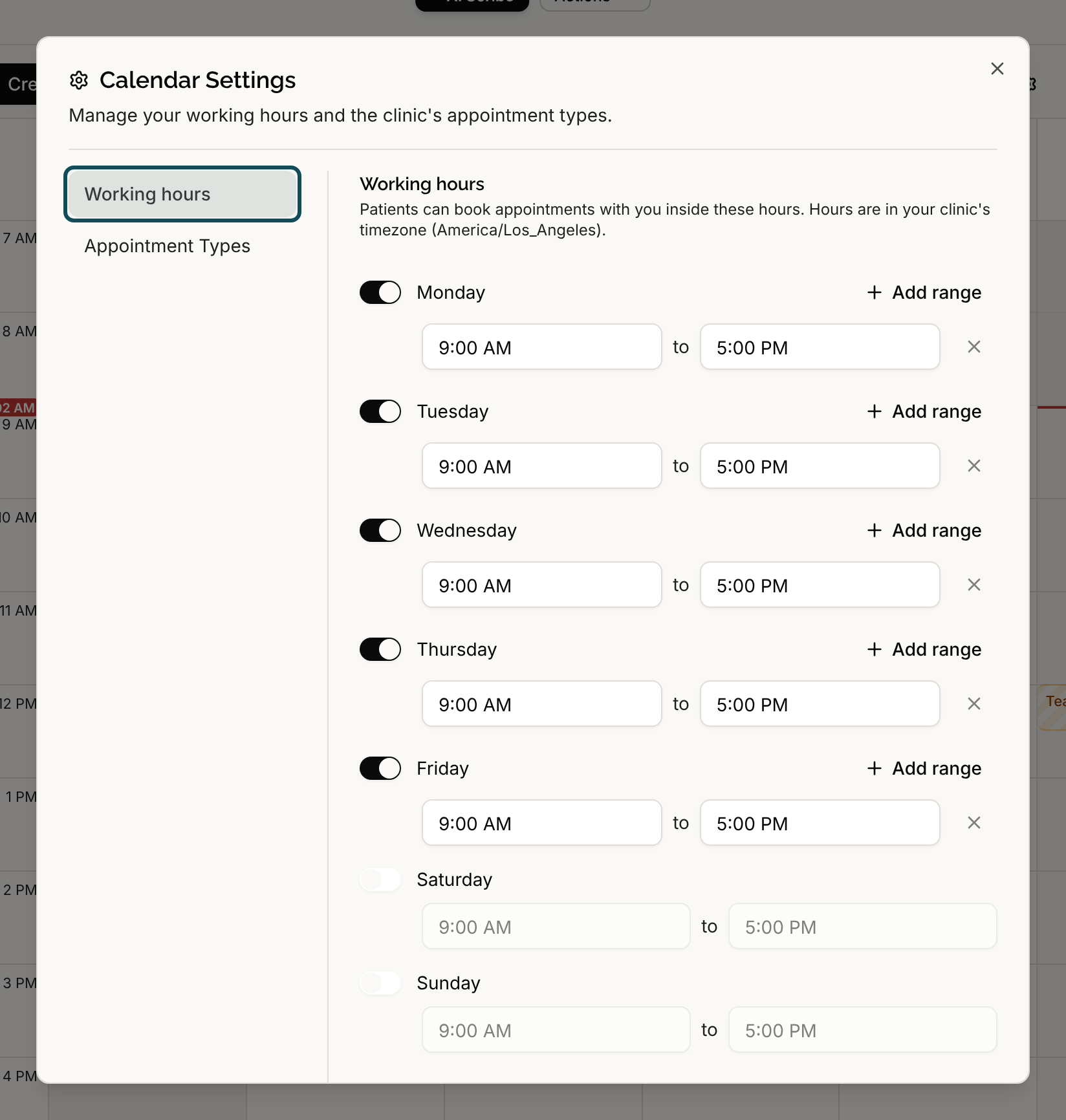
Open the Calendar and select the gear, Calendar settings. The Working hours tab opens first. It reads "Patients can book appointments with you inside these hours" and names your clinic's time zone, because hours are in the clinic's time zone.
Step 2: Set each day
Each weekday has its own row.
- Use the switch beside the day to turn it on or off. A day that is off has no hours.
- Set the start and end time of each range.
- Select Add range to add a second range to the same day, for example a morning and an afternoon. Select the X beside a range to remove it. A day's last range cannot be removed, so turn the day off instead.
If a range is not valid, the form tells you to fix the marked time ranges before saving.
Step 3: Save
Select Save changes. Your Calendar updates to shade the new hours.
Warnings on the form
A banner above the days tells you when patients cannot book you online:
- Every day is turned off. Patients cannot book you online until you turn on at least one day and save.
- These hours have not been saved. The hours shown are a starting point. Patients cannot book you online until you save.
- You have unsaved changes. Patients book against your saved hours until you save.
Good to know
- To be offered to patients for online booking, a provider also needs an NPI on file. A provider with saved hours but no NPI is not offered.
- The shading on the Calendar uses your own hours and appears only under My schedule. See The Calendar.
- Staff can still book appointments outside these hours from the Calendar. The hours guide patient booking and the Calendar shading.
See also Appointment Change Refused in the Portal for what patients see when a time is not offered.