Search documentation
Find a documentation page by the words on it.
Documentation
Roles and Permissions
Every person in a clinic holds one access role. The role decides what they can see and do in Serelora. Roles apply per clinic, so the same person can be an administrator at one clinic and a physician at another.
Do not confuse the access role with the Role job title (Physician, Nurse, Administrator, Other) in a person's profile. The job title describes them. Only the access role controls permissions.
The six roles
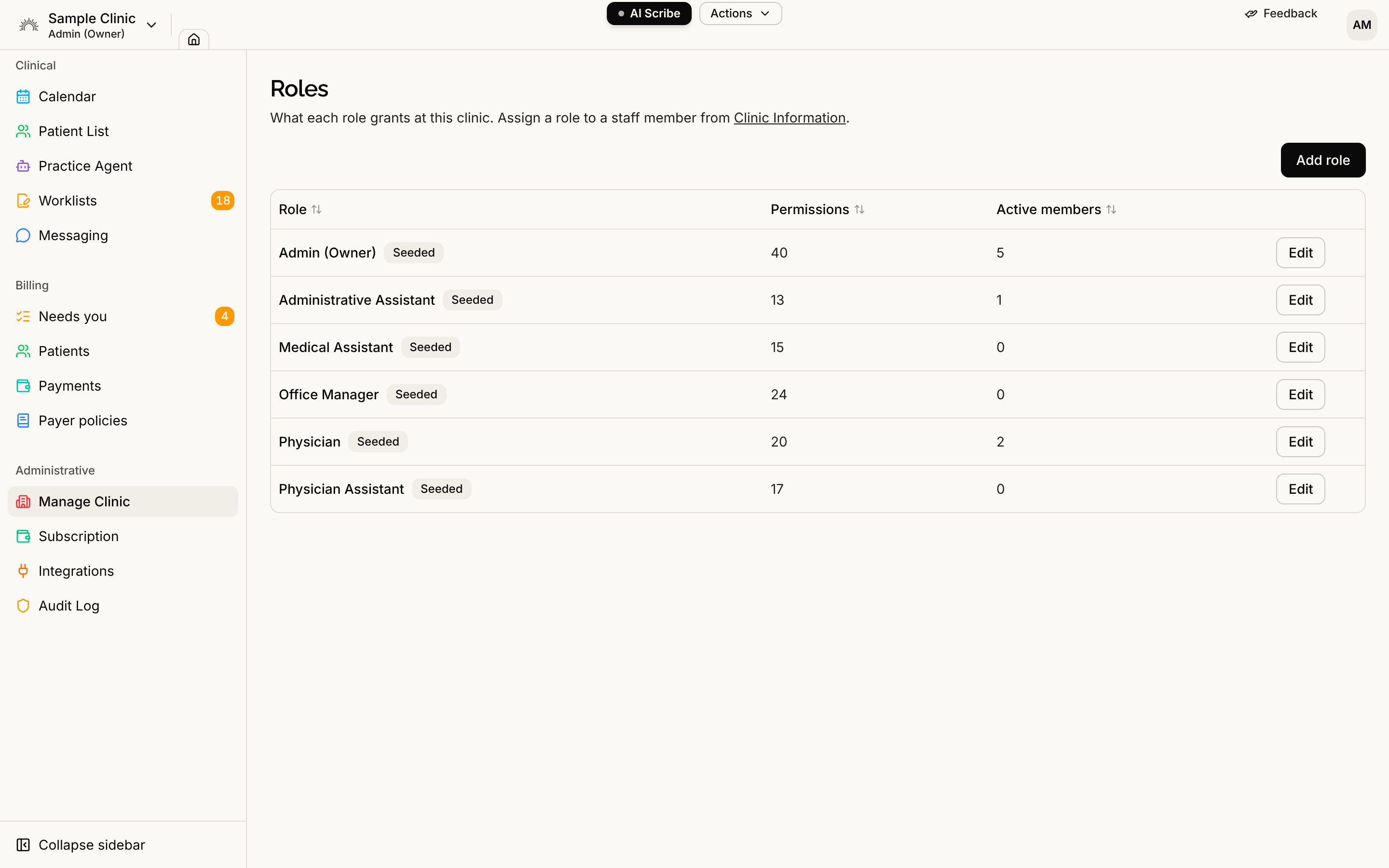
Every clinic starts with these six roles. You can rename them and change what they grant (see Custom Roles and Per-User Permissions).
- Admin (Owner). The widest access, including managing staff, roles, clinic settings, consent forms, the audit log, the clinic's Serelora subscription and merging or deleting patients. The person who sets up a clinic is its Admin.
- Physician. Edits the chart, signs notes, closes and voids visits, can be named attending physician, prescribes, captures charges, checks insurance eligibility and sends secure messages to patients. No clinic settings or staff management.
- Physician Assistant. Edits the chart and enters vitals, and sends secure messages. Notes are submitted for review rather than signed, and prescribing needs a co-signature.
- Medical Assistant. Edits the chart and enters vitals, and submits notes for review. No secure messages and no prescribing.
- Office Manager. The business side. Reads clinic settings, the staff roster, consent forms and the audit log. Handles charges, the fee catalog, invoices, insurance claims, payments and payers. Cannot edit the chart or sign notes.
- Administrative Assistant. Front desk. Schedules and checks patients in, edits demographics, records consent decisions, captures charges and checks insurance eligibility. Cannot edit the chart.
A new staff member starts as a Physician until you change it.
See and change roles
Select Manage Clinic, then Manage Staff. People whose role can view the staff roster, which is Admin and Office Manager, see an Access Role column. An Admin picks a different role from the dropdown on a person's row, and the change saves as soon as you pick it. Office Managers see the role as text.
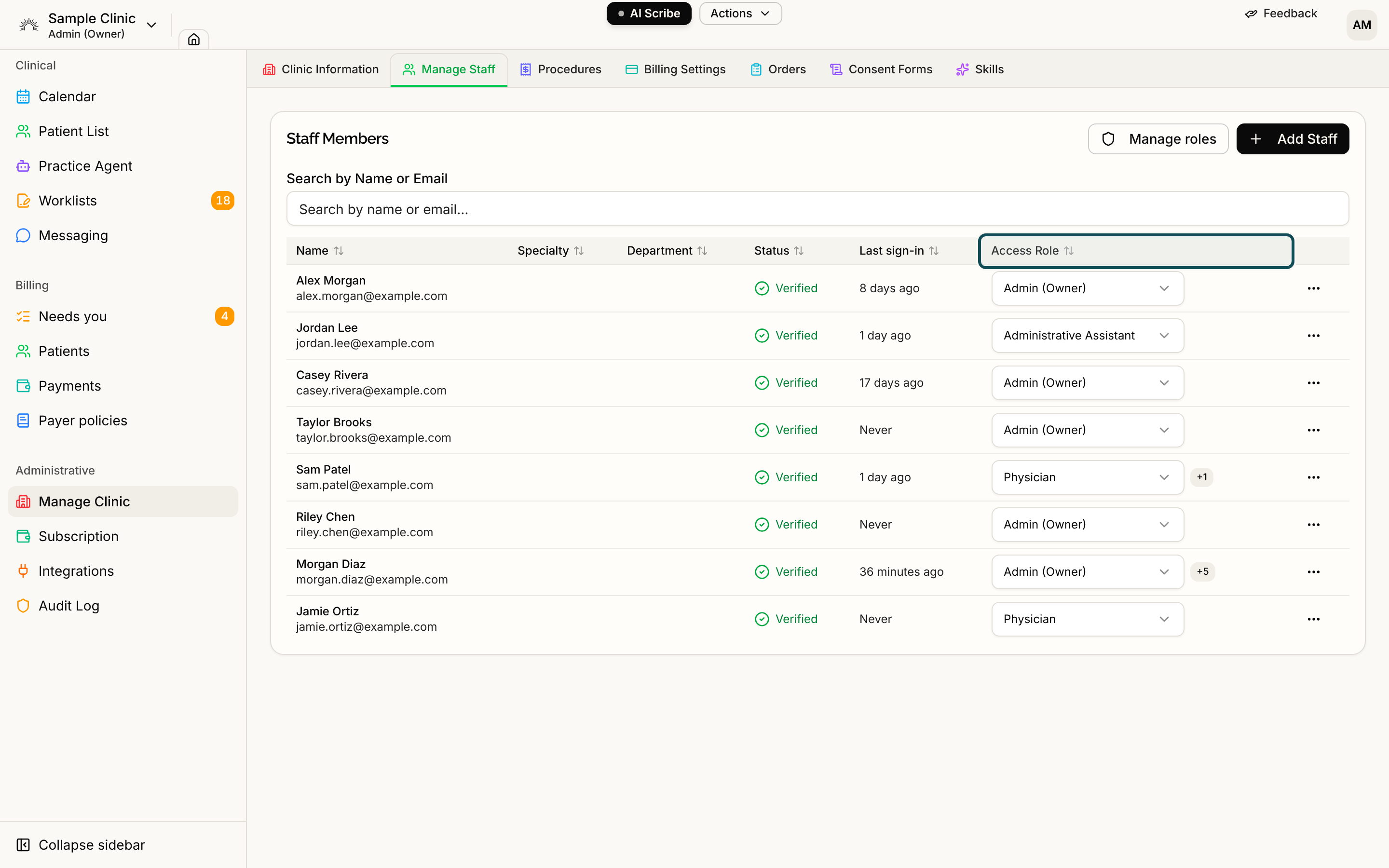
Select Manage roles above the table to open the Roles page. It lists each role, how many permissions it has and how many active members hold it.
Serelora keeps one administrator in place. If you try to demote the only one, it answers This is the clinic's only administrator. Give someone else administrator access first.
What each role can do
This table shows each role as Serelora delivers it. The permission names are the ones in the role editor on the Roles page. Permission Reference explains what each one lets someone do.
| Permission | Admin (Owner) | Physician | Physician Assistant | Medical Assistant | Office Manager | Administrative Assistant |
|---|---|---|---|---|---|---|
| Clinic settings | ||||||
| View clinic settings | Yes | Yes | ||||
| Edit clinic settings | Yes | |||||
| Staff & roles | ||||||
| View staff roster and roles | Yes | Yes | ||||
| Manage staff, roles, and overrides | Yes | |||||
| Audit trail | ||||||
| View the audit trail | Yes | Yes | ||||
| Consent forms | ||||||
| View consent forms | Yes | Yes | ||||
| Edit consent forms | Yes | |||||
| Record a patient's consent decision (paper or verbal) | Yes | Yes | Yes | Yes | Yes | Yes |
| Patient communication | ||||||
| Send patient communications | Yes | Yes | Yes | Yes | Yes | Yes |
| Send bulk patient messages | Yes | |||||
| Send secure messages to patients | Yes | Yes | Yes | |||
| Practice Agent | ||||||
| Use the Practice Agent to search the patient panel | Yes | |||||
| Export population cohorts to CSV | Yes | |||||
| Integrations | ||||||
| Connect and use your own Gmail, Google Drive and EHR accounts | Yes | Yes | Yes | Yes | Yes | Yes |
| Scheduling | ||||||
| View the schedule | Yes | Yes | Yes | Yes | Yes | Yes |
| Manage appointments | Yes | Yes | Yes | Yes | Yes | Yes |
| Visits | ||||||
| Check in and start visits | Yes | Yes | Yes | Yes | Yes | Yes |
| Close out visits | Yes | Yes | ||||
| Void visits | Yes | Yes | Yes | |||
| Serve as attending physician | Yes | Yes | ||||
| Demographics | ||||||
| View patient demographics | Yes | Yes | Yes | Yes | Yes | Yes |
| Edit patient demographics | Yes | Yes | Yes | Yes | Yes | Yes |
| Chart & vitals | ||||||
| View the chart | Yes | Yes | Yes | Yes | Yes | Yes |
| Edit the chart | Yes | Yes | Yes | Yes | ||
| Enter vitals | Yes | Yes | Yes | Yes | ||
| Notes | ||||||
| Sign notes | Yes | Yes | ||||
| Submit notes for review | Yes | Yes | ||||
| Prescribing | ||||||
| View prescriptions | Yes | Yes | Yes | Yes | Yes | Yes |
| Prescribe | Yes | Yes | ||||
| Prescribe (co-signature required) | Yes | |||||
| Billing | ||||||
| View billing | Yes | Yes | Yes | Yes | Yes | Yes |
| Capture charges | Yes | Yes | Yes | Yes | ||
| Edit the fee catalog | Yes | Yes | ||||
| Issue invoices | Yes | Yes | ||||
| Submit insurance claims | Yes | Yes | ||||
| Check insurance eligibility | Yes | Yes | Yes | Yes | ||
| Post payer payments | Yes | Yes | ||||
| Manage payers and payer policies | Yes | Yes | ||||
| Subscription | ||||||
| Manage the clinic's Serelora subscription | Yes | |||||
| Patient record | ||||||
| Delete a patient's data or clinic access | Yes | |||||
| Merge a duplicate patient into another chart | Yes | |||||
| Export a patient record (FHIR) | Yes | Yes | Yes | |||
| Manage a patient's claims | Yes | Yes | Yes | Yes | ||
| Review the clinic-wide duplicate-claims queue | ||||||
| Skills | ||||||
| Create and edit personal skills (they apply in this clinic's assistant only with this permission) | Yes | Yes | Yes | Yes | Yes | Yes |
| Manage the clinic's skills and hide platform skills for the clinic | Yes | |||||
| MCP servers | ||||||
| Add and manage their own MCP servers (the tools reach this clinic's assistant only with this permission) | Yes | Yes | Yes |
Notes on the table
- Reads are broad on purpose. Every role can view the schedule, patient demographics, the chart and billing. The few exceptions are shown above: clinic settings, the staff roster, consent forms and the audit trail are for Admin and Office Manager.
- A permission is not the only requirement. Some features, such as the Practice Agent and secure messaging, also have to be turned on for your clinic. A role that includes the permission still will not see the feature until your clinic has it.
- What a person sees without a permission. Serelora hides the button or tab. If they reach the action another way, Serelora answers You don't have permission to do that. If the feature is not on for the clinic, it says This feature isn't enabled for your clinic.
- Nobody holds the clinic-wide duplicate-claims queue by default. An administrator grants it to a role or a person when needed.
- Your clinic may differ. A clinic can change what its roles grant. The Roles page always shows the current setup for your clinic.