Search documentation
Find a documentation page by the words on it.
Documentation
Addenda
A signed note cannot be edited. When it needs a correction or something new, you add an addendum. The original text and its signature stay exactly as they were. The addendum is added below with its own number and its own signature.
Step 1: Open the signed note
In the patient's chart, open the Documents tab and select the signed note. It opens read-only, with a lock icon and the title Signed Note.
You can add an addendum to notes written in Serelora: ones you typed, ones the AI Scribe drafted and ones the chart agent wrote. Uploaded documents do not take addenda.
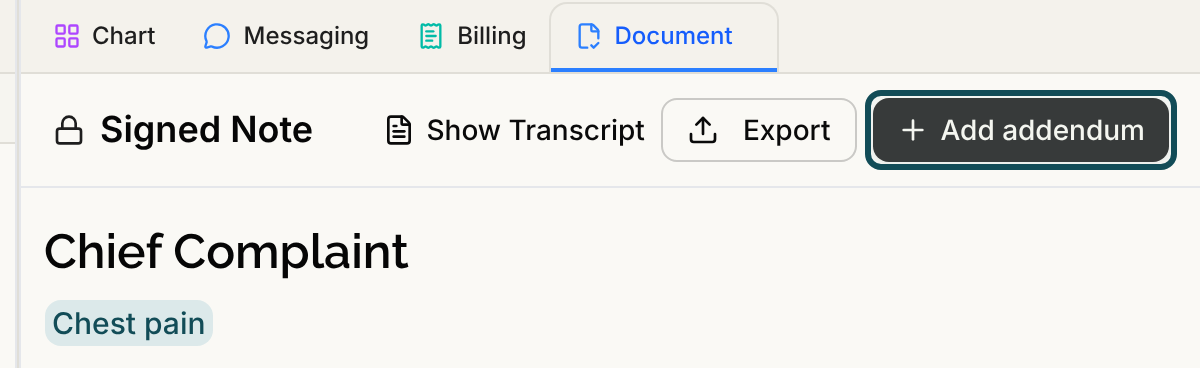
Step 2: Select Add addendum
Select Add addendum in the header. The button is hidden if you cannot edit the chart. If you already have an unsigned addendum draft on this note, the note opens straight into it.
The signed note stays on screen above a banner that says the signed content is locked and that corrections are added below as the next addendum. Type below it. The area is labeled Enter addendum content….
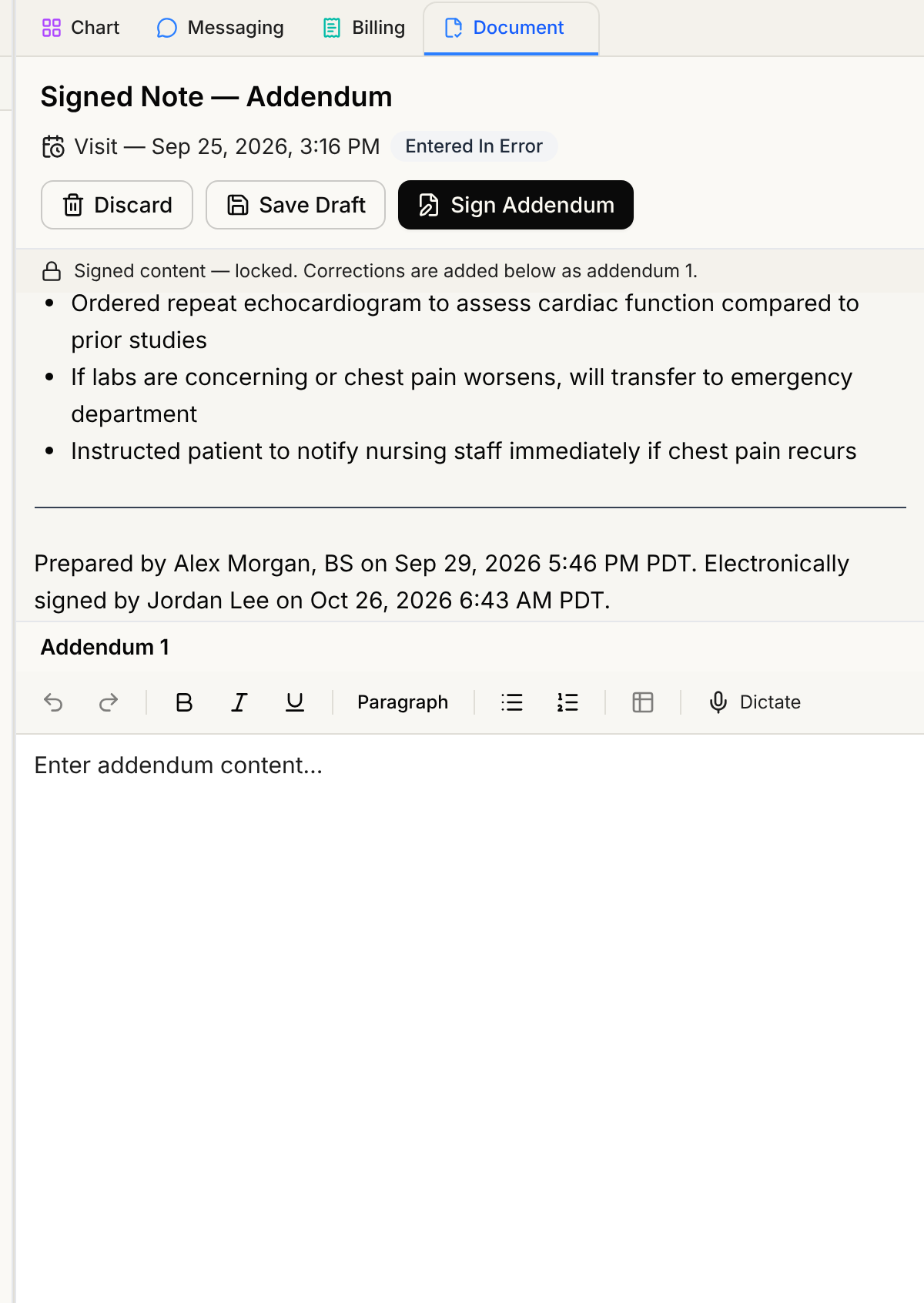
Serelora saves your addendum as a draft while you type. You can also select Save Draft. If you change your mind, select Discard. In the Discard addendum draft? dialog, select Discard draft. The signed note is not affected.
You can ask the chart agent to draft the addendum for you. See Writing Notes with the Chart Agent.
Step 3: Sign the addendum
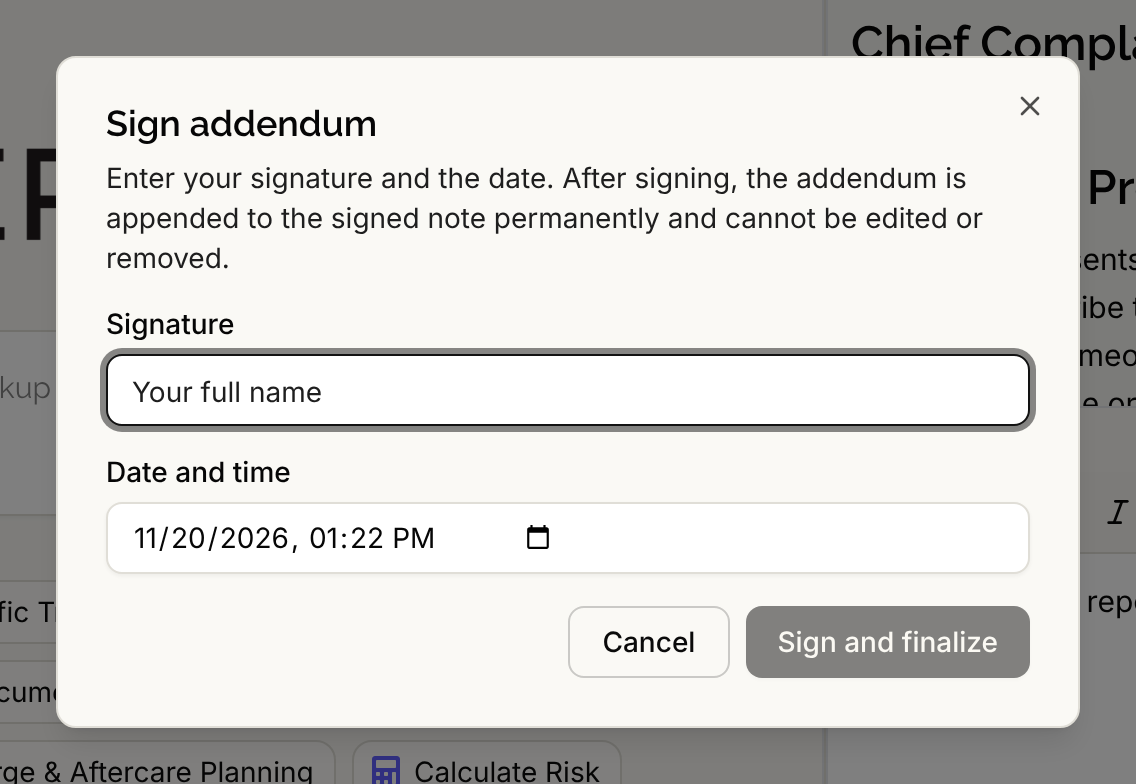
Select Sign Addendum. This button is for people who can sign notes, Admins and Physicians with the default roles. In the Sign addendum dialog, type your signature and select Sign and finalize. The dialog says the addendum is appended to the signed note permanently and cannot be edited or removed.
What the signed note looks like now
The note keeps its original text and signature. Below it, Serelora adds a heading Addendum 1, then your text, then a line "Electronically signed by" with your name and the date and time. The next addendum is Addendum 2, and so on. Each one carries its own signature.
The note's PDF is updated to include the addendum. If you download it very soon after signing, the download still includes the addendum. You may briefly see "This note's addendum is signed and part of the record. Its PDF and extracted claims are still processing and will appear shortly." The addendum is already part of the record. See Exporting a Signed Note as PDF.
Good to know
- Addenda do not go through co-signature. Only people with signing permission see Sign Addendum. See Co-Signing Notes.
- A draft addendum does not appear on The Sign Notes Worklist. Only draft notes do.
- Your addendum draft is yours. Another person who opens the signed note starts their own.
- Signing is permanent. Check the addendum before you select Sign and finalize.