Search documentation
Find a documentation page by the words on it.
Documentation
DICOMweb Imaging Archive
DICOMweb is the standard many imaging archives, known as a PACS or VNA, use to share studies. Serelora can connect read-only to your clinic's own archive so that the Imaging sub-tab in a patient's chart lists the studies the archive holds for that patient. Serelora does not store the images, and it does not show them.
This feature is controlled by the External imaging archive (DICOMweb) feature flag. If you do not see it in your clinic, contact Serelora at support@serelora.com and ask for it to be turned on.
This integration is not available to clinics yet. Serelora has built the connection, but it has not yet been tried against a real imaging archive, and the chart has no image viewer, so Serelora is not switching it on for clinics. If an imaging archive is important to your practice, tell Serelora at support@serelora.com.
What you need
Serelora sets this connection up for your clinic. There is no page for your staff to fill in. What your clinic provides, from the people who run its imaging archive:
- The archive's DICOMweb address. It must start with
https://and be reachable by Serelora's servers. Addresses on a private network, such aslocalhostor a192.168address, are refused. - A way for Serelora to sign in. Either a username and password (Basic) or a fixed access token (Bearer). Serelora stores it encrypted, and it is never shown again after it is saved.
- Patient IDs that match your MRNs. Serelora asks the archive for the studies whose Patient ID is the patient's medical record number (MRN) at your clinic. If your archive uses a different Patient ID, nothing will match.
- The Patient ID issuer, only if your archive needs one. Some archives scope Patient IDs to an assigning authority. Leave this out if yours does not.
Anyone who can read a patient's chart sees the studies. The connection adds no permission of its own.
Step 1: Gather the details
Ask your imaging vendor or IT contact for the DICOMweb address, the sign-in method and credential, and whether Patient IDs need an issuer. Confirm that the archive stores each patient's MRN as the Patient ID.
Step 2: Ask Serelora to connect the archive
Contact Serelora at support@serelora.com with the details. Serelora turns on the feature for your clinic, saves the address, the sign-in and the optional issuer, and runs Test connection, which reports Connected with the time the archive took to answer. Your staff do not need to do anything in Serelora for this step.
Step 3: Check the Integrations page
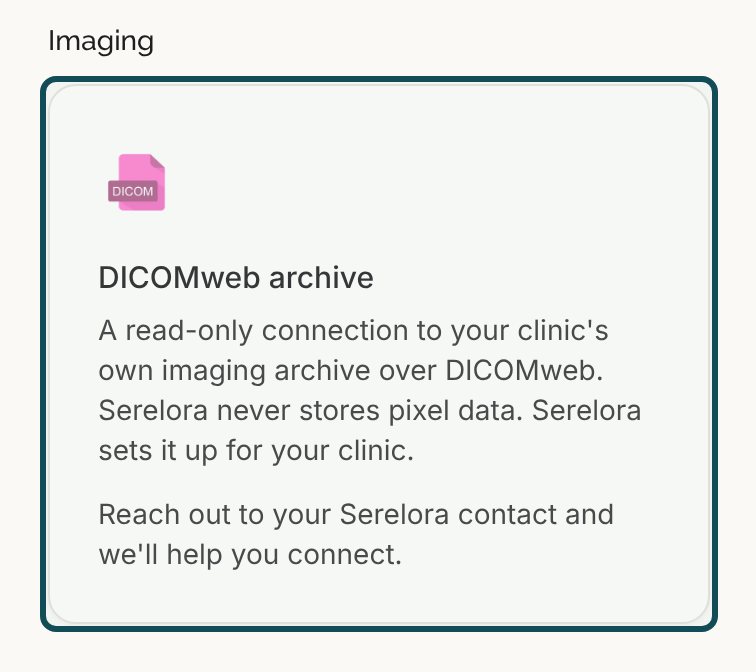
Select Integrations in the sidebar and find the DICOMweb archive tile under Imaging. It reads Enabled when the feature is on and the archive is active. Until then it says "Reach out to your Serelora contact and we'll help you connect." The tile has no settings and nothing to click.
Step 4: Open a patient's Imaging sub-tab
Open the patient's chart, select Diagnostics, then Imaging. Each time you open the sub-tab, Serelora quietly asks the archive for the patient's studies and adds any new ones to the table. This happens in the background, with no message if it fails.
Each study the archive lists appears as a row with the study's description (or "Imaging study" when it has none), its Modality and its Date, and "No report" as the Impression. Body site shows a dash. If the patient also has an imaging report from an uploaded document, the report row stays as it was and the same study is not listed twice. See Imaging.
What you can do with a study
Very little, for now. A study row cannot be opened or edited, its Open report button stays dimmed and it has no row menu, because there is no report behind it. To look at the images, use your imaging system.
What data moves
- Sent to your archive: a request for the studies whose Patient ID is the patient's MRN, using the sign-in you provided. No other patient details are sent in the request.
- Received: for each study, its identifier, date, modalities, description, how many series and images it holds, and the patient name and birth date the archive has on file.
- Stored in Serelora: one row for each study, with that list information and the archive's address. Not the images.
- Compared, not shown: Serelora compares the archive's patient name and birth date with the chart on the server and keeps a mismatch flag, but the Imaging sub-tab does not show it. A study is matched by MRN alone, so check anything important in your imaging system.
- Recorded in the audit trail: each time Serelora lists a patient's studies from the archive.
Turn it off or change it
Ask Serelora to change the address or the sign-in, or to turn the connection off. Turning it off stops Serelora from asking the archive for studies. Studies Serelora already listed stay in the Imaging sub-tab.
If it does not work
- No studies appear. The sub-tab shows nothing if the archive has no studies for that MRN, if the connection is off or not active, or if the archive cannot be reached. It does not show a message, so ask Serelora to run Test connection.
- "Patient has no MRN at your active clinic." The sync needs an MRN. Add one in the Patient record tab. A blank MRN counts as none.
- A study you expect is missing. Check that the archive's Patient ID for that patient is exactly the MRN in Serelora.
What it does not do
- It does not show images. There is no viewer in the chart, and Serelora never stores pixel data.
- It does not write to your archive. The connection is read-only.
- It does not match by name or birth date. It searches by MRN only.
- It does not sign in to archives that use OAuth. Only a username and password, or a fixed token, are supported.
- It has not been tried against a real archive yet, which is why it is not switched on for clinics.