Search documentation
Find a documentation page by the words on it.
Documentation
Choosing and Connecting Integrations
The Integrations tab lists everything Serelora connects to. Not every tile is something you can connect today, so start from the job you need done, find the tile for it, and see who sets it up.
What you need
Every role can open Integrations. Connecting some tiles needs a particular role or a feature Serelora turns on for your clinic, and each row below says which.
Step 1: Match the job to a tile
| You want to | Tile | Who sets it up |
|---|---|---|
| Move patients from another system | Office Ally, NextGen Office, Raw Spreadsheet, Raw FHIR | Anyone signed in opens the importer. See Importing Patients |
| Take card payments from patients | Stripe | An Admin or Office Manager, with Billing turned on. See Connecting Stripe |
| Send clinic email from your own address | Gmail | Each person, for themselves, with a Google Workspace account. See Gmail and Google Drive Connections |
| Pull a patient's outside records | Abstractive Health or Metriport | Serelora sets which provider your clinic uses, and turns HIE Pull on. For Abstractive Health a clinic Admin enters the clinic's own credentials. See HIE Pull and Abstractive Health Connection |
| Add your own tool server to the assistant | MCP connections | Serelora provides some, and people with permission connect their own where the feature is on. See MCP Connections |
| Open studies from your clinic's imaging archive | DICOMweb archive | Serelora sets it up for your clinic, and it is a read-only connection |
Step 2: Read the tile's status
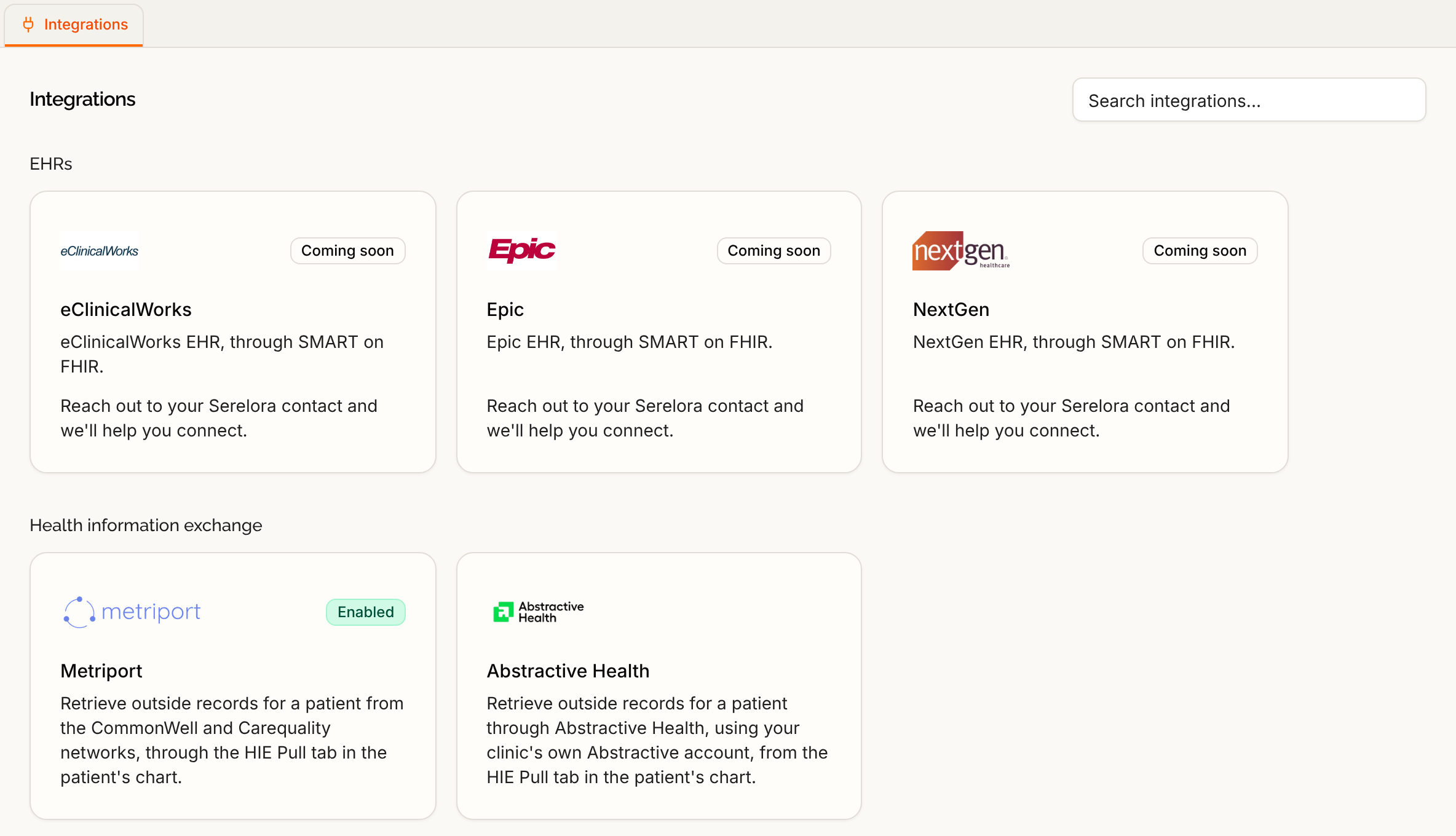
A tile shows Connected, Not connected with a Connect button, Reconnect needed, Enabled, Setup incomplete or Coming soon. A tile that Serelora sets up says "Reach out to your Serelora contact and we'll help you connect." See The Integrations Tab.
Step 3: Check what the connection shares
Think about the data before you connect.
- HIE Pull sends the patient's demographics, such as name and date of birth, to the exchange provider your clinic uses.
- An MCP server is run by a third party. Serelora has no business associate agreement with it, and the assistant may send it text from your chats.
- Gmail sends email you trigger from Serelora out from your own address.
- Stripe takes your clinic's card payments. Setup happens on Stripe's site, and no banking details touch Serelora.
Step 4: Connect
Follow the page linked in the table. Each connection page ends with how to reconnect or disconnect.
What is not available yet
- Other EHRs. The eClinicalWorks, Epic and NextGen tiles say Coming soon. See SMART on FHIR.
- Insurance payers. The Stedi tile says eligibility checks and claims are not live yet, and that no payer receives real transactions today.
- Square, Google Calendar, Calendly and CPL say Coming soon.
- Google Drive can be connected, but nothing in Serelora uses it yet. Importing files from Drive is not available.
- Spruce and Fullscript belong to features still being rolled out. They open a setup page only for Admins at clinics where Serelora has turned them on.