Search documentation
Find a documentation page by the words on it.
Documentation
Importing Patients
If you are moving to Serelora from another system, you do not have to type your patients in. Serelora has four importers, one for each kind of source, and they all work the same way: you upload a file, review what would happen, and only then confirm.
Step 1: Open the importers
Select Patient List in the sidebar, then Import. The page is titled "Import patient data" and says to choose where the data is coming from. Select Back to patient list to return.
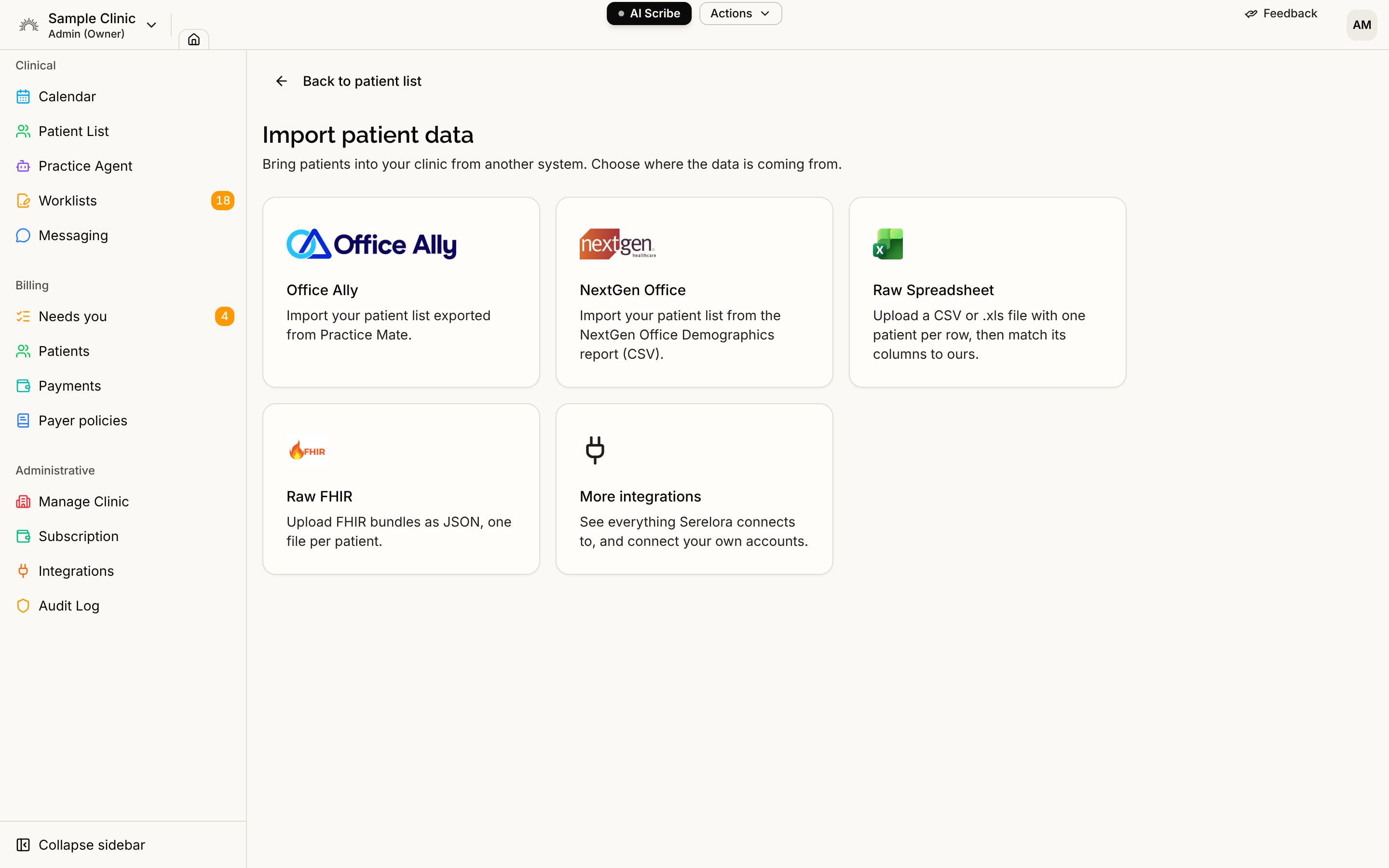
Step 2: Choose the importer that matches your file
| Your patient data is | Use | Details |
|---|---|---|
| A patient list exported from Office Ally Practice Mate, an Excel (.xls) file | Office Ally | Office Ally Roster Import |
| The NextGen Office Demographics report, saved as CSV | NextGen Office | NextGen Office Roster Import |
| Any other CSV or .xls file with one patient per row | Raw Spreadsheet | Spreadsheet Import |
| FHIR JSON files, one patient per file | Raw FHIR | Importing FHIR Files and Bundles |
The last tile, More integrations, opens your Integrations page for people who can use it. Other import sources are not available yet.
Excel .xlsx files cannot be imported yet. In Excel, choose File, then Save As, then CSV (Comma delimited), and upload that.
What a roster import does, and does not
The Office Ally, NextGen Office and spreadsheet importers bring over who your patients are: names, dates of birth, contact details, addresses, and the insurance names and member IDs the file carries. They do not bring chart contents such as notes, labs or medications.
To bring in the clinical content for a patient, upload documents to that patient's chart instead. Serelora reads files such as C-CDA (XML) and FHIR JSON into the chart. See Importing a C-CDA Record.
The Raw FHIR importer is different: each FHIR file creates a new patient and its clinical data together.
How the roster importers protect you
The Office Ally, NextGen Office and spreadsheet importers share the same steps and safeguards:
- Upload. Serelora reads the file and shows a review. Nothing is saved yet.
- Review. Every row is sorted into one of five groups: Will import, Cannot import, Already imported, Possible duplicate and Repeated in file. Only Will import rows create patients.
- Confirm. Select Import N patients. The import then runs on the server, so it finishes even if you close the page.
Uploading the same file again is safe. Patients already created show as Already imported and are skipped. A Possible duplicate is a row whose name and date of birth match a chart already in your clinic that the file cannot confirm by medical record number. It is skipped rather than merged, because two different people can share both.
Files can be up to 32 MB. A file that is too large or too long is refused with a message that says why.
Who can import
Serelora does not use a separate permission for importing. Anyone signed in to the clinic can open the importers.