Search documentation
Find a documentation page by the words on it.
Documentation
Stedi Insurance Connection
This feature is controlled by the Billing feature flag. If you do not see it in your clinic, contact Serelora at support@serelora.com and ask for it to be turned on.
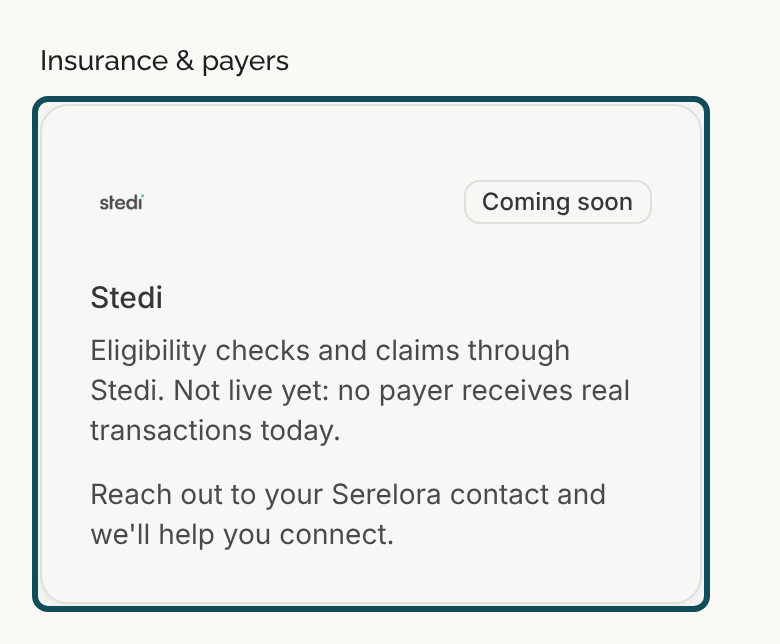
This integration is not available to clinics yet. Serelora has built insurance billing through Stedi, a clearinghouse that passes insurance transactions between Serelora and payers, and switches it on clinic by clinic. The Stedi tile on the Integrations tab says Coming soon and that no payer receives real transactions today. To ask about it, contact Serelora at support@serelora.com.
Stedi is the clearinghouse Serelora uses to ask a patient's insurance company whether coverage is active, and, later, to exchange claims and payments with payers. Your clinic does not sign up for Stedi or enter a key. Serelora holds the connection, and your clinic's part is to keep its own details and each patient's coverage accurate.
What the Stedi tile is
On the Integrations tab, the Stedi tile sits in the Insurance & payers group. It is a status card, not a control. It has no Connect button and nothing to open, because there is nothing for a clinic to connect. It reads Coming soon and carries the line "Reach out to your Serelora contact and we'll help you connect."
What you need
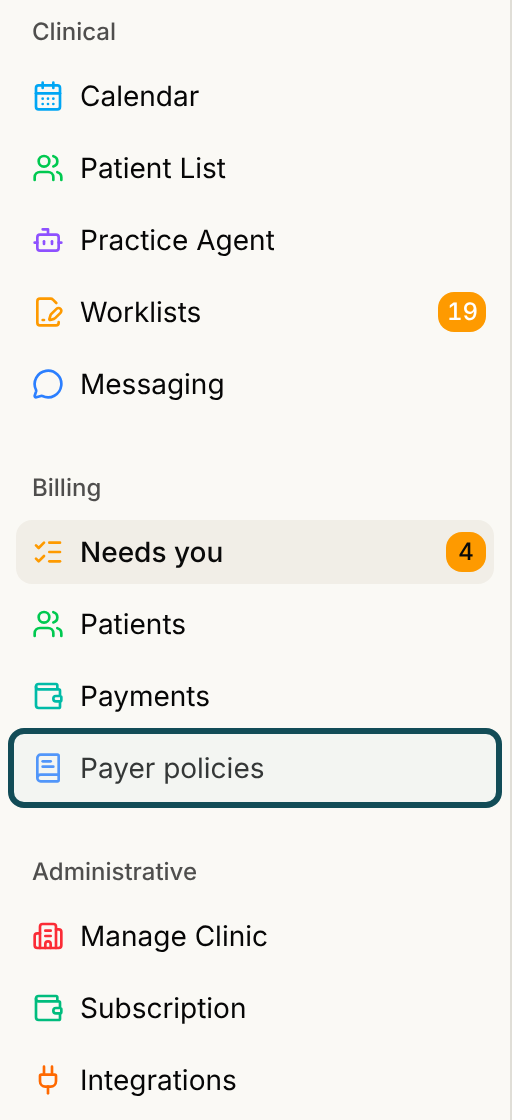
- Billing and Insurance billing turned on for your clinic. Insurance billing is a switch inside Billing, and only Serelora can turn it on. Billing also needs Encounters. When Insurance billing is on, Payer policies appears in the Billing group of the sidebar. See Billing Overview.
- The right role. By default Admins, Physicians, Office Managers and Administrative Assistants can run an eligibility check. Admins and Office Managers can confirm a payer, and Admins can edit the billing provider details.
- No Stedi account, key or login from you. There is nothing to type on the Integrations tab for Stedi.
Set up your side
Once Serelora has turned Insurance billing on for your clinic, these four things make an eligibility check possible.
Step 1: Check your clinic's NPI-2
Open Manage Clinic and confirm the clinic's organization NPI (NPI-2) is on the Clinic Information tab. Every check carries it. See Clinic Profile and NPI.
Step 2: Fill in the billing provider details
On Manage Clinic, open the Billing Settings tab and fill in the Billing provider section: tax ID, provider taxonomy and billing address. Claims carry these details. See Billing Provider Details.
Step 3: Record each patient's coverage
In the patient's Patient record, add the coverage with the member ID, the subscriber and the payer. Pick the payer from the payer directory, which a person who can confirm payers does, so Serelora knows exactly which insurance company to ask. See Insurance Coverage.
Step 4: Check the patient's sex at birth
A check uses the patient's Sex at birth from the chart, so make sure it is recorded.
How an eligibility check works
A check is never sent on its own. Someone selects Check eligibility, and then:
- Serelora checks that everything the check needs is on file, and lets you fill in what is missing.
- Serelora records the request and passes it to a background step, so your screen is not held up.
- The request goes to Stedi, which relays it to the payer.
- The payer's answer comes back and is shown on the coverage record as the payer reported it.
Payers can take up to two minutes. You can close the dialog while you wait, and the answer will be on the coverage record. The answer is the payer's, never a verification by Serelora. See Checking Insurance Eligibility for the dialog step by step.
Test mode and real answers
Stedi can answer in Test mode. A Test mode answer is a canned sample built from Stedi's practice requests. It never reached the patient's insurance company, so it says nothing about the patient's real coverage. Serelora labels it as test mode and not this patient's real coverage, and never copies its plan details into the chart: where Apply would be, the dialog says "Test answers are not written to the chart."
Serelora's development site runs in Test mode. Because the Stedi tile says no payer receives real transactions today, treat any answer labelled Test mode as a sample, and confirm coverage with the payer by your usual means.
What is live and what is not
| Transaction | State today |
|---|---|
| Eligibility checks | Built and checked against Stedi's practice environment. Staff run them from the chart and the check-in panel. Until Serelora switches on real payer traffic, answers are Test mode samples. |
| Payer directory search | Built and checked against Stedi's practice environment. It fills the payer picker. |
| Claims to payers | Built, not live. Serelora does not send claims to payers today. |
| Claim status checks | Built, not live. |
| Payer payments and acknowledgments | Built, not live. Posting a payer payment always needs a person's approval. |
| Prior authorizations | Tracked by hand in Serelora. The chart agent can draft the request letter, and you send it yourself. Serelora does not submit authorizations to payers. |
| Enrolling your clinic with payers | Not part of Serelora today. |
Where an insurance screen exists but its transaction is not live, Serelora keeps the transaction from reaching a payer.
What data moves
- To Stedi, for a check: the patient's name and date of birth, the member ID, the subscriber's details when the patient is a dependent, the payer's identifier from the payer directory, your clinic's name and NPI-2, the date of service and the type of benefit asked about. Serelora's internal patient numbers are not sent, and no raw insurance message is stored.
- From Stedi: the payer's answer, reduced to coverage status, plan details, periods and benefits, or a reason the payer could not answer.
- In the audit log: Serelora records each outbound call before it is made, and each refusal, so access to the patient's insurance information can be traced.
- Not sent: clinical notes, diagnoses and anything else from the chart. A check carries none of them.
Pause or turn off
Your clinic has no control for this. Serelora can turn Insurance billing off for your clinic. That stops new insurance work of every kind and deletes nothing: checks, claims, authorizations and payments already recorded stay.
If it does not work
- The Check eligibility button is missing. Insurance billing is off for your clinic, or your role cannot check eligibility. See Checking Insurance Eligibility.
- "Confirm the payer first." The coverage has no confirmed payer. Pick the payer from the directory on the coverage and confirm it.
- "The clearinghouse refused this request. Check the member ID and the patient's details, then try again." The details on file did not pass. Correct them and try again.
- "The clearinghouse is busy right now. Try again in a minute." Wait a minute, then select Try again.
- Payer couldn't answer. The payer could not answer this request. That does not mean the coverage is inactive.
- Needs review. The payer may have received the request, so a person says what happened with Mark resolved.
- Couldn't check with no clear reason. Select Try again. If it keeps happening, contact Serelora and give the time it happened.
What it does not do
- It does not verify coverage. It shows what the payer said.
- It does not send claims to payers today.
- It does not let patients run checks. Eligibility checks are for staff.
- It does not need an account of your own with Stedi.
For the everyday workflow, see Verifying Insurance Before a Visit. For the other integrations, see Integration Directory.