Search documentation
Find a documentation page by the words on it.
Documentation
Allergies
Allergies live on the Allergies card on the Summary tab. There is no separate Allergies tab, so this card is the one place in the chart to read them.
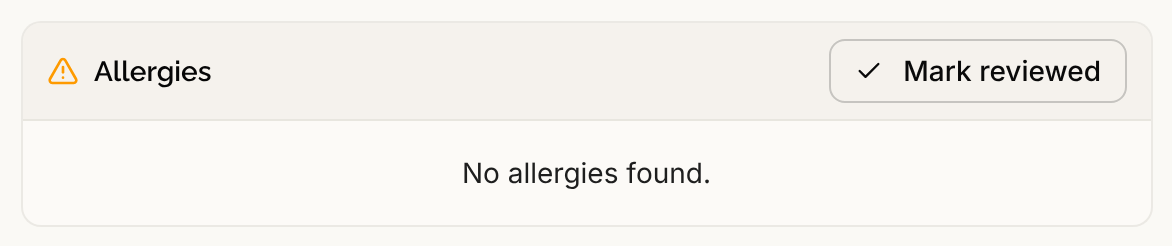
Step 1: Find the card
Open the patient's chart. The Summary tab shows the cards in a grid, and Allergies sits after Surgical History and before Consents. Unlike most cards, it is never cut short. It shows every allergy, and has no View all link. If there are none, the card says No allergies found.
Step 2: Read the card
Each row shows the Allergen and its Reaction / severity. When the source listed reactions, each is shown with its severity in parentheses, such as hives (moderate), separated by commas.
An allergy nobody has confirmed carries a small badge beside its name, such as Unconfirmed. A confirmed allergy has no badge. A badge for an entry that was ruled out or marked entered in error means the same thing it does everywhere in the chart. See Correcting a Claim.
Select a row to open its claim detail, where the rest is. The Details card shows the status and onset date, the Codes card shows any vocabulary codes, and an Allergy detail card shows what the source stated, such as the allergy's category, type, criticality and severity, and each Reaction with its severity, onset date and description. A source that records an allergy as denied, such as no known drug allergies, is stored with an Inactive clinical status, which you see in the claim detail.
Where allergies come from
You cannot add an allergy with a button on the card. Allergies come into the chart four ways:
- A document you upload. A narrative document is read for allergies when your clinic has document extraction turned on. See Documents.
- A health record file. A C-CDA or FHIR file carries allergies as structured data. See Importing a C-CDA Record.
- The patient's own answers. The health history interview in the patient portal asks about allergies, and the answers become entries in the chart. See The Health History Interview.
- The chart agent. Tell the agent about an allergy and it prepares a proposed entry. You review it and approve it before anything is saved. See Reviewing Chart Changes the Agent Proposes.
Step 3: Correct an allergy
If you can edit the chart, the Row actions menu at the end of each row offers Edit…, Confirm, Refute (ruled out) and Mark entered in error. In Edit… you can change the name, the Reaction / severity and the Onset date. The small status badge beside the name is also a menu, so you can confirm or rule out an allergy from the card itself.
The allergy's clinical status is shown in the claim detail, but it cannot be changed there or on the card. Use Refute (ruled out) when the patient does not have the allergy, or Mark entered in error when it was recorded by mistake. See Correcting a Claim.
If the same allergy appears twice, merge the entries instead. See Manage Claims.
Step 4: Mark the allergies as reviewed
When you have gone over the list with the patient and it is complete, select Mark reviewed in the card header. A message says Section marked reviewed. The header then shows Reviewed with your name and the date, until a new entry arrives. This also records that nothing is missing, which confirming one allergy at a time cannot do. See Last Reviewed.
Who can do what
Every role can read the card. Edit…, the status menus and Mark reviewed need permission to edit the chart, which Admin, Physician, Physician Assistant and Medical Assistant have by default. For everyone else they are not shown.