Search documentation
Find a documentation page by the words on it.
Documentation
Ordering Labs and Imaging
Order a lab or an imaging study from the patient's chart, sign it, and follow its status on the Orders tab. Serelora records the order in the chart. It does not send the order to a lab or imaging center, so you send it by your usual route.
This feature is controlled by the Orders feature flag. If you do not see it in your clinic, contact Serelora at support@serelora.com and ask for it to be turned on.
What you need
- Orders turned on for your clinic. The Orders tab appears only then.
- An Admin or Physician role to place and sign orders. A physician assistant proposes an order for a physician to co-sign. Other roles can see orders but not place them.
Step 1: Open New orders
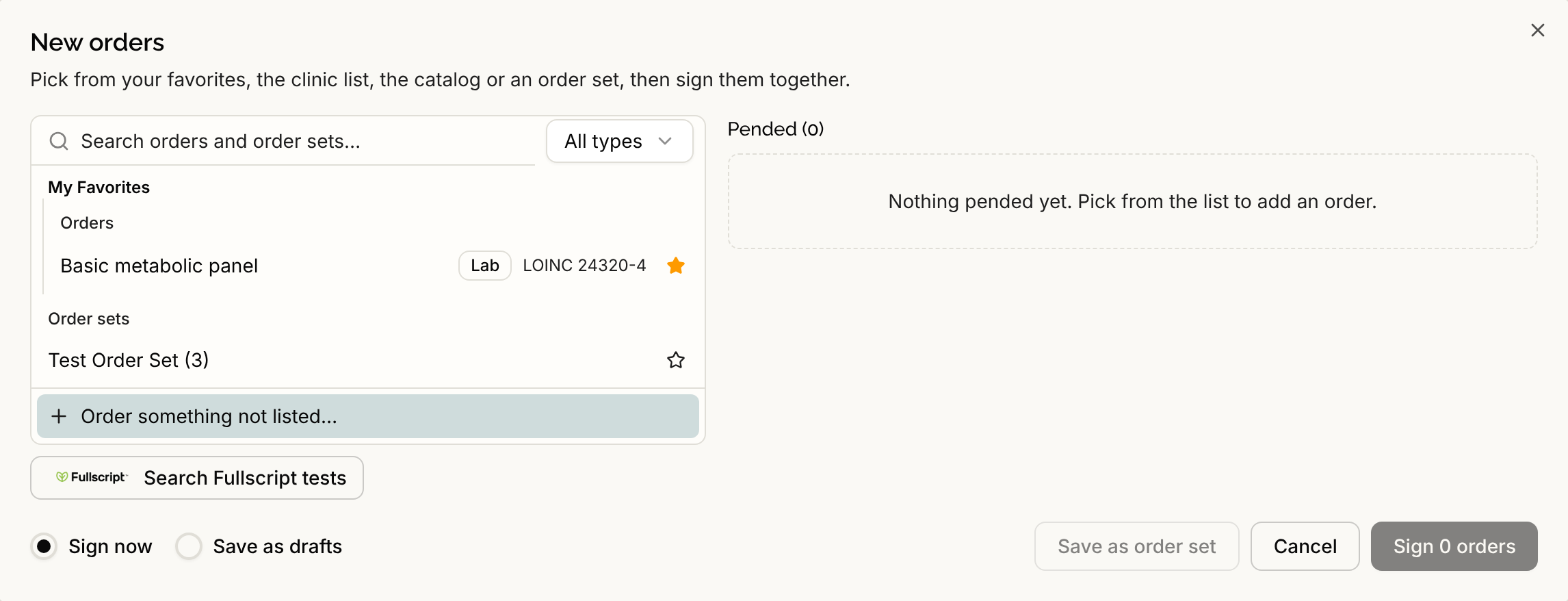
Open the patient's chart, select the Orders tab, then New orders. A window opens with a search on the left and your cart on the right. See Placing an Order.
Step 2: Find the lab or study
Type in Search orders and order sets…, and use the type filter, which starts on All types, to narrow it to Lab or Imaging. Results are grouped as My Favorites, Clinic list, Catalog and Order sets. If something is not in the catalog, select Order something not listed… and it is marked Uncatalogued. For a repeat group of tests, use an order set. See Order Sets and Favorites and the Clinic List.
You can also ask the chart agent:
Order a CBC with differential and a basic metabolic panel for Jane Sample.
The agent searches the catalog and opens Review proposed orders. Nothing is ordered until you sign. It proposes only items in your clinic's catalog, so for a test that is not listed use Order something not listed… yourself. See Ordering with the Chart Agent.
Step 3: Check each order
Expand a row in the cart. Every order has a Priority of Routine, Urgent, ASAP or STAT, and an optional Note (optional). A lab also has Specimen and Fasting. A row that is missing something shows Needs attention.
Step 4: Sign or save as a draft
Select Sign now to place the orders, or Save as drafts to sign later with Sign on the Orders tab. Signing is all or nothing. A physician assistant uses Propose order instead, and a physician or admin signs it from Worklists, then Orders to Co-sign. See Proposing an Order for Co-Signature and Co-Signing Orders.
Step 5: Track it
The Orders tab shows each order's Status, Priority, Intent and Transmission. A draft has Intent Proposal. A signed order is Active. Select a row for its details and history. To take back a signed lab or imaging order, select Revoke. The order stays in the list and the signature stays on record. See Signing and Withdrawing Orders.
Step 6: Send it and bring the result back
Send the order to the lab or imaging center the way you do today. When the report comes back, upload it from Actions, Upload. Lab results appear under Diagnostics, Labs, and imaging reports under Imaging. See Reviewing and Acting on Lab Results and Imaging.
What Serelora does not do
- It does not transmit the order. A Transmission status such as Acknowledged, and the words recorded only in the order's details, mean Serelora logged the order. Nobody outside your clinic received it.
- It does not check coverage. It checks that each order is complete. It does not check insurance, prior authorization or whether the order is clinically appropriate.
- It does not link results to orders. A result you upload is not matched to the order that asked for it, and there is no results inbox.
- It does not show images. The Imaging tab lists reports. There is no image viewer in the chart.