Search documentation
Find a documentation page by the words on it.
Documentation
Adding Charges from a Visit
Charges are the services you bill for, and each one belongs to a visit. You add them from your clinic's procedure catalog, so the code and price come from the catalog rather than being typed each time.
This feature is controlled by the Billing feature flag. If you do not see it in your clinic, contact Serelora at support@serelora.com and ask for it to be turned on.
Step 1: Open the visit's charges
Open the patient's chart, select Billing, then the Encounters sub-tab. Select the visit's row. The visit opens in its own tab named "Charges" and the visit's date, with the charges table, checkout buttons and any invoices.
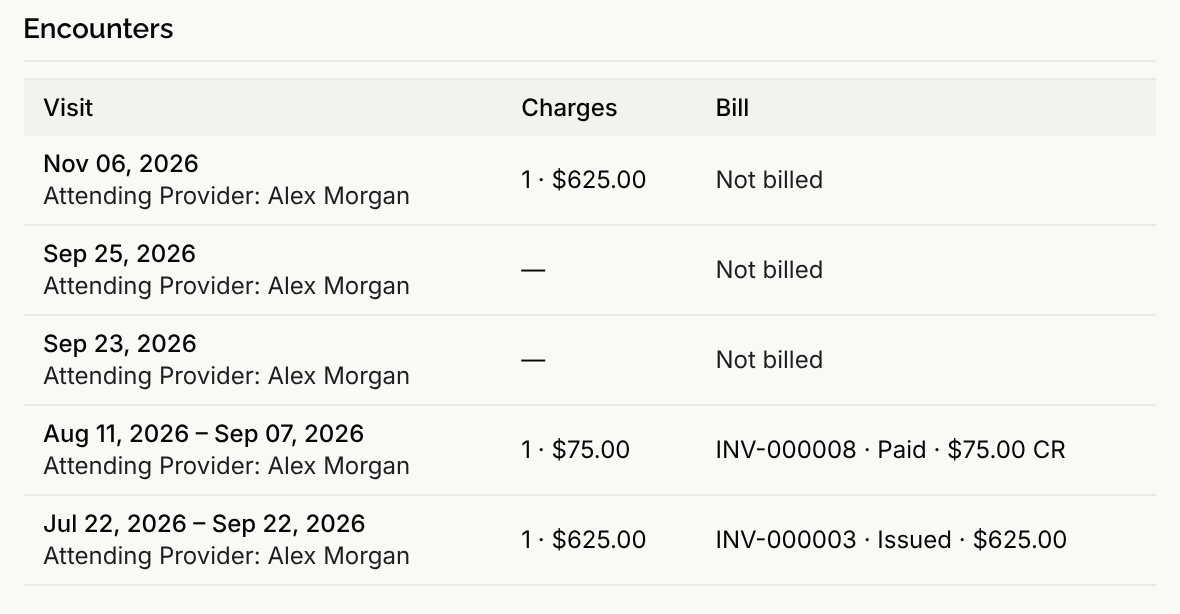
You can also select Add charges on a task in Needs You Worklist, or Charges in a visit's row menu on the Encounters chart tab. For a walk-in with no visit yet, select Start encounter above the visit list. It appears only when the patient has no visit underway.
Step 2: Choose a procedure
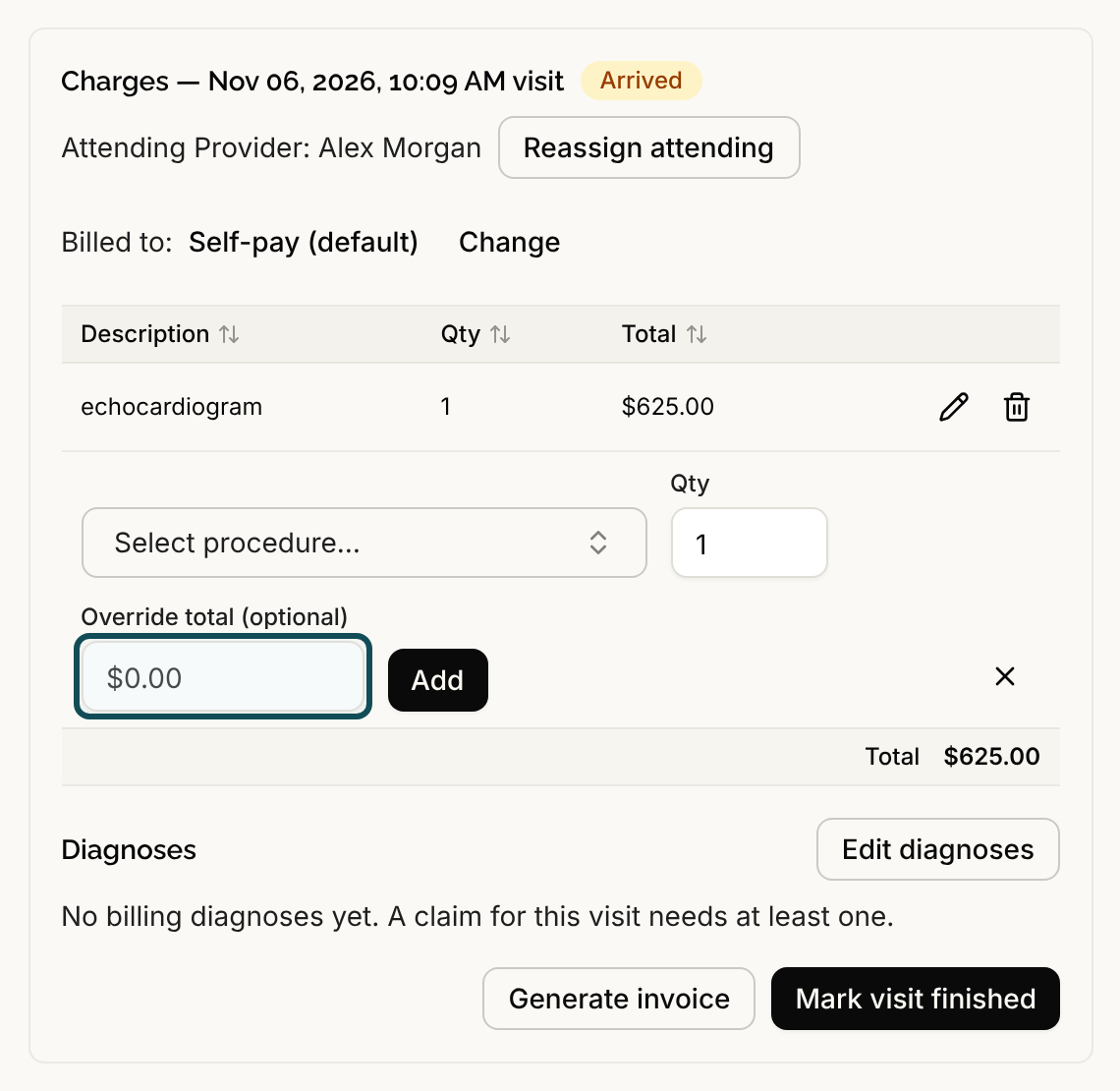
At the bottom of the charges table, select Add charge. Select Select procedure… and type in the Search by code or name… box. Pick the procedure you want. The list shows only the active procedures in your clinic's catalog.
If a procedure is missing, an Admin or Office Manager can add it under Manage Clinic, then Procedures, with Add procedure or Import CSV. See Procedure Catalog and Importing a Procedure Price List.
Step 3: Set the quantity and, if needed, a price override
Qty must be a whole number of 1 or more. To charge a different total than the catalog price, type it into Override total (optional). A box called Override reason (required) then appears, and you must say why, for example a cash discount.
Step 4: Select Add
Select Add. A message says "Charge added", and the row appears in the table. A running total sits under the table. When a price is overridden, the original total is shown beside it as a smaller line.
If someone changed the catalog price while you were choosing, the charge is not added and a message tells you the old and new price. Choose the procedure again and review the current price.
Change or remove a charge
Until a charge goes on an invoice, each row has two buttons: Edit charge to change the quantity or override, and Remove charge, which asks "Remove this charge?" and cannot be undone. Once a charge is on an invoice, the row reads "Invoiced" and cannot be changed. Cancelling the invoice makes its charges editable again. See Invoices.
Who can do this
Admins, Physicians, Office Managers and Administrative Assistants can add, edit and remove charges by default. Physician Assistants and Medical Assistants can see the charges but not change them.
Charges cannot be added to a visit that was cancelled or entered in error.