Search documentation
Find a documentation page by the words on it.
Documentation
Panel Snapshot Reports
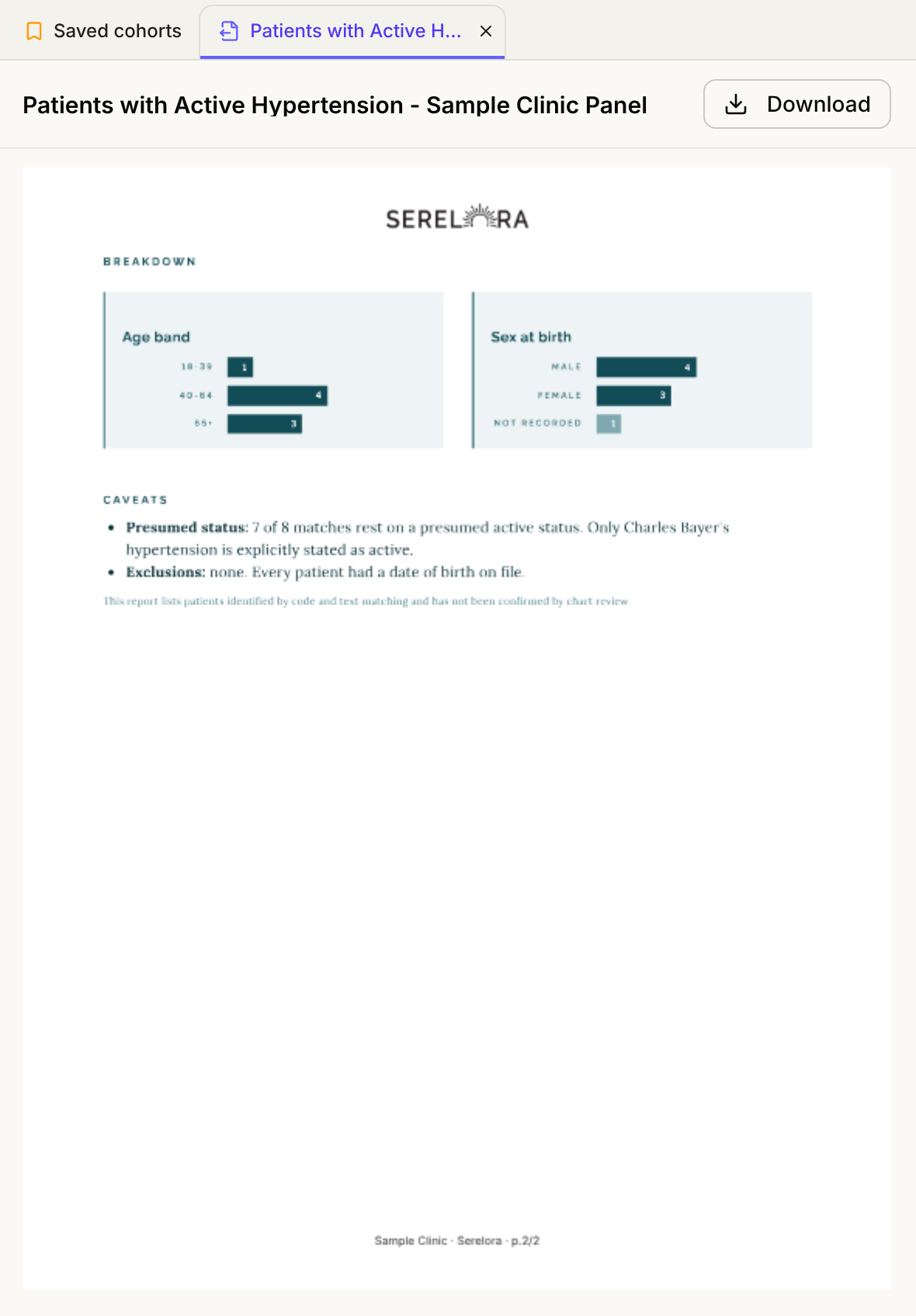
A panel snapshot is a PDF with counts and breakdowns of your panel: how many members you have, who they are by age and sex, how many have a given condition, and how many have been seen lately. You build it from cohorts in the Practice Agent. It uses the same building blocks as Employer Reporting for DPCs, so use this page when you want a different mix of numbers, for yourself, a partner or a lender.
This feature is controlled by the Practice Agent feature flag. If you do not see it in your clinic, contact Serelora at support@serelora.com and ask for it to be turned on.
What you need
- The Practice Agent turned on for your clinic, and permission to use it.
- The export permission, to download or email the finished PDF. Both permissions are Admin only by default.
- Records that are current. The numbers are only as good as what is in the charts.
Step 1: Decide what the reader needs
Pick a short list of counts, and decide whether the reader should see names. For a report that leaves your practice, ask for counts and breakdowns only.
Step 2: Build the counts in the Practice Agent
Open Practice Agent and ask for each group. Each answer shows how many members match.
Show me every patient on my panel.
Break down this cohort by age and sex.
Patients with an active diagnosis of hypertension
Patients who have never registered for the portal
Patients with no visit in the last 12 months
See Panel Management and Panel Size and Chronic Disease Cohorts.
Step 3: Ask for the PDF
Put the counts we have found in this chat into a PDF report.
For a single cohort you can ask "Make me a PDF summary of this cohort." The agent builds the report only from counts it has retrieved in the conversation, so run the searches first. See Generating PDF Reports.
Step 4: Check every figure
The report opens in the panel on the right. A report cannot be edited by hand. Tell the agent what to change, and it makes a new one. Compare each number with the cohort it came from before you share it.
Step 5: Download or email it
Select Download in the tab header, or ask the agent to email it.
Email this report to partner@example.com.
You read the email card and select Send. See Sending a Report. A practice report cannot be sent to a patient or saved to a chart.
What Serelora does not do
- It cannot limit a report to one employer's members. An employer name can be recorded on a member's record, but the Practice Agent has no filter for it.
- It does not carry your logo. A report uses Serelora's standard look and shows your clinic's name in the footer.
- It does not run on a schedule. There are no report templates or recurring reports, so ask again when you need a new one. Find an earlier report by reopening the chat that made it.
- It cannot report on money. The Practice Agent searches charts, not billing, so it has no counts of invoices or payments.
- It is a PDF for people to read. Serelora does not submit it to any payer or program.