Search documentation
Find a documentation page by the words on it.
Documentation
Secure Messages with Patients
Secure messaging lets you write to a patient inside Serelora. The patient reads your message in the patient portal and can reply with text and files. Each provider and patient pair at a clinic has exactly one conversation.
This feature is controlled by the Patient messaging feature flag. If you do not see it in your clinic, contact Serelora at support@serelora.com and ask for it to be turned on.
You need the permission to send secure messages, which Admin, Physician and Physician Assistant have by default, and your clinic needs the Secure messaging switch on. Without both, the Inbox tab and the chart's Messaging tab do not appear.
Step 1: Open the conversation
There are two ways in.
- From the chart. Open the patient's chart and select the Messaging tab, which sits right after Chart. The sidebar also shows a Messages button under the patient summary. It turns blue and reads "New message from" the patient's name while their reply is unread.
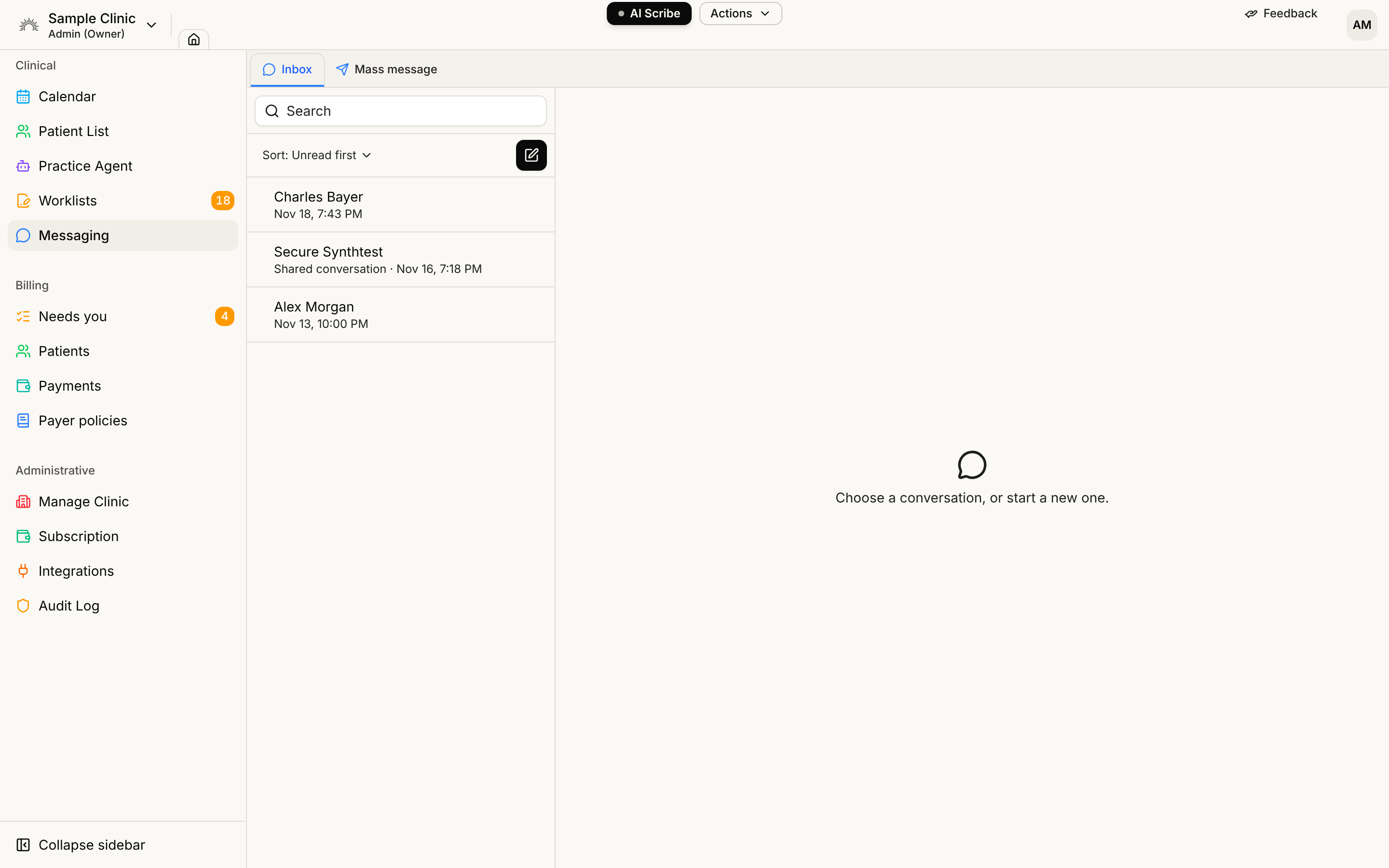
- From the inbox. Select Messaging in the sidebar, then the Inbox tab, then the New conversation button. Choose the patient and select Open conversation.
If you already have a conversation with that patient, it opens. If not, an empty one opens, and nothing is created until you send your first message.
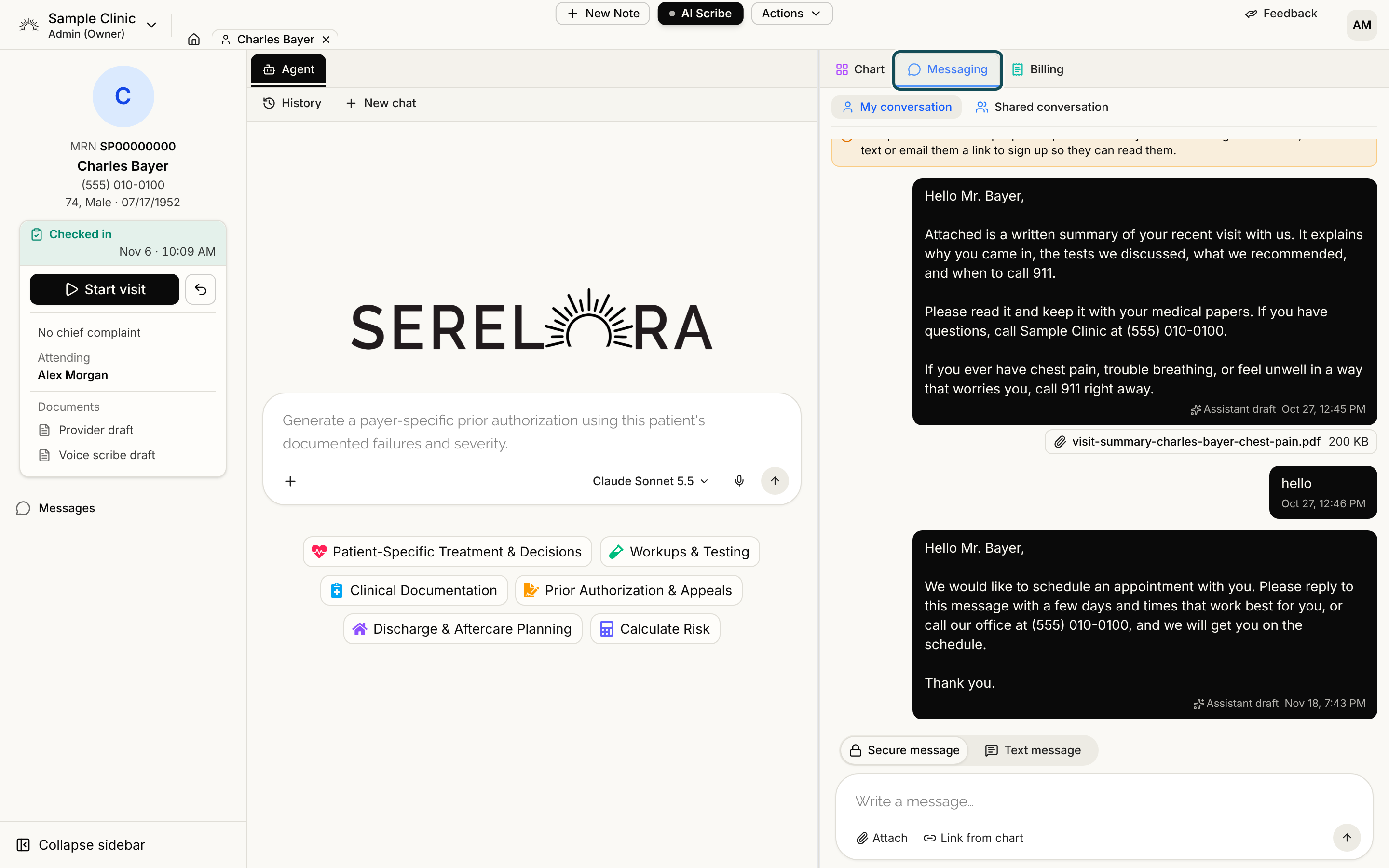
Step 2: Write and send
Type in the box that says "Write a message…". A message can be up to 5,000 characters of plain text. Press Enter to start a new line. Only the send arrow sends, so a message is never sent by accident.
Once sent, a message cannot be edited or deleted. To include a file or a link to a chart document, see Attaching Files and Reports to Messages.
You can also ask the chart agent to draft a message. It shows a Send a secure message card with the text in an editable box. Nothing goes to the patient until you select send in that card.
Step 3: Check what the patient is told
The patient gets a text and an email saying a provider sent them a message. The notice never contains the message. The text reads "Clinic name: Provider name sent you a message:" followed by a link, and the email subject is "New message from" your name. The link opens the conversation after the patient signs in.
Serelora does not send a new notice for every message. After one notice, the next one waits until the patient has read the conversation or about 15 minutes have passed.
When a notice is skipped, a line under the box says "Your message was sent." and then why the notice did not go. A notice is skipped when:
- The patient has turned those notices off, or has no phone number or email address on file.
- The patient has not agreed to receive texts.
- The patient is a demo patient.
Your message is saved either way.
If the patient has no portal account yet, a note above the box says so: your messages are saved, and Serelora texts or emails them a link to sign up so they can read them. Once they register they can read the conversation before finishing the rest of their setup.
Step 4: Read and reply
Open the Inbox tab. The left side lists your conversations, with a search box, a Sort menu (Unread first, Newest or Oldest) and the New conversation button. Select a conversation to read it on the right, and reply the same way you wrote the first message.
A New badge on the chart's Messaging tab, and an unread count beside Messaging in the sidebar, tell you a patient has replied.
Good to know
- Only you can see your conversations. There is no shared inbox and no admin view of another provider's messages.
- Patients cannot start a conversation. They can only reply to one you began.
- The patient's reply box always shows "Messages are not for emergencies. If you have a medical emergency, call 911."
- If you send many messages very quickly, Serelora asks you to wait a moment and try again.
- If a provider leaves the clinic or is deactivated, the patient can still read the conversation but sees "This provider is no longer available. Please contact the clinic."
To send the words as a text to the patient's phone instead, see Two-Way Text Messages.