Search documentation
Find a documentation page by the words on it.
Documentation
Patient List and Search
The Patient List shows every patient registered at your clinic, one row each, with a search box that reads names, MRNs, phone numbers, email addresses and dates of birth. It is where most front-desk work starts.
Open the Patient List
Select Patient List in the sidebar. At the top right are Import (see Importing Patients) and Add Patient (see Adding a Patient).
The list is sorted by last name, then first name. Patients with no name on file come last. More rows load as you scroll, and once everything is loaded the bottom of the list shows the total, such as "1,204 patients".
Find a patient
Type in the box that reads "Search by name, MRN, phone, email or date of birth". The list narrows as you type.
- Names can go in any order, and partial words work. "smith john", "john smith" and "jo smi" all find John Smith. A preferred name or a previous last name also matches.
- MRN matches anywhere in the number.
- Phone needs at least three digits. A last four, an area code or a full number all work.
- Email matches when the word you type includes an @ sign.
- Date of birth works as a full date, such as 3/14/1985 or 1985-03-14.
Every word you type must match something on the patient. When a patient was found by something other than the name or MRN, the row says so under the MRN, for example Phone:, Email:, Preferred name:, Previous name: or DOB:, with your search highlighted.
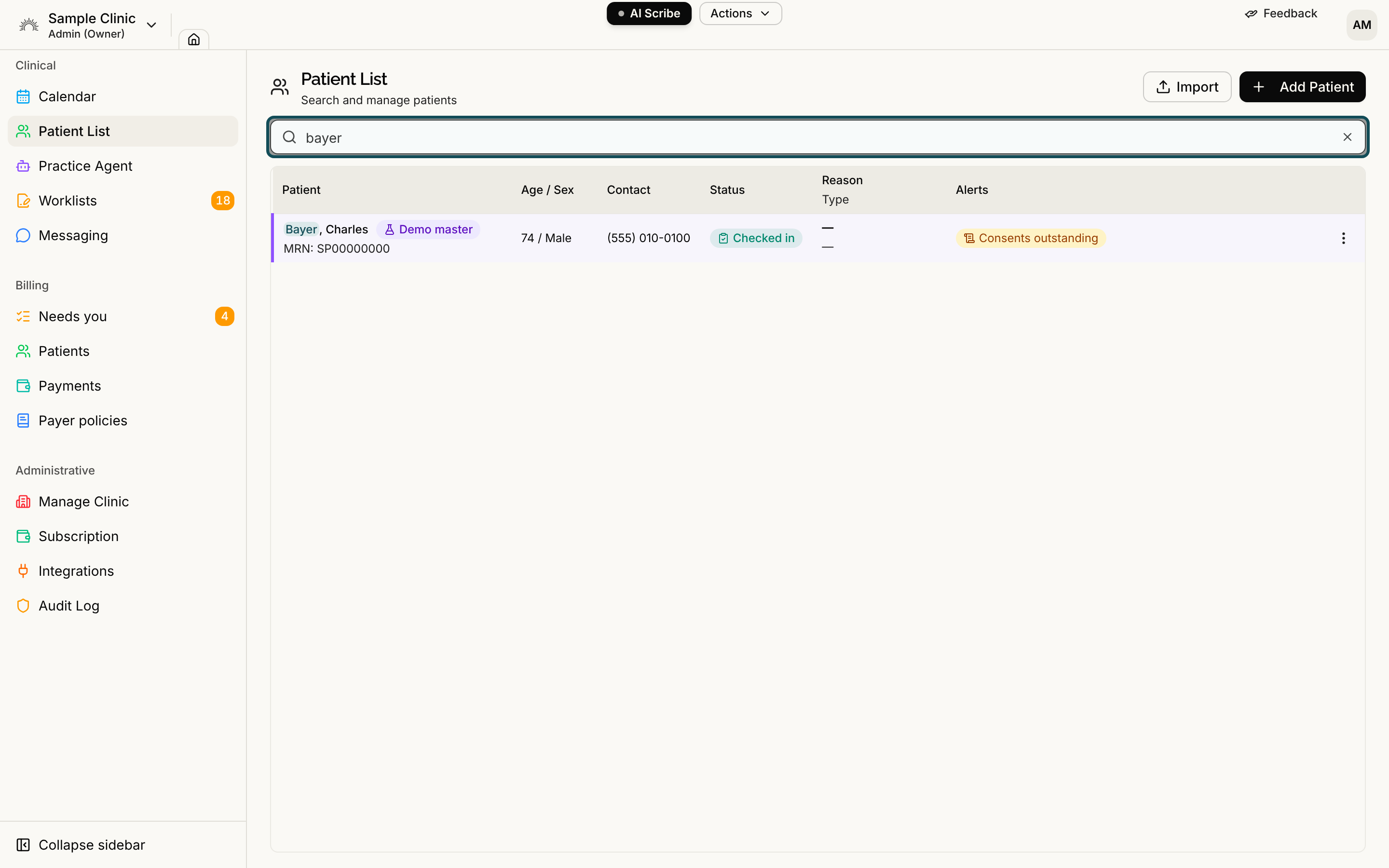
If exactly one patient matches, press Enter to open their chart. With zero or several matches, Enter does nothing. Select Clear search (the X in the box) to start over.
When nothing matches, the list says what you searched for and reminds you that every word must match. If the list itself cannot load, you see "We couldn't load the patient list" with a Try again link.
Read the columns
| Column | What it shows |
|---|---|
| Patient | Last name, first name and MRN. |
| Age / Sex | The patient's age and sex. |
| Contact | Phone over email. |
| Status | Checked in or In encounter while a visit is open, otherwise a dash. |
| Reason and Type | The open visit's reason and visit type. Shown only when your clinic uses Encounters. |
| Alerts | The free-text alert saved on the patient's record, plus a Consents outstanding or Consents declined tag when a clinic consent form still needs a decision. |
Open a chart or the record editor
Select a row, or tab to it and press Enter, to open the patient's chart. Hover over a name and select the pencil to open the chart with the Patient record tab ready for editing. See The Patient Record Editor.
When you come back from a chart with your browser's Back button, your search and scroll position return.
Use the row menu
The three-dot button at the end of a row opens a menu. What you see depends on your role and your clinic:
- Check in, Start encounter or Start visit appears when your clinic uses Encounters and you can start visits.
- Merge Patient appears for roles that can merge charts. By default that is Admin. See Merging Duplicate Patients.
- Remove patient appears for roles that can remove patients. By default that is Admin. See Removing a Patient.
If none of these apply to you, the row has no menu.
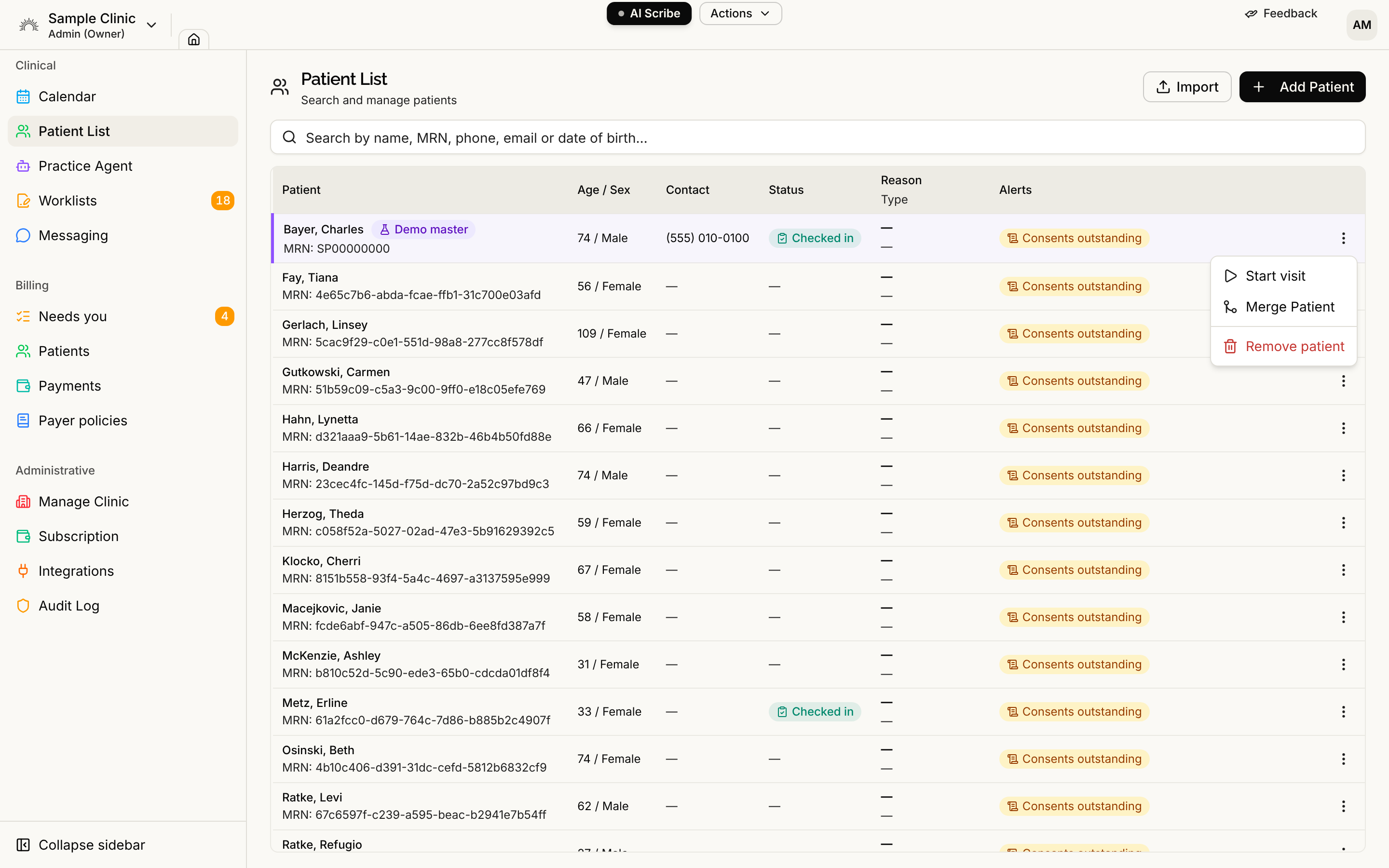
A patient marked Demo is synthetic test data, such as the patient the guided tutorial uses. Nothing about a demo patient is sent outside Serelora.