Search documentation
Find a documentation page by the words on it.
Documentation
Choosing a Model for the Chat
The agents run on language models. You can change which model answers, even in the middle of a conversation. It is the same control in a patient's chart and in the Practice Agent.
Step 1: Find the selector
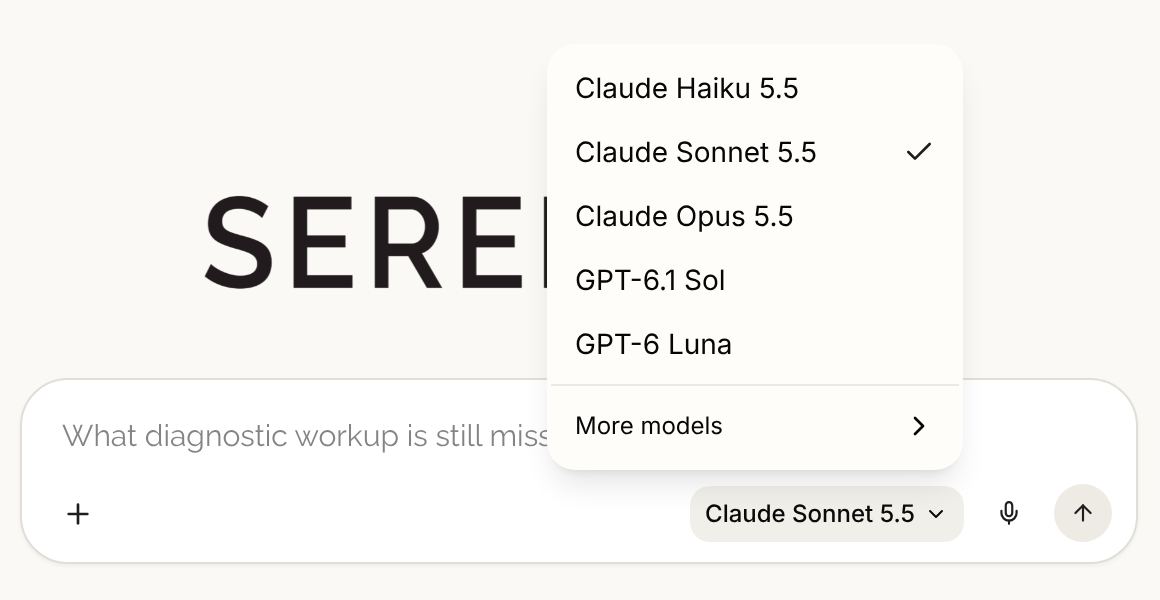
Look at the right side of the input bar. The model that will answer your next message is shown there, for example Claude Haiku 5.5. Select it.
Step 2: Pick a model
A short list opens. The model in use has a check beside it. The quick picks are:
- Claude Haiku 5.5, the default
- Claude Sonnet 5.5
- Claude Opus 5.5
- GPT-6.1 Sol
- GPT-6 Luna
Select More models for the rest of the list. Select a name to use it. The name on the input bar changes at once.
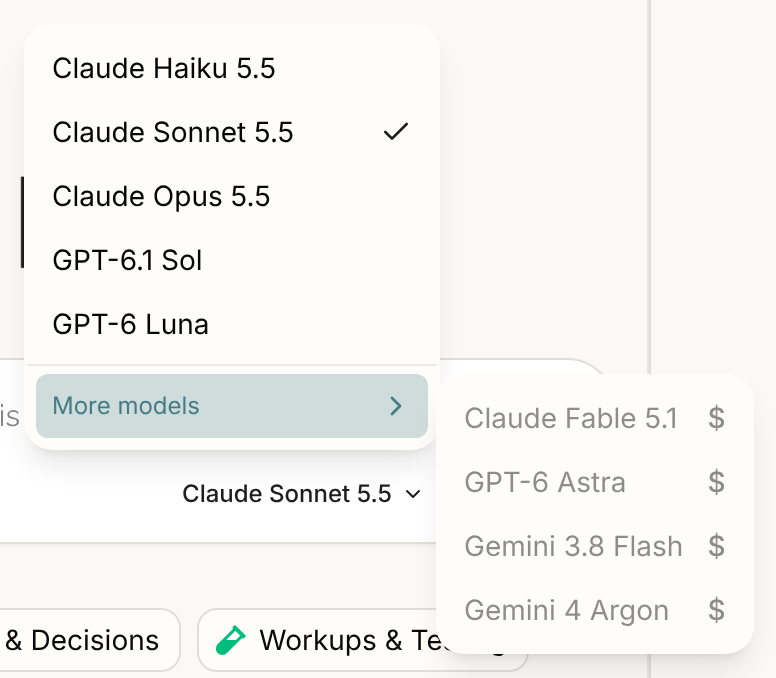
A model that is greyed out is not turned on. Hover over it to see "Contact sales to enable this model", and contact Serelora if you want it. You cannot select one that is greyed out.
How your choice behaves
- It applies to the message you send next. You can switch partway through a conversation. Earlier answers are not redone.
- It is remembered. The model you last used is the one a new conversation starts with. Until you pick one, the default is Claude Haiku 5.5.
- Regenerate uses the model selected now, not the one that wrote the first answer. See Chat Input and Message Controls.
- Pictures are read as pictures only by models that can see images. With another model, an attached image is read as text from the picture. See Attaching Files to a Chat.
Good to know
- The model changes how an answer is written. It does not change what you are allowed to do. Tools, permissions and approval cards are the same for every model. See How Permissions and Feature Flags Limit the Agents.
- If you are unsure, leave it on the default.
- The selector is greyed out and fixed to the default in the guided tutorial's chat.
- The list of models can change over time. What you see in the selector is what your clinic has.