Search documentation
Find a documentation page by the words on it.
Documentation
Sending a Report
A generated report can leave Serelora in three ways: you download it, you email it, or you send it to the patient in a secure message. Which ones you can use depends on the kind of report and your role.
Choose how to share it
| Way to share | Patient report | Practice report | Who can do it by default |
|---|---|---|---|
| Download | Yes | Yes | Whoever created it. A practice report also needs the export permission, which is Admin only |
| Yes | Yes | All six roles. A practice report also needs the export permission | |
| Secure message to the patient | Yes | No | Admin, Physician, Physician Assistant |
| Text message | No | No | A text carries plain words only, up to 320 characters, and cannot carry a report |
You can share only a report that you generated yourself. The agent cannot attach a report that someone else created, and a patient report can be sent only to its own patient.
Download
Open the report from its chat and select Download in the tab header. See Generating PDF Reports. Each download is recorded in the audit log.
Email a report
In the chat that produced the report, ask:
Email this report to dr.smith@example.com.
The agent prepares an email with the report attached as a PDF and opens the usual email card. Check the recipient, subject and body. Select the attachment to see the exact PDF that will be sent, then select Send. See Messaging a Patient from Chat for how the email card works.
A report can be emailed from the chart agent or from the Practice Agent. The Practice Agent can attach only a practice report. A filled form that still needs a provider's signature cannot be emailed until it is signed.
Send a report to the patient
In the patient's chart, ask:
Send her a secure message and attach the report.
The agent prepares a secure message card with the report shown as an attachment. Read the message, edit it if you like, then select Send. The patient receives the report as a PDF in the secure conversation. You can attach up to five reports to one message, each up to 10 MB.
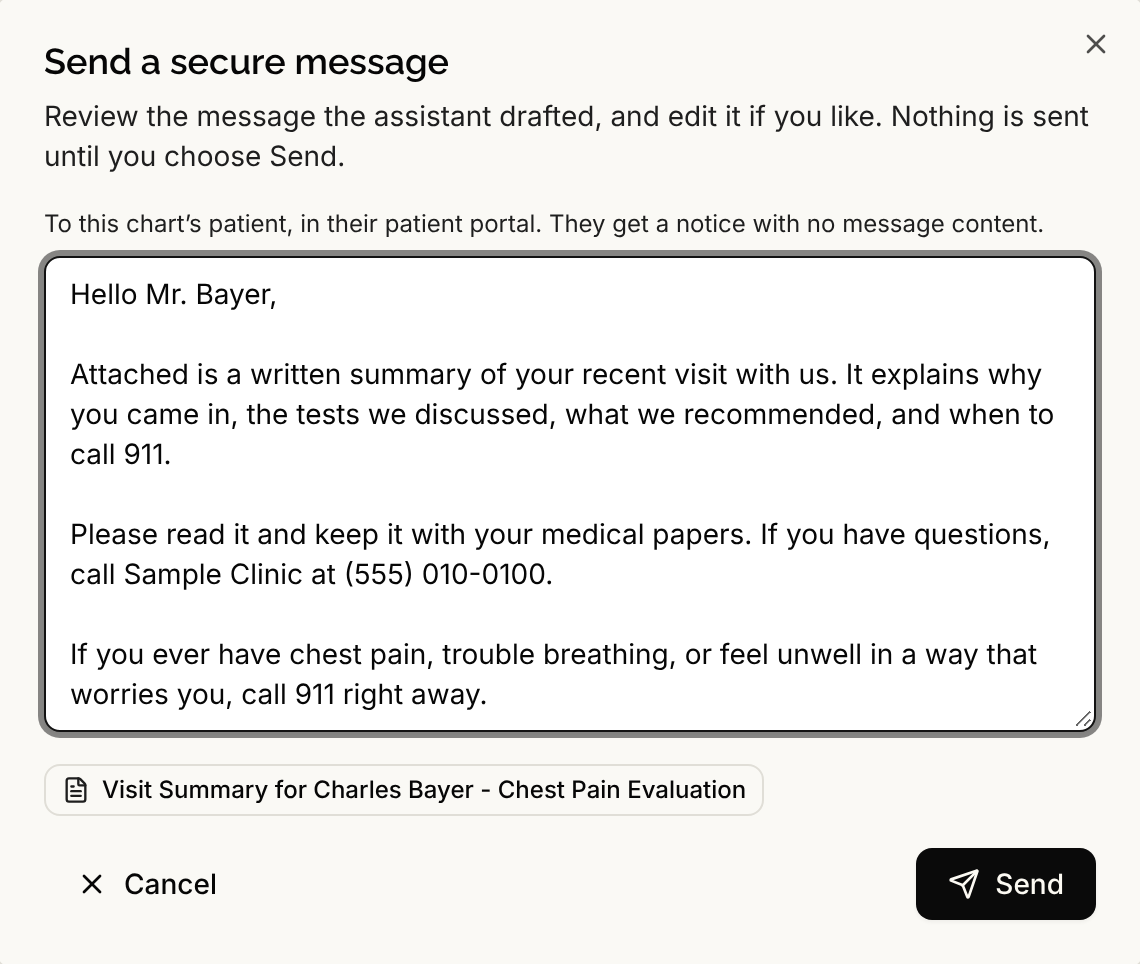
Keep these in mind:
- Sending is what shares the report. Once the message is sent the patient can see the report, and a sent message cannot be recalled.
- The patient is notified by text and email, where those are available for them, that they have a new message. The notice never contains the message or the report, only a link.
- If you have also saved the report to the chart, sending it makes that chart copy visible to the patient in their records. A report that was only saved stays hidden from them.
- Sending does not save the report to the chart. See Saving a Report to the Chart. For attachments you add by hand, see Attaching Files and Reports to Messages.
- A filled form that still needs a signature cannot be sent. You see "This form has to be signed before it can be sent."
Sending to the patient needs permission to send secure messages, and your clinic must have secure messaging turned on.
What about a text message?
A text cannot include a report. If you want a patient to know a report is waiting, send the report in a secure message. The patient's notice about the message goes out by text and email where those are available, and it carries only a link.