Search documentation
Find a documentation page by the words on it.
Documentation
Adding a Patient
Add a patient when someone new walks in or calls. You enter only the basics, and then either send the patient a link to finish their own registration or fill in the rest yourself.
Step 1: Open the Add Patient dialog
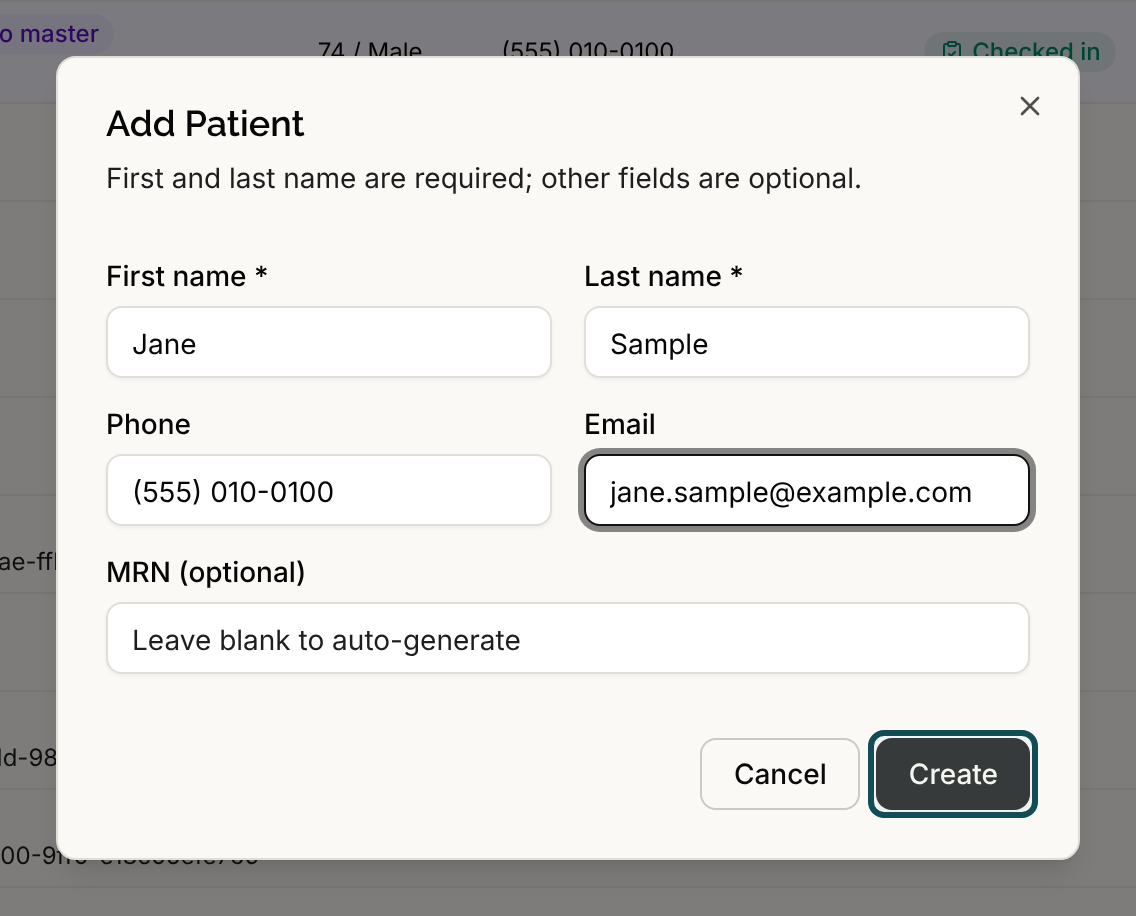
Select Patient List in the sidebar, then Add Patient. The dialog is titled "Add Patient" and says that first and last name are required and everything else is optional.
Step 2: Enter the basics
Fill in what you have:
- First name and Last name are required. If you leave one blank and select Create, the dialog says "First name is required" or "Last name is required".
- Phone formats as you type. A number that cannot be read says "Enter a valid phone number".
- Email says "Enter a valid email address" if it does not look like an address.
- MRN (optional) is the clinic's medical record number. Leave it blank and Serelora assigns an eight-character number for you.
Date of birth, sex at birth, address and insurance are not in this dialog. You add them afterward in the record editor.
Step 3: Select Create
Select Create. The patient appears in the Patient List, and the dialog switches to Patient created!
Two things can stop the create, each with its own message:
- "A patient with this email already exists." Another patient already uses that email address.
- "This MRN is already assigned to another patient in this clinic. Check whether that patient is the same person, or enter a different MRN." MRNs are unique within a clinic, and capital and lowercase letters count as the same.
If you hit either one, open the existing patient before you create a duplicate. See Merging Duplicate Patients if one already exists.
Step 4: Choose what happens next
The Patient created! panel shows a registration link and three choices:
- Send email sends the link to the patient's email address.
- Send text sends it to their phone. Each button is dimmed if you did not enter that contact detail.
- Enter information manually closes the dialog and opens the new chart with the Patient record tab ready, so you can type in the rest. See The Patient Record Editor.
You can also copy the link with the copy button and give it to the patient yourself. The link works for 7 days. After a send you see "Intake email sent" or "Intake text sent".
The Send email and Send text buttons need permission to send patient messages, which all six standard roles have. Without it, the buttons are hidden but you can still copy the link. If a patient tells you their link is invalid or expired, send a fresh one from the chart; see Sending an eIntake Registration Link.
Who can add a patient
Anyone signed in to the clinic can add a patient. Serelora does not check a separate role for this.
If you have a whole patient list to bring over from another system, use an importer instead. See Importing Patients.