Search documentation
Find a documentation page by the words on it.
Documentation
Walk-In Visits
A walk-in is a visit that does not come from an appointment, such as a patient who arrives unannounced or a quick visit that was never booked. You start it from the patient's chart, and it appears on the Calendar so the team can see it.
This feature is controlled by the Encounters feature flag. If you do not see it in your clinic, contact Serelora at support@serelora.com and ask for it to be turned on.
Step 1: Open the patient's chart
Find the patient in the Patient List and open the chart. If they are new to the clinic, add them first.
Step 2: Select Start encounter
In the sidebar's Current visit card, select Start encounter. You can also open the actions menu on the patient's row in the Patient List and select Start encounter there.
The button reads Start encounter when the patient has no Booked, Pending or Arrived appointment today and no open visit. If they have an appointment today, it reads Check in instead, and checks in that appointment. See Checking a Patient In.
Step 3: Fill in the dialog
The dialog is titled Start encounter and names the patient with Walk-in and starting now. Complete:
- Attending physician. Required. This is the physician responsible for the visit. You are preselected if you can attend. See Attending Physicians.
- Reason for visit, Visit type (optional) and Triage note (optional).
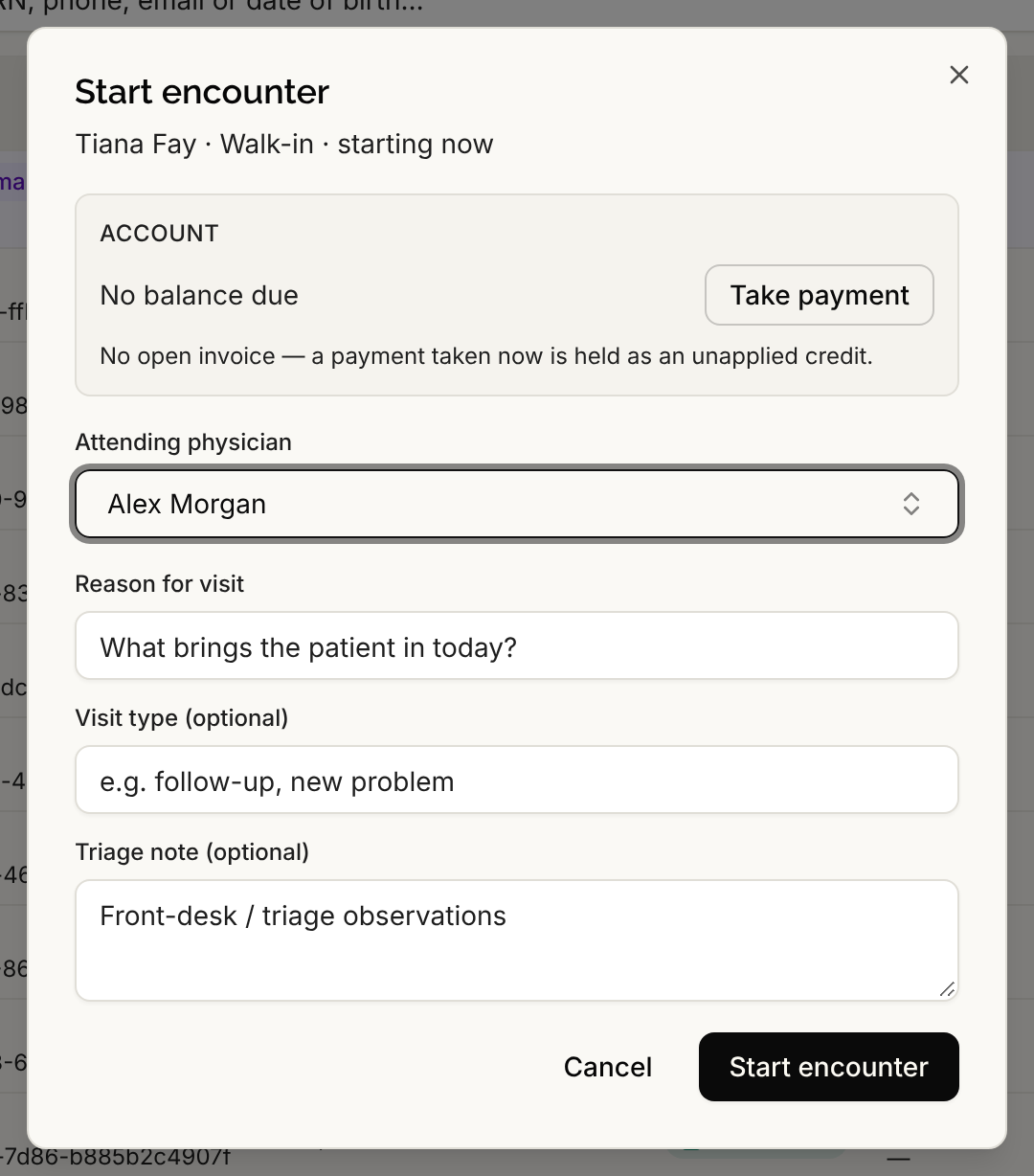
Select Start encounter. A message reads Encounter started.
Step 4: Start the visit when the provider is ready
A walk-in begins as Checked in, like a scheduled patient. When the provider is ready, select Start visit in the Current visit card. See Starting a Visit.
How a walk-in looks on the Calendar
A walk-in appears as a block labelled Walk-in that runs from the time it started to the present, and it grows while the visit is open. Select it to see the patient, MRN, status, time, attending, other participants and room if one is set, with an Open chart button. A walk-in block is read-only: it cannot be dragged, resized or edited from the Calendar.
Because the block keeps growing until the visit ends, finish or undo walk-ins when they are done. A forgotten walk-in stretches across every later day. See Finishing a Visit and Undoing a Check-In.
Good to know
- Everyone in the six standard roles can start a walk-in.
- A patient can have only one open visit at a time. If one is already open, there is no Start encounter button.
- Walk-ins follow the same steps as scheduled visits from there on, including signing notes before the visit can be finished.