Search documentation
Find a documentation page by the words on it.
Documentation
The Encounters Tab
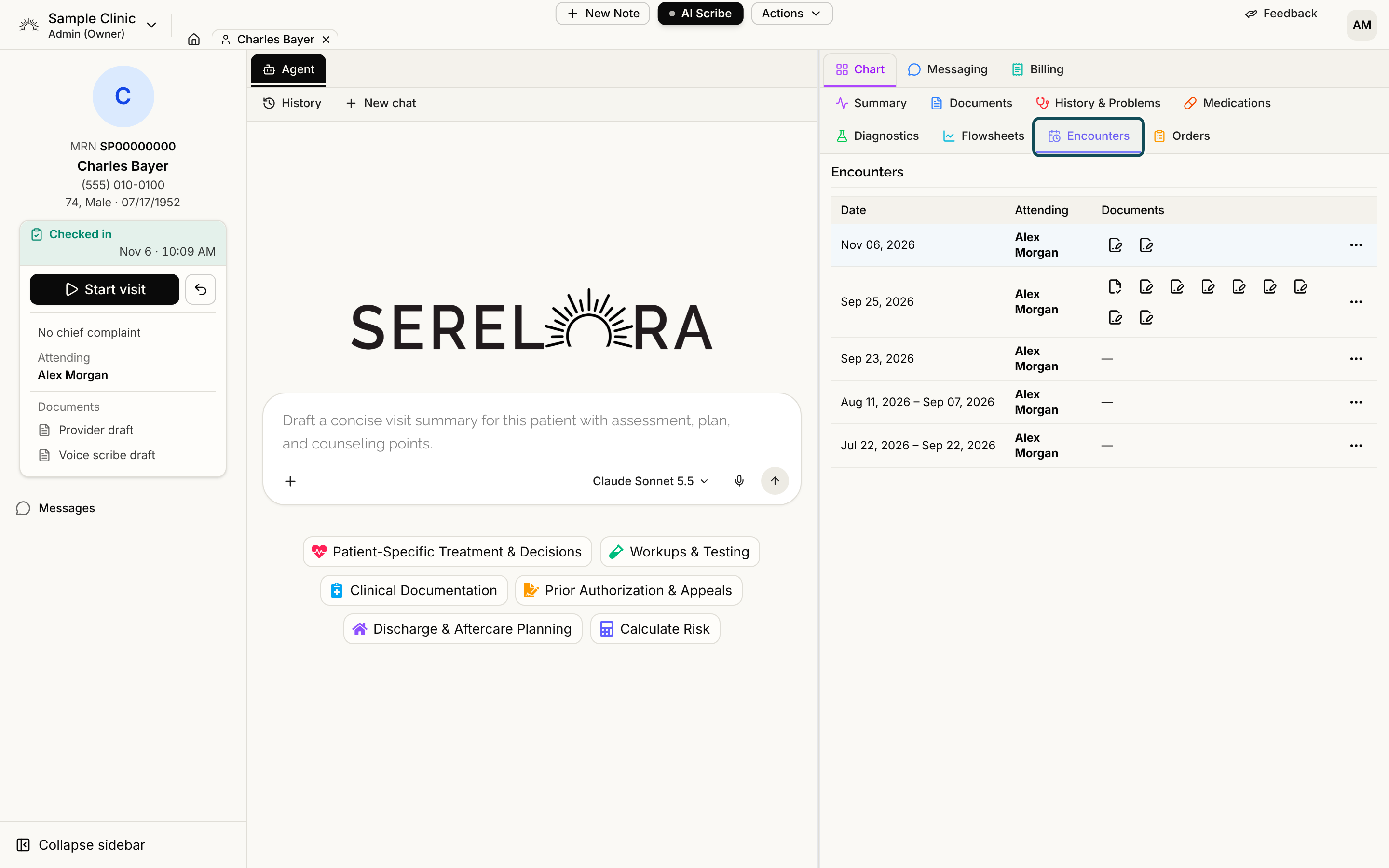
The Encounters tab lists the visits recorded for the patient at your clinic, newest first, with the notes filed under each. Use it to review a patient's visit history or to act on a visit other than the one in the Current visit card, such as reassigning an attending.
This feature is controlled by the Encounters feature flag. If you do not see it in your clinic, contact Serelora at support@serelora.com and ask for it to be turned on.
Step 1: Open the tab
Open the patient's chart and select Encounters from the chart tabs. If you do not see it, your clinic does not have visits turned on.
Step 2: Read the table
| Column | What it shows |
|---|---|
| Date | When the visit started, and when it ended if it has finished. |
| Attending | The attending physician in bold, with other participants beneath. |
| Status | A badge such as arrived, in progress, finished, cancelled or entered in error. |
| Reason | The visit's reason for visit. A dash means none was recorded. |
| Documents | One icon for each note or upload filed under the visit. |
On a narrow screen the Status and Reason columns are hidden. The patient's open visit is shaded.
In Documents, a pencil icon is a draft note, a check mark is a signed note and a plain document icon is anything else. Hover an icon to see its status, title and where it came from. Select it to open the document. A visit with nothing filed shows a dash, and a long list is cut off with a message saying so.
If there are many visits, select Load more visits at the bottom. An empty tab reads "No visits recorded for this patient yet." If the list fails to load you see Failed to load encounters. and a Retry button.
Step 3: Act on a visit
Open the menu at the end of a visit's row. The entries you see depend on your role and on the visit:
- Charges opens that visit's charges. It appears only when your clinic uses billing.
- Finish visit closes the visit. Admin and Physician only. See Finishing a Visit.
- Reassign attending… changes the attending. See Attending Physicians.
- Undo check-in voids a visit that should not exist. Admin, Physician and Office Manager only. See Undoing a Check-In.
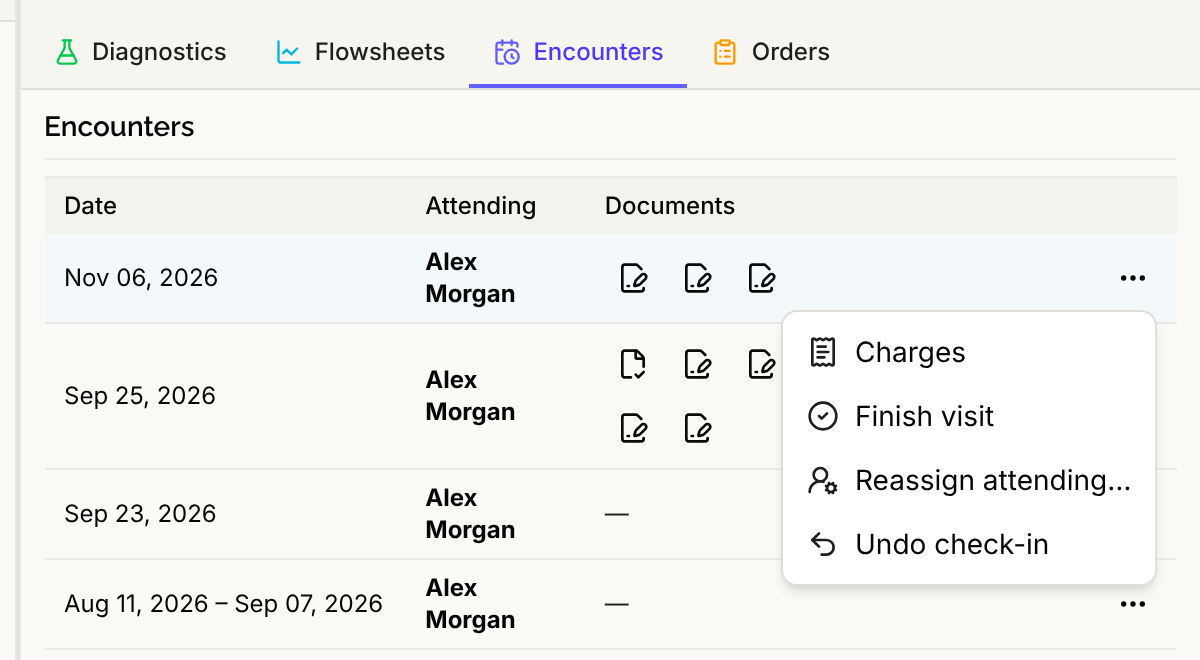
Finish visit, Reassign attending and Undo check-in are offered only on a visit that is still open. A finished or voided visit shows at most Charges, and a row with nothing to offer has no menu.
The tab lists visits recorded in Serelora, from check-ins and walk-ins. Visits that arrive inside imported outside records are not listed here.