Search documentation
Find a documentation page by the words on it.
Documentation
Spruce Live Sync
This feature is controlled by the Spruce messaging feature flag. If you do not see it in your clinic, contact Serelora at support@serelora.com and ask for it to be turned on.
Spruce is not available to clinics yet. Serelora has so far tested live sync only against a Spruce test organization. See Spruce Integration.
Live sync brings new Spruce messages into each patient's record as they arrive. You turn it on after a patient's history has been copied. It also has to be on for a conversation before staff can reply to it from Serelora.
What you need
- The Admin role.
- A connected Spruce account and event receiving turned on.
- History sync finished for the patients you want. Live sync is turned on one conversation at a time, after that conversation's history has been imported.
- Spruce not paused for your clinic. See Pausing and Resuming Spruce.
Step 1: Check the requirements
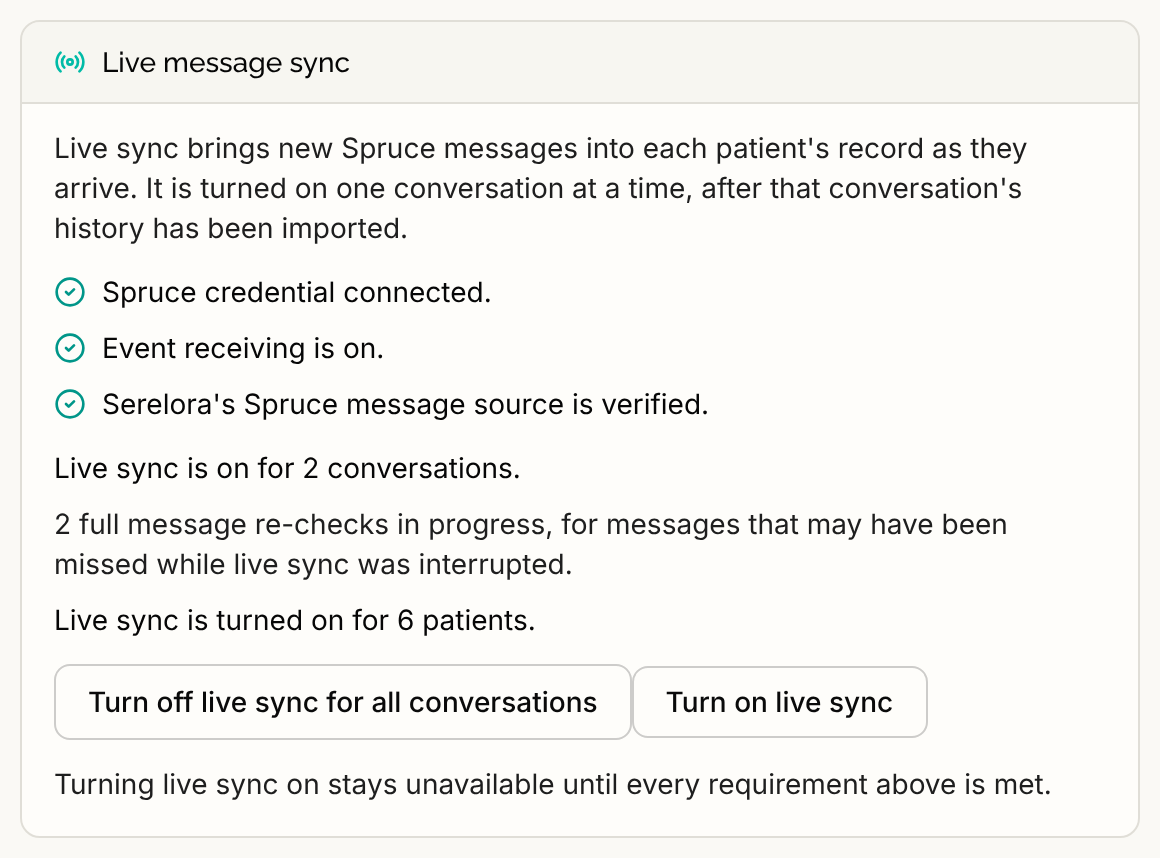
On the Setup sub-tab of the Spruce tab, find the Live message sync card. A list shows three requirements, each marked Met or Not met:
- "Spruce credential connected."
- "Event receiving is on." If it is off, the card says "Event receiving is off. Start receiving events above."
- "Serelora's Spruce message source is verified." If not, it says "Serelora hasn't yet verified that it can read complete, accurate message history from Spruce. Until it has, live sync can't be turned on."
A line under the list says where things stand, for example "Live sync is off for every conversation." or "Live sync is on for 2 conversations."
Step 2: Select Turn on live sync
Select Turn on live sync. The button stays greyed out until every requirement is met and Spruce is not paused. The card also says "Turning live sync on stays unavailable until every requirement above is met."
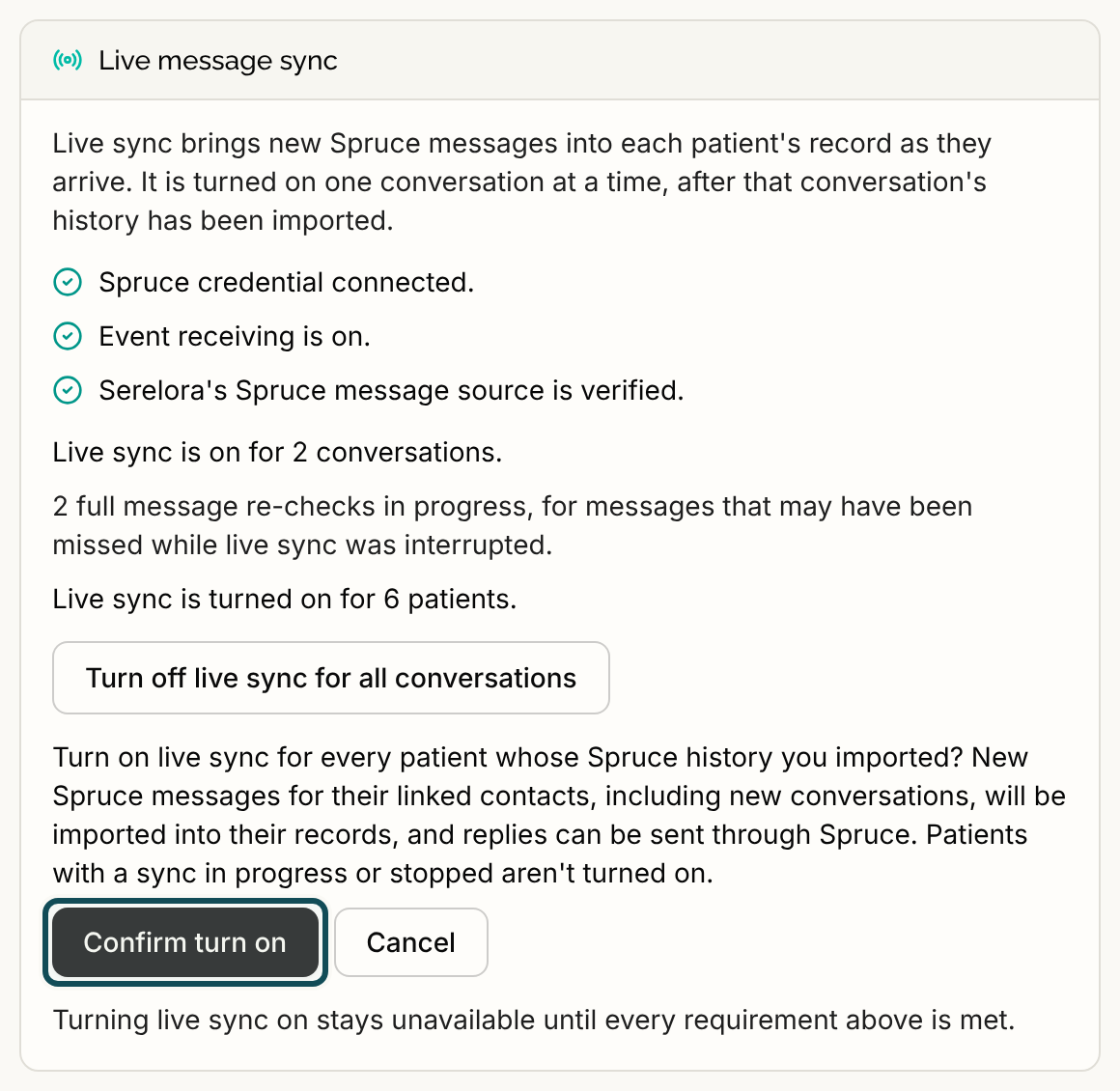
A confirmation asks "Turn on live sync for every patient whose Spruce history you imported?" and explains that new Spruce messages for their linked contacts, including new conversations, will be imported into their records, and that replies can be sent through Spruce. Patients with a sync in progress or stopped are not turned on.
Only patients whose history you started are turned on by you. If another Admin started a patient's history, that Admin turns it on.
Step 3: Read the result
Select Confirm turn on. The card then says how many patients were turned on and how many still have a sync that is in progress or stopped. If some were left out, it says "Turn on again once that sync finishes or is resolved." A line such as "Live sync is turned on for 6 patients." shows the coverage.
Re-checks and stopped syncs
- "N full message re-checks in progress, for messages that may have been missed while live sync was interrupted." Serelora is re-reading a conversation after live sync was interrupted. Wait for it.
- "N full message re-check stopped and can't continue on its own." New Spruce messages for those patients are not imported until live sync is turned off for their conversations.
- "N live message updates stopped" followed by reasons: waiting for a verified Spruce source, Spruce was unavailable, Spruce returned an unexpected page of messages, a conflict with existing records, some message files could not be retrieved, or another reason. A live update that stopped on a conflict while waiting for a message being sent through Spruce is retried automatically once that send finishes.
- "N earlier authorization from a previous credential or settings no longer import messages." They date from before the key was replaced or settings changed. Turning live sync off clears them.
When a stopped sync is one that can be checked again, a Check stopped syncs again button appears. It clears up to 25 stopped syncs that you started, oldest first, so they start over later. Select Confirm check again to go ahead. It does not change syncs another Admin started, conflicts that could not be classified, or updates waiting for a message being sent through Spruce. A sync that hits the same problem stops again.
Turn live sync off
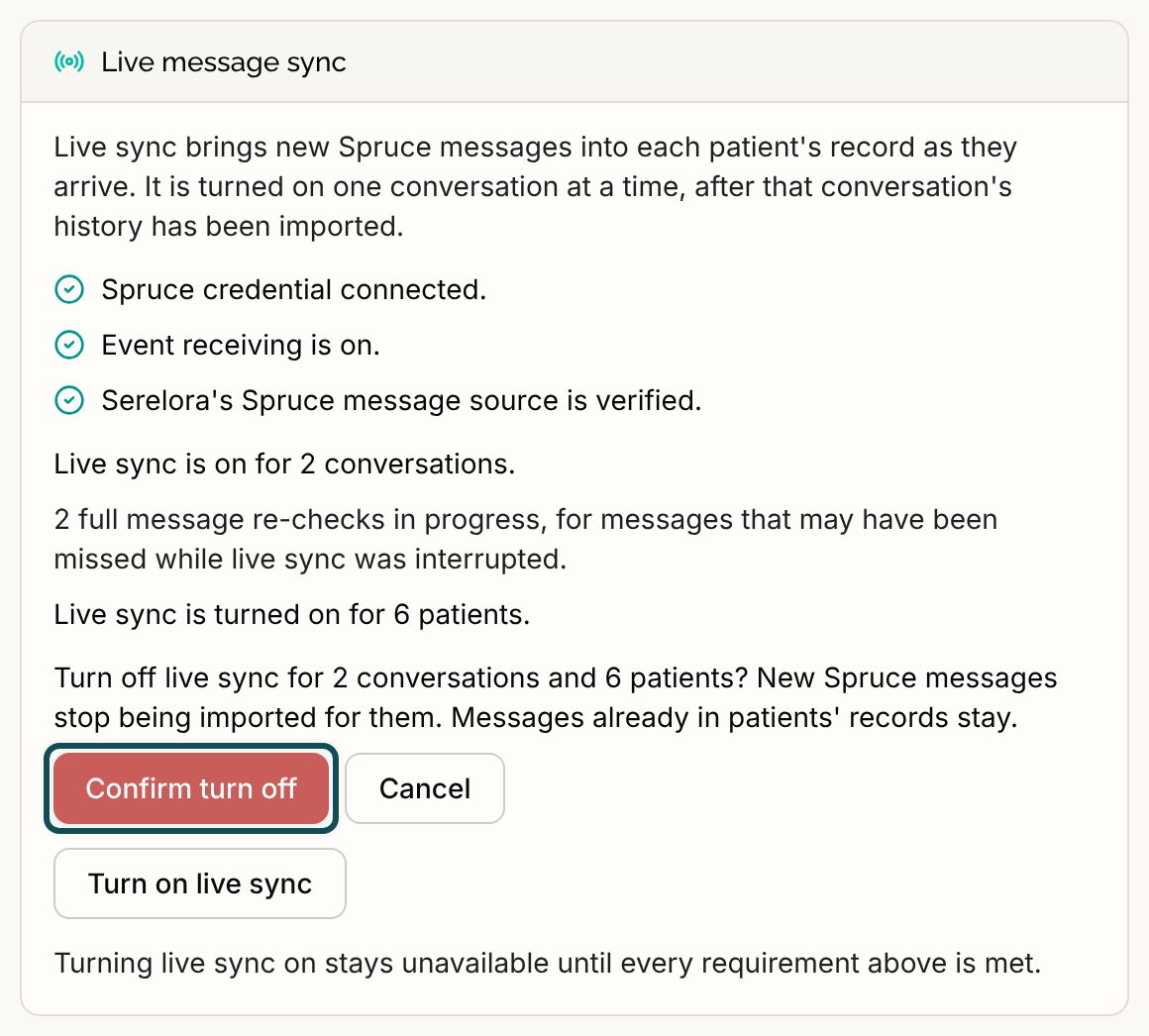
Select Turn off live sync for all conversations. The confirmation asks "Turn off live sync for" the number of conversations "and" the number of patients, then says new Spruce messages stop being imported for them and that messages already in patients' records stay. Select Confirm turn off.
The card then reports "Live sync is paused for every conversation". If it could not do all of them, it says "Live sync isn't paused for every conversation yet" with the counts, and you select the button again. Turning off does not delete anything. It is not undone by one click. To get live sync back, select Turn on live sync again, which turns on the patients whose history you started.
Live sync and the clinic-wide pause
Turning live sync off is not the same as pausing Spruce. Turn off removes the permission for each conversation. A pause holds everything for the clinic and keeps those permissions. See Pausing and Resuming Spruce.
If the card shows an error, select Reload connection at the top of the Clinic connection card. See also Spruce Problems and Messages.