Search documentation
Find a documentation page by the words on it.
Documentation
Visit Information and Triage Note
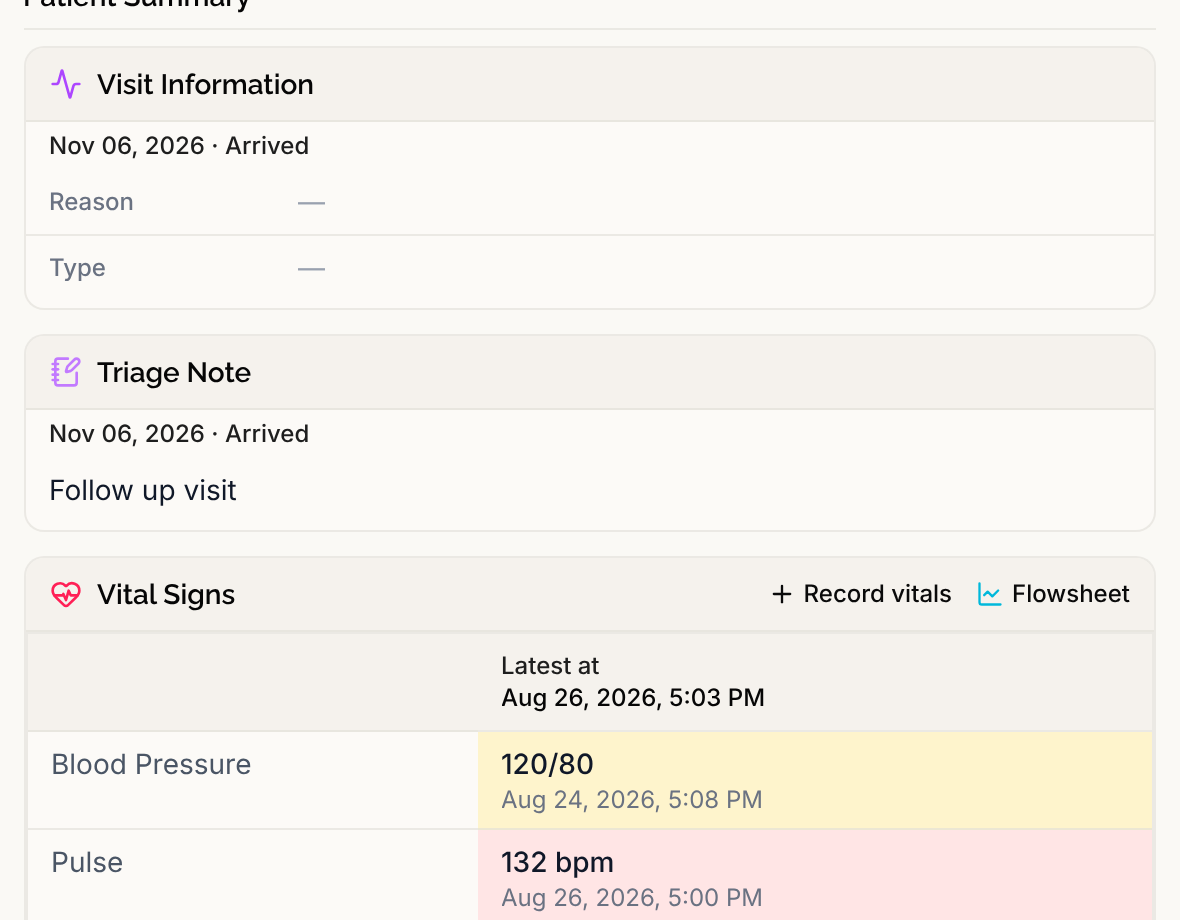
When your clinic uses visits, the first two cards on the Summary tab, side by side at the top, are about the visit in progress. Visit Information shows why the patient is here and what kind of visit it is. Triage Note holds the nursing triage note for the visit. You can read and change both without leaving the chart.
This feature is controlled by the Encounters feature flag. If you do not see it in your clinic, contact Serelora at support@serelora.com and ask for it to be turned on.
Step 1: Read the cards
The Visit Information card has two rows. Reason is the reason for the visit, in bold. Type is the visit type. A row with nothing recorded shows a dash. The Triage Note card shows the note, up to three lines, or a dash when there is none.
Both come from the current visit, the one that was created when the patient was checked in. The reason can be prefilled from the patient's pre-visit check-in. See Checking a Patient In.
Step 2: Edit the reason or type
Select a row. A pencil appears as you point at it, and the value becomes a text box. Type the new value, then press Enter, or click away, to save. Press Escape to cancel and keep what was there. A failed save shows a message such as We couldn't save the visit details. Check your connection and try again. and leaves your text in the box.
Step 3: Edit the triage note
Select the Triage Note card. The text becomes a box with a counter, such as 120 / 1,000, and Saving… appears at the right while it saves. The limit is 1,000 characters, and text past it is not accepted. Click away to save, or press Escape to discard your change.
If a colleague changed the note while you were editing, Serelora refuses your save and does not overwrite their change. The message reads The triage note was changed by someone else while you were editing it. Reload the page to see the latest version before saving again.
If the patient is not checked in
The visit details live on the visit, so there is nothing to save them to before check-in. If you edit a card for a patient who is not checked in, a dialog titled Start a visit? offers to check the patient in first. See Filing Notes under a Visit. Once the visit exists, your change is saved.
Where else the visit appears
The Current visit section of the sidebar shows the same visit with its status. See The Current Visit Sidebar. Past visits are listed on the Encounters tab. See The Encounters Tab.
Who can edit
Editing these cards saves to the patient's record, so it needs permission to edit patient demographics, which all six standard roles have: Admin, Physician, Physician Assistant, Medical Assistant, Office Manager and Administrative Assistant.