Search documentation
Find a documentation page by the words on it.
Documentation
Chat History and New Chats
Every conversation with an agent is saved as a chat, so you can come back to it. Under the Agent tab is a row with History and New chat. It is the same row in a patient's chart and on the Practice Agent page.
Start a new chat
Select New chat. The conversation clears and you get an empty chat with the suggestion chips. The earlier chat stays in History.
Start a new chat when you change topic, or when the agent says a request needs more than it can review at once. A new chat starts with no earlier messages. The agent still reads the patient's chart, so you do not repeat what is already recorded.
Reopen an earlier chat
Select History. The Chat History list opens. It shows your chats for this patient, or your Practice Agent chats for this clinic. Starred chats are first. The rest are newest first. Each row shows the title, then the date and time of the last message. Select a row to open it.
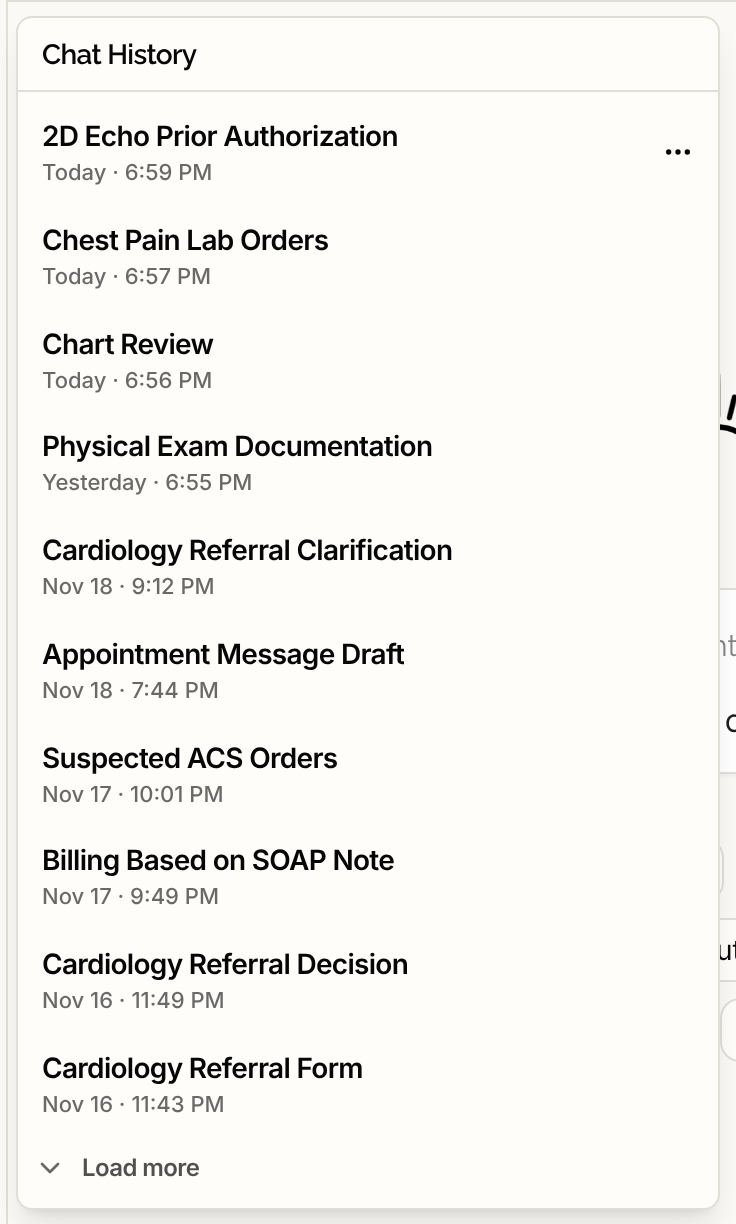
- If the list is long, select Load more at the bottom for older chats.
- History is greyed out until you have a chat. Hover over it and it reads "No conversations yet".
- Chats are yours. You see your own chats, not other people's.
See what is running or waiting
A row can carry a small signal:
- A spinning circle means the agent is still working on that chat. You can leave the chat and come back. The agent keeps going.
- A dot means the agent finished while you were away.
- A checklist icon means a plan is waiting for your approval. See Plans the Agent Proposes.
Star, rename or delete a chat
Hover over a row and select the Session options button, the three dots.
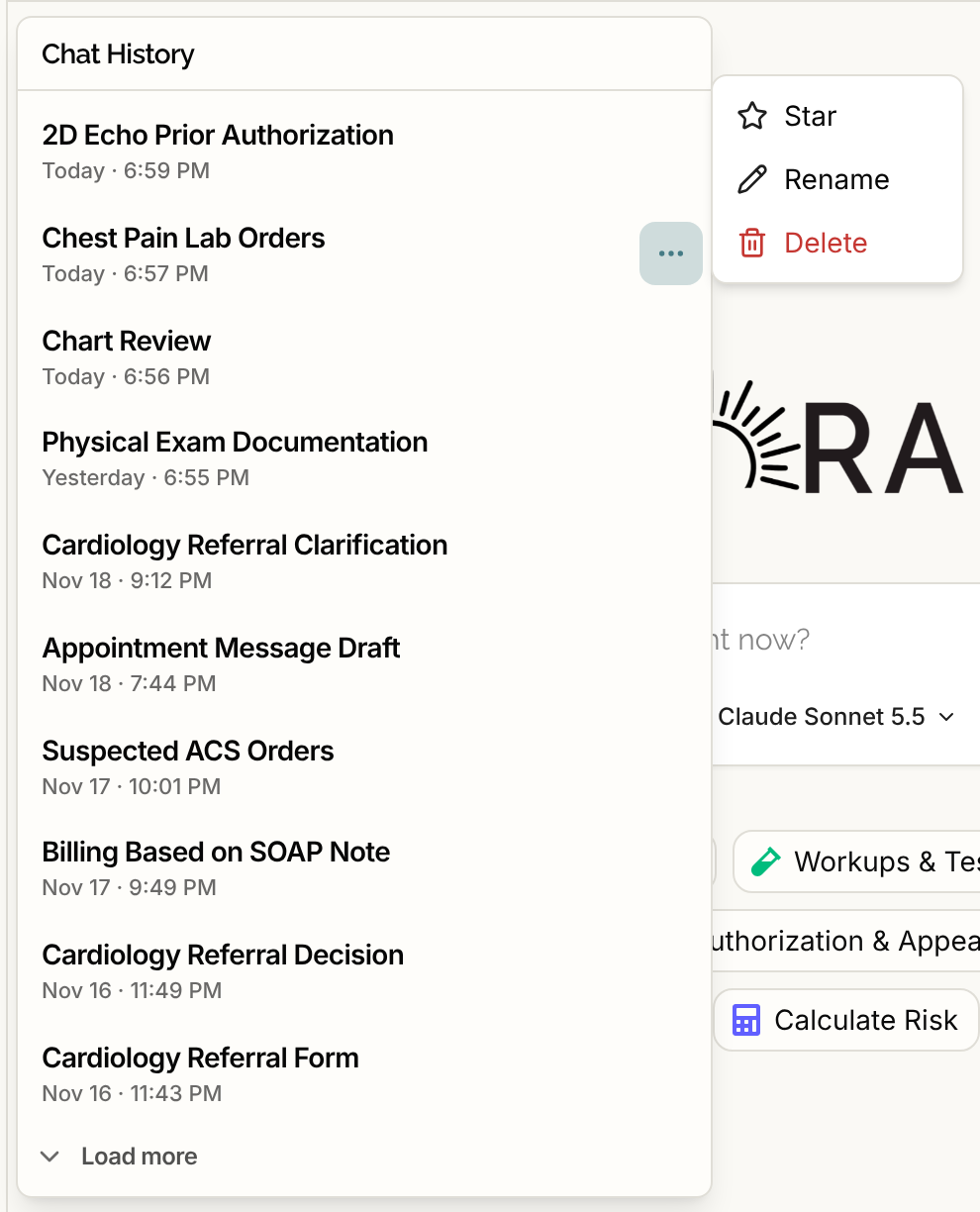
- Star pins the chat to the top of the list. The menu then reads Unstar.
- Rename opens Rename chat. Type a Chat name and select Save. Chats are titled automatically, so rename one only to make it easier to find.
- Delete asks "Are you sure you want to delete this chat?" Select Delete to confirm, or Cancel.
If a star or rename fails, you see a short message and the chat stays as it was.
What a chat holds
A chat keeps the messages, the agent's activity, and the cards it prepared. Opening a chat again shows a card you already decided as finished, and one you have not decided as still waiting. A file you attached stays with that chat only. See Attaching Files to a Chat.
Good to know
- Deleting a chat does not undo anything the agent did for you, such as a message you sent or a chart change you approved. Those are recorded in their own places.
- If you close the browser in the middle of an answer, the chat shows "This answer was interrupted." with Send it again?. See Chat Input and Message Controls.