Search documentation
Find a documentation page by the words on it.
Documentation
Two-Way Text Messages
In a secure conversation you can send a message as a text to the patient's phone instead of through the patient portal. The words you write are the text. When the patient texts back, their reply appears in the same conversation, next to the portal messages.
This feature is controlled by the Patient messaging feature flag. If you do not see it in your clinic, contact Serelora at support@serelora.com and ask for it to be turned on.
You need the permission to send secure messages (Admin, Physician and Physician Assistant by default). Your clinic also needs both the Secure messaging and Secure messaging: two-way text (SMS) switches on. Without the second one, every message you send is a secure message and the selector described below does not appear.
Step 1: Open the conversation
Open the patient's chart and select the Messaging tab, or select Messaging in the sidebar and open the conversation on the Inbox tab. See Secure Messages with Patients if you have not started one.
Step 2: Choose Text message
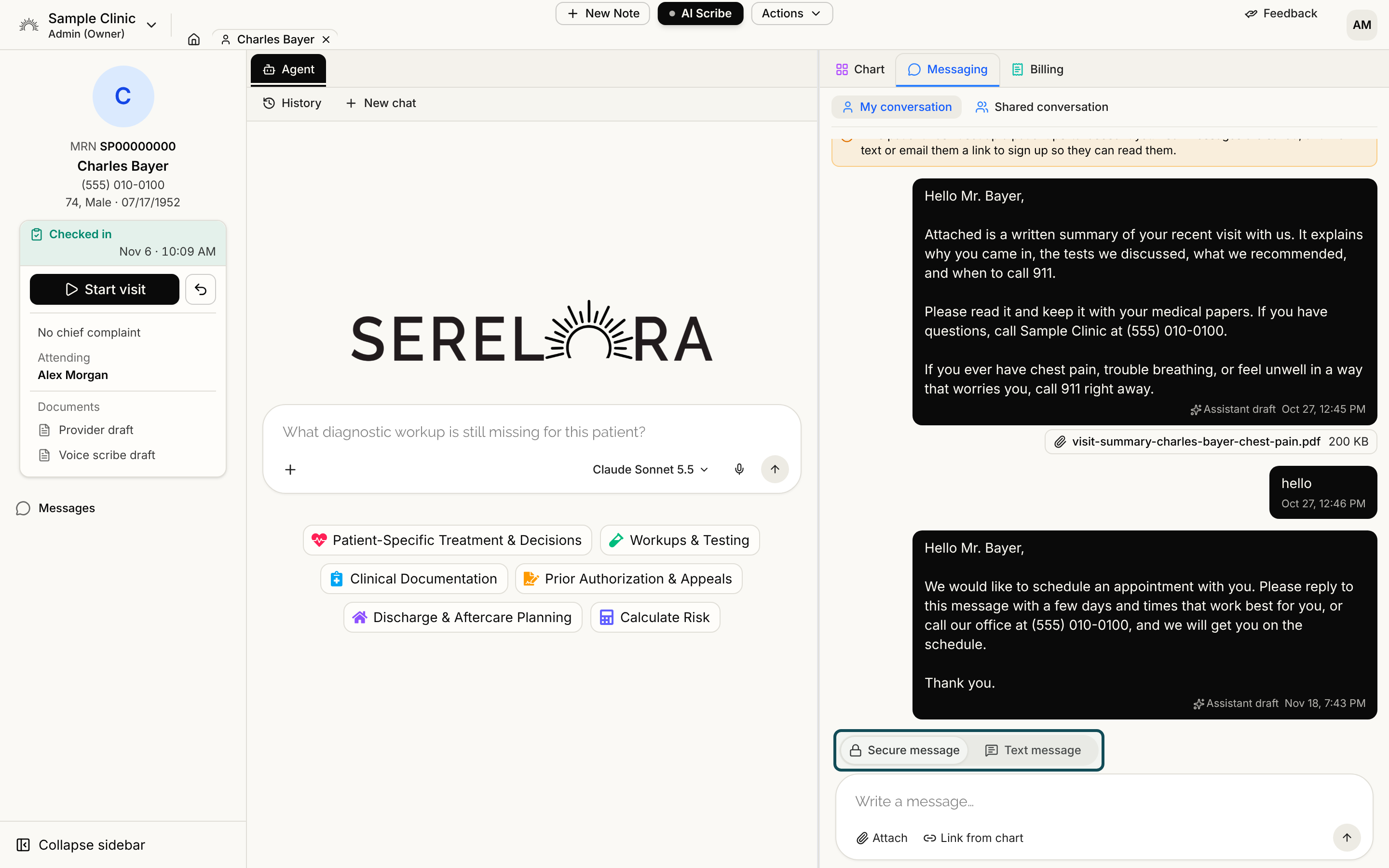
Above the message box is a selector with two choices: Secure message and Text message. It starts on Secure message. Select Text message.
The box now says "Write a text message to the patient's phone…". Attach and Link from chart are replaced by a count such as "42 / 1,600". A text can be up to 1,600 characters and carries words only.
After you send a text, the selector stays on Text message for that conversation until you change it or reload the page. It is locked while a message is being sent.
Step 3: Send
Select the send arrow. Serelora stores your message in the conversation first, then texts it. Unlike a secure message, a text sends no separate notice, because the text is the message.
Serelora checks the patient before it sends. It refuses, and keeps your draft in the box, with one of these:
- "This patient has no mobile number on file."
- "This patient's phone number on file can't receive texts."
- "This patient has turned off text messages."
- "This patient hasn't agreed to receive text messages."
- "We couldn't check whether this patient agreed to receive texts. Try again in a moment."
- "Demo patients can't be texted."
See Opt-Outs and Consent for Texts for what causes each.
Step 4: Check the result
A text shows the word Text beside its time. If it did not plainly go through, it also shows its state and a line under the bubble:
| State | What the line says |
|---|---|
| Text · Not sent | "The text wasn't sent: this number has replied STOP to texts from the clinic." or "The text wasn't sent: the carrier rejected this number." or "The text wasn't sent. Try again later, or send a secure message instead." |
| Text · Not delivered | "The carrier couldn't deliver this text." |
| Text · Not confirmed | "We couldn't confirm the text was sent. Check with the patient before sending it again." |
A message that was refused by the carrier is still in the conversation, and the patient can read it in the patient portal. Do not resend a text marked Not confirmed until you have checked with the patient, because it may already have arrived.
How replies work
The patient replies by texting the same number. Serelora puts the reply in the conversation that last texted that number, if that text was sent within the last 30 days. A text from a number that no conversation has texted in that time is dropped and is not stored anywhere. A reply raises the unread badge exactly as a portal reply does.
Patients see the same messages in the patient portal, with the same Text label.
Good to know
- All clinics send from one shared text number, so a patient's reply is matched by phone number, not by clinic.
- The words of a text travel in plain text over the phone carrier, not through the portal. Serelora adds no extra warning in the box, so follow your clinic's policy on what to put in a text.
- The chart agent's secure-message cards are always sent as secure messages, never as texts.