Search documentation
Find a documentation page by the words on it.
Documentation
Intake Campaigns from a Cohort
Once you have a cohort, the Practice Agent can propose an invitation to everyone in it who has not finished intake. It prepares the message and the recipient list, you review and edit them, and nothing is sent until you approve. The send goes through the same mass messaging system as any other campaign.
This feature is controlled by the Practice Agent feature flag. If you do not see it in your clinic, contact Serelora at support@serelora.com and ask for it to be turned on.
What you need
- The Practice Agent turned on for your clinic, and the permission to use it.
- Permission to send mass messages. Both permissions are Admin only by default.
- Patient messaging turned on for your clinic, with the channel you want, Email or Text messages (SMS). Serelora turns these on for a clinic.
Step 1: Start from a cohort
Open Practice Agent and create or open a cohort, as described in Practice Agent and Cohorts. You can use a saved cohort or one you have not saved yet.
Step 2: Ask for the invitation
Invite this cohort to finish intake by email.
Say email or text message. If you do not name a channel, the agent uses email. It writes a short message and opens a card.
If a channel is not turned on, the agent says so and offers the other one when it is on. If nobody in the cohort can receive the invitation, it says so and explains how many were left out and why.
Step 3: Review the card
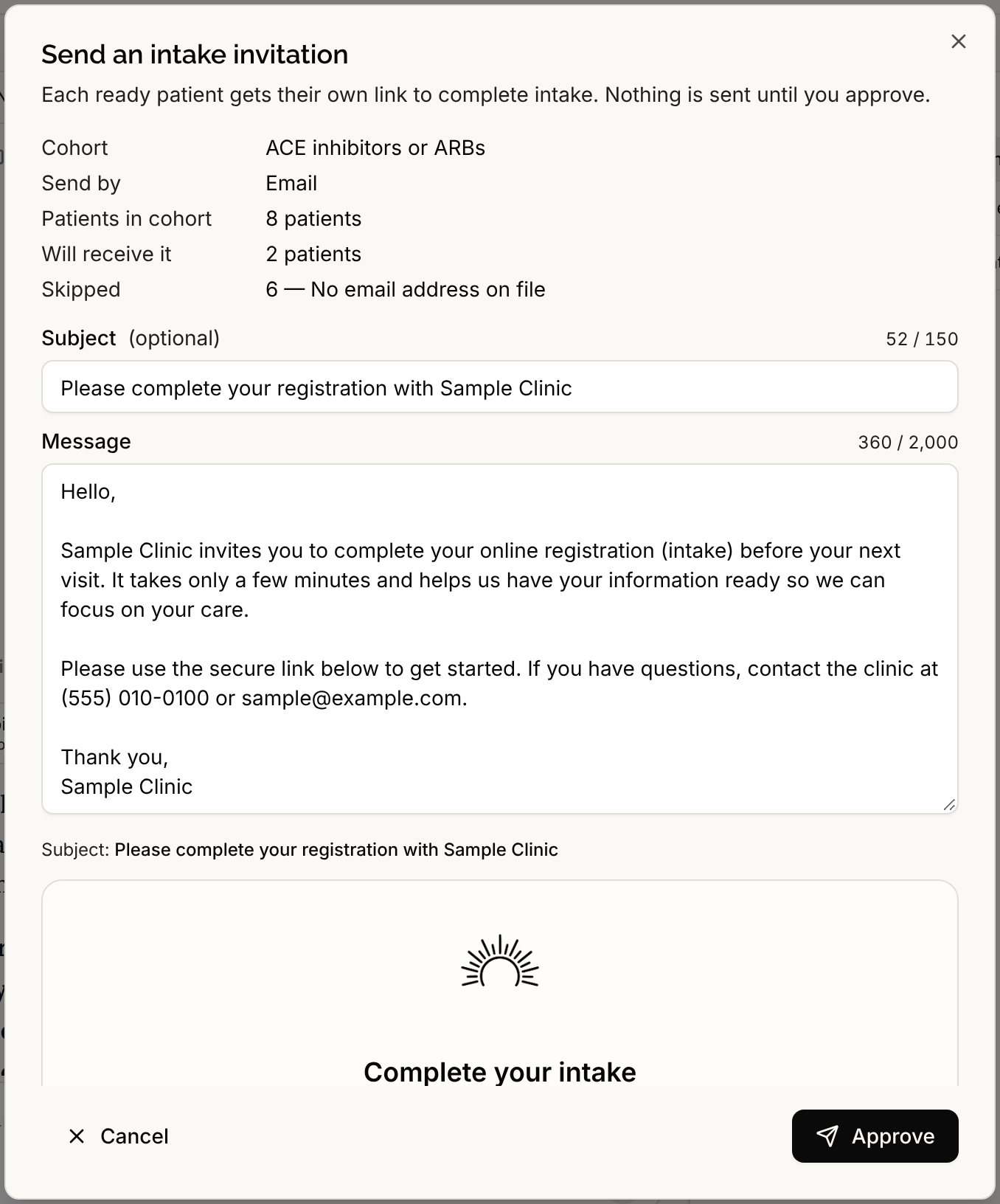
The card shows the Cohort, Send by, Patients in cohort, Will receive it and Skipped, with the reasons patients were skipped:
- For email, a patient with no email on file, who already completed intake, who opted out, or whose address bounced.
- For text, a patient with no phone number on file, who already completed intake, or who opted out.
Edit the message in the dialog and check the preview.
- Email. You can set a subject, which is optional, and a message of up to 2,000 characters. If your clinic offers it, a Send from choice lets you send from your own Gmail.
- Text message. A text has no subject. Your message is limited to 143 characters, and a counter shows how many you have used. The patient sees your clinic's name, your message, their own link and a line asking them to reply STOP to opt out, within 320 characters in total.
Step 4: Approve
Select Approve. Serelora first checks who can receive the message right now. If that number differs from the one on the card, you see "Ready recipients changed from X to Y. Check the numbers, then approve again." and nothing is sent. Approve again to send to the new list. When it goes through, the card says "Sent to the Messaging queue." and offers Open Messaging.
Cancel closes the card and sends nothing. Approving the same card more than once never sends twice, because one card makes one campaign.
Step 5: Follow it in Messaging
In Messaging, open Mass message and then Sent. A campaign the assistant proposed has an Assistant badge, and a text campaign is titled "Intake text message". Its details name the cohort it was sent to.
Good to know
- Only patients who have not completed intake are invited. A patient who has a portal account is sent a link to sign in and continue intake, and a patient without one gets a registration link.
- The cohort you invite from is kept. A cohort that has been sent a campaign is never cleaned up automatically.
- The invitation is the only message the Practice Agent can send to a cohort. To compose a campaign yourself, see Mass Messages by Email and Text.