Search documentation
Find a documentation page by the words on it.
Documentation
Sending Feedback to Serelora
You can tell the Serelora team what is working and what is not without leaving the page you are on. Every member of a clinic can send feedback, whatever their role.
Step 1: Open the Feedback dialog
Select Feedback in the header, near the top right beside your avatar. The button is hidden on narrow windows. If you do not see it, make the window wider.
Step 2: Write your message
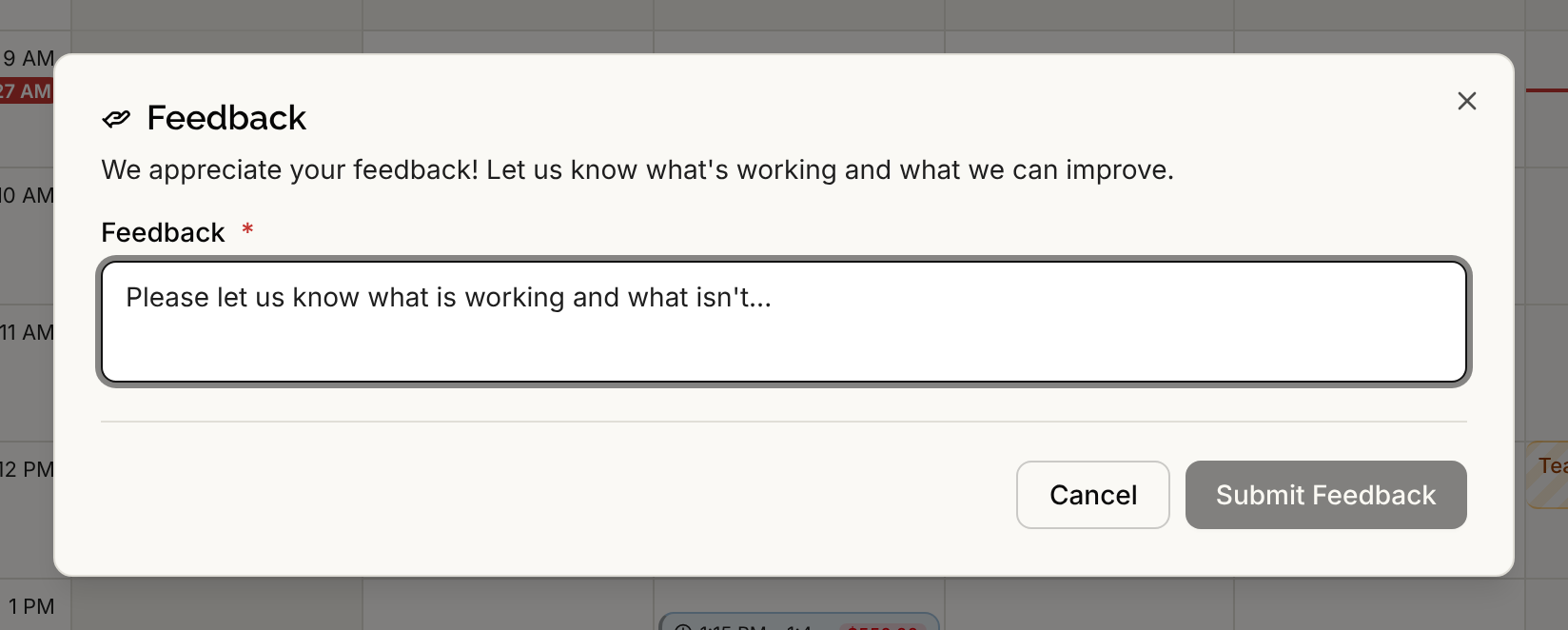
In Feedback, type what you want the team to know. The box is required. Submit Feedback stays unavailable until you have typed something.
Step 3: Submit
Select Submit Feedback. Serelora shows Feedback submitted successfully. and closes the dialog. Select Cancel to close it without sending.
If it does not go through, the dialog stays open with a message such as We couldn't send your feedback. Please try again later. Your text is still in the box, so you can try again.
Rate an answer from the chart agent or the Practice Agent
Under an AI agent's answer there are Like and Dislike buttons. Select one and the same dialog opens, with the line You liked this answer. Tell us more about your experience. or You disliked this answer. Tell us more about your experience. and a quote of the answer, shortened on screen to its first 300 characters. The box is now Additional feedback, and it is optional.
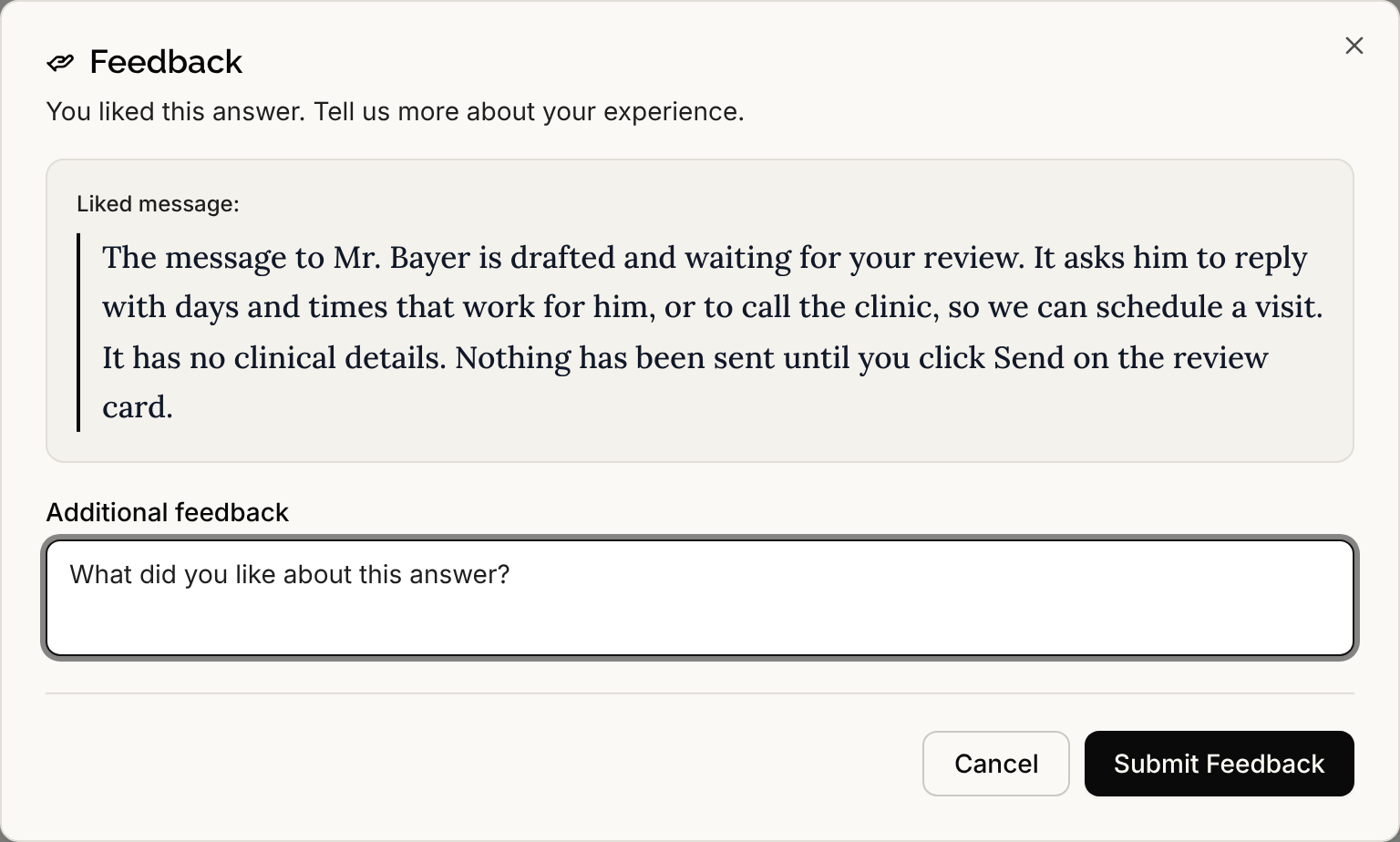
Select Submit Feedback to send your note with your rating. If you close the dialog without typing anything, Serelora still sends your rating, so closing it is not a way to cancel a rating.
What is sent
Your feedback goes to the Serelora team by email. It includes:
- your name and the email address on your account
- your message, if you wrote one
- for a rating, whether you liked or disliked the answer, and the full text of the answer
An answer from the chart agent may contain details from the patient's chart. Do not type patient names or other patient details into your own feedback, and consider this before you rate an answer that quotes a chart.
Good to know
- Feedback is one way. Serelora does not show a reply in the product, so use support@serelora.com when you need an answer or help with a problem.
- Serelora does not attach a screenshot or the page you were on.