Search documentation
Find a documentation page by the words on it.
Documentation
Signing In to the Patient Portal
You sign in to the patient portal with the email address and password you created when you accepted your clinic's invitation. This page covers signing in, getting a new password, getting a new activation link, and logging out.
Step 1: Choose the patient portal
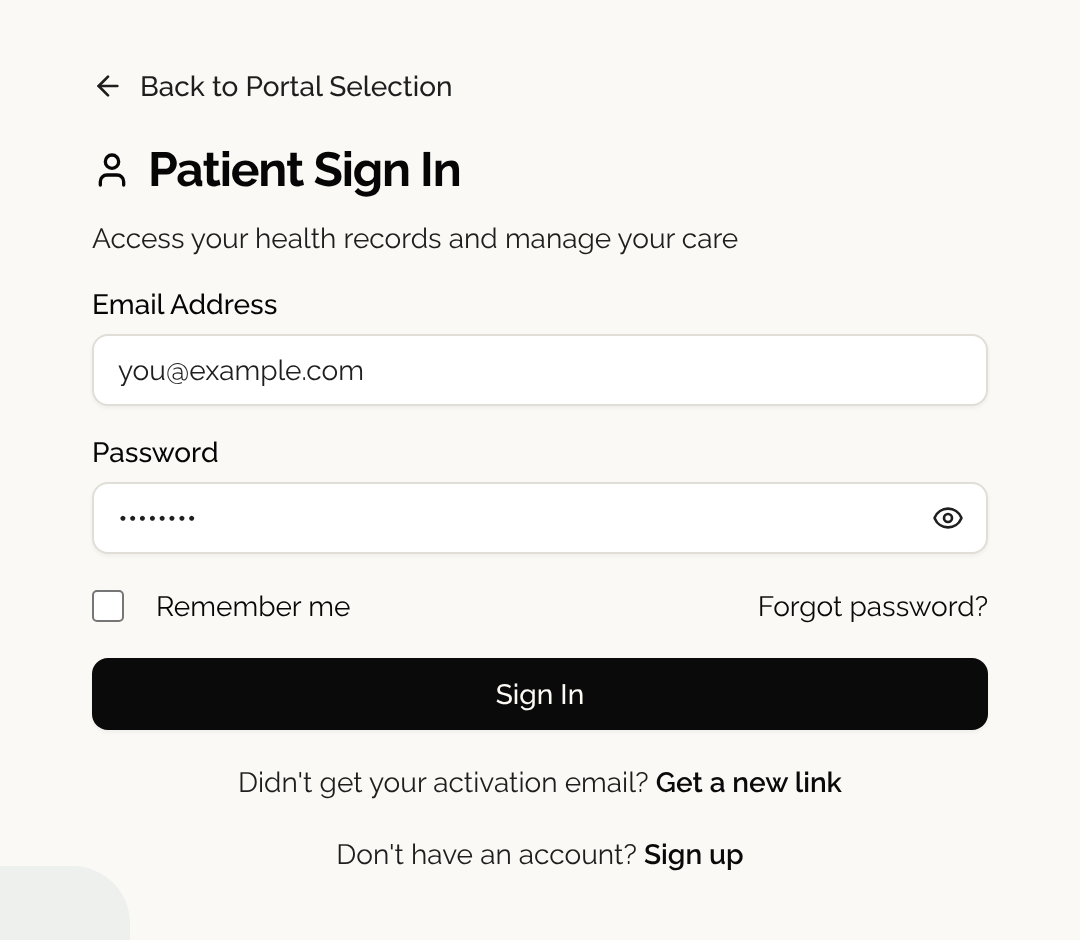
Open the Serelora sign-in page. On Welcome back, select I'm a Patient. The Patient Sign In page opens, with the line "Access your health records and manage your care".
If you were sent a link to a message from your care team, open that link and sign in. Serelora takes you to the message after you sign in.
Step 2: Sign in
Enter your Email Address and Password, then select Sign In. The page also has a Remember me box. It does not change how long you stay signed in, so log out on any shared computer.
- If your intake is not finished yet, Serelora takes you back to it. See Signing Up and Onboarding.
- If it is finished, you land in Chat, the first item in the sidebar. See Chatting with the AI Advocate.
- If the email or password is wrong, you see "Invalid email or password". Nothing tells you which of the two it was.
If you do not have an account yet, use the link your clinic sent you. An account made with Sign up on this page is not connected to the record your clinic already started for you.
If you forgot your password
- On Patient Sign In, select Forgot password?.
- On Forgot Password?, enter your Email Address and select Send Reset Link.
- Serelora shows Check Your Email and says that if an account exists for your address, it has sent a reset link. The message is the same whether or not an account exists. The link works once and expires after 24 hours. If you do not see the email, check your spam folder.
- Open the link. On Reset your password, enter a New password and Confirm new password. Serelora shows a checklist: at least 14 and at most 128 characters, with a capital letter, a lowercase letter, a number and a symbol. A password that is too common is refused.
- Select Reset password, then sign in with the new password.
For your security, resetting your password signs you out on your other devices. If the link says This reset link has expired, select Request a new reset link. If it says This reset link is no longer valid, it was already used or a newer one was sent. Sign in if you already reset it, or request another.
If you never activated your account
If you signed up but never opened the verification email, or the link expired, select Get a new link under "Didn't get your activation email?" on the sign-in page. Enter the email you registered with and select Send new link. Serelora says it sent a new link if that email is waiting to be activated. The new link works for 24 hours and any earlier link stops working.
Asking for a password reset for an account that was never activated sends the activation link instead.
Log out
In the sidebar, select your name at the bottom to open the account menu, then Log out. Logging out ends your session on this device. If you use a shared or public computer, always log out.
Language
The sign-in and sign-up pages can be shown in Spanish. See Spanish on the Sign-In Pages.
If you still cannot get in, ask your clinic's front desk to send you a new invitation.