Search documentation
Find a documentation page by the words on it.
Documentation
Chat Input and Message Controls
The chat box does more than take text. This page covers each control around it and under each message, in a patient's chart and in the Practice Agent.
The input box
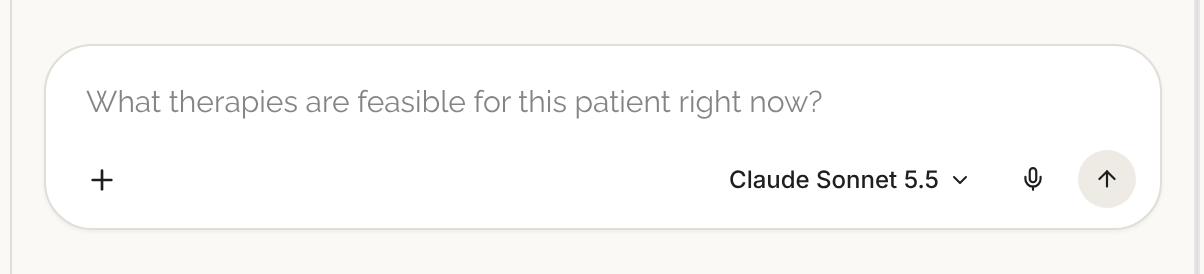
- Send. Press Enter or select the arrow. Press Shift+Enter for a new line.
- Suggested prompt. In an empty chart chat the box shows a suggested question as its hint. Press Tab to fill it in. Once the conversation starts, the hint reads "Ask a follow-up…". In the Practice Agent it reads "Ask about your patient population…". See Suggestion Chips and Starter Prompts.
- Microphone. Speak instead of typing. See Dictation in Chat and Notes.
- Model selector. On the right. See Choosing a Model for the Chat.
- Expand message. A long message grows the box up to a limit. When it outgrows that, select Expand message to open it taller in place. Press Esc to shrink it again.
The plus menu
Select the plus button, labelled Add attachment or option.
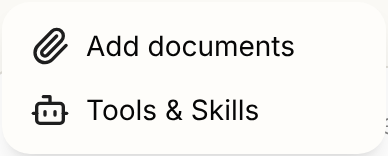
- Add documents attaches a file to a chart chat. See Attaching Files to a Chat. The Practice Agent has no attachments, so this item is not there.
- Tools & Skills opens a window of the same name. Its Skills tab lists your skills, your clinic's and Serelora's. See Skills. If your clinic has MCP connections, an MCP tab lists the outside tool servers. See MCP Connections. If you have an unsaved skill draft, closing the window asks "Discard your changes?"
Send while the agent works
You do not have to wait. Keep typing and send, and your message waits in line. A panel above the input reads 2 Queued or similar and lists what is waiting.
- Messages go out one after another, in order, as soon as the agent finishes the current answer.
- Select Edit queued message to change one, or Remove queued message to take it out.
- The line holds three. A fourth is ignored until a place frees up.
- A queue belongs to one chat. Switching to another chat leaves it where it is, and it keeps going in the background.
Stop a run
While the agent works, the send button becomes a stop button. Select it to end the run. Anything you already approved stays done. If a plan was running, the steps that had not run are marked skipped.
Under each answer

- Copy copies the answer.
- Regenerate runs the question again with the model you have selected now, and replaces the answer. The old answer, and everything after it in the chat, is removed.
- Like and Dislike open a Feedback window with room to say more. Select Submit Feedback to send it. Closing the window without writing anything still sends your reaction. Either way, the feedback is emailed to the Serelora team together with the answer you reacted to. An answer can contain patient information, so read it before you react.
- The time on the right is how long the answer took.
Under one of your own messages, hover to see Resend message and Copy message. Resend works like Regenerate.
When an answer was cut short
- "This response was interrupted." with Retry. The answer stopped before it finished. Retry sends the same question again as a new message. The cut answer stays, and so does anything the agent already did, so it does not repeat it.
- "This answer was interrupted." with Send it again? You reloaded or closed the page before the answer arrived. Select it to run the question again.
If your request is too large, the agent says "This request needs more information than the assistant can review at once. Try a narrower question, such as one problem, medication, or date range, or start a new chat." See Chat History and New Chats and Answer Interrupted or Incomplete.
Good to know
- The input is locked, and the model selector is greyed out, while the guided tutorial's scripted chat is running.
- Regenerating does not undo a card you already approved. Approvals are recorded where they happen.