Documentation
Sending a Payment Link
A payment link is an email that takes the patient to a secure Stripe checkout page for one invoice. The patient pays by card, and Serelora records the payment for you.
This feature is controlled by the Billing feature flag. If you do not see it in your clinic, contact Serelora at support@serelora.com and ask for it to be turned on.
Before you start
Three things must be true:
- Your clinic has connected Stripe.
- The invoice is Issued and still has a balance. See Invoices.
- The patient has an email address on file. Add one in the Email box of the Contact & Addresses section of the patient's Patient record tab.
Step 1: Open the invoice
Open the patient's chart and select Billing. You can reach an invoice two ways:
- Under Encounters, open the visit. Its invoices are at the bottom of the visit's tab.
- Under Records, choose the Invoices chip and select the invoice.
Step 2: Select Email payment link
On the invoice card, select Email payment link. The button reads "Sending…" and then a message says "Payment link emailed". The email goes to the address on the patient's record. You cannot choose a different recipient.
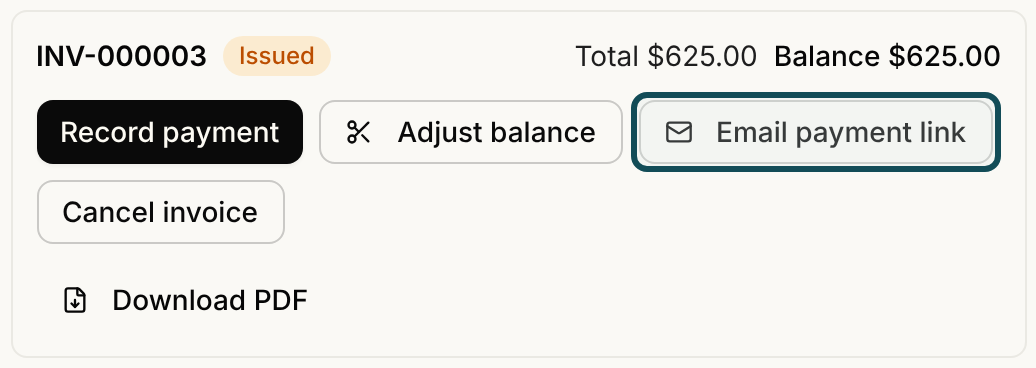
If a link was already created for this invoice, the button reads Resend payment link instead, and sends the email again.
If you have connected your own Gmail account under Integrations and it can send, the email comes from your address. Otherwise it comes from Serelora's no-reply address. If your Gmail connection needs attention, Serelora tells you and sends nothing. See Gmail and Google Drive Connections.
Step 3: The patient pays
The patient opens the email and follows the link to Stripe's checkout page, where they pay by card. Patients can also pay from the Billing tab of their patient portal with Pay online, see Patient Billing in the Portal.
When Stripe confirms the payment, Serelora records it automatically. The invoice changes to Paid and lists the payment as "Online (Stripe)". You do not enter online payments by hand.
When the balance changes
A link reflects the invoice as it was when the link was made. If you record a payment or an adjustment afterwards, select Resend payment link so the patient pays the current balance. If you cancel the invoice, any link you emailed stops working.
If the link will not send
Serelora shows a message and sends nothing. See Payment Link Not Sent.
Who can do this
Admins and Office Managers can email payment links by default. You can also ask the chart agent to prepare one, see Billing with the Chart Agent.
Search documentation
Find a documentation page by the words on it.