Search documentation
Find a documentation page by the words on it.
Documentation
The Sign Notes Worklist
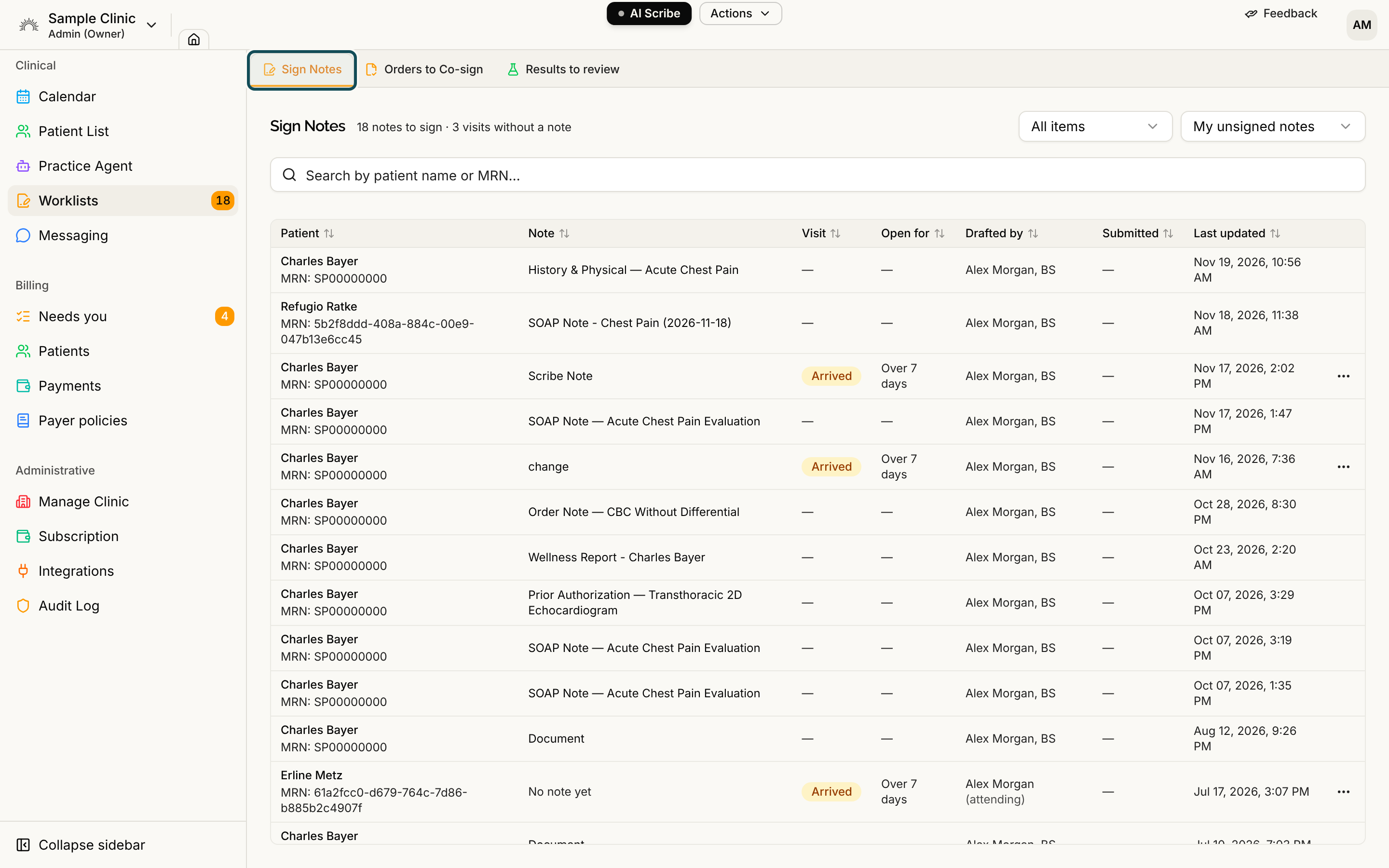
Without this list, you would have to open each chart to learn whether a note is still unsigned. The Sign Notes worklist answers "what do I still owe a signature on?" in one place. It lists unsigned notes across all your patients, and the open visits that still have no note.
Step 1: Open the worklist
Select Worklists in the sidebar. The Sign Notes tab is the first tab.
You see the tab if you can sign notes or review them: Admins, Physicians, Physician Assistants and Medical Assistants with the default roles. Office Managers and Administrative Assistants do not see it.
Step 2: Choose whose notes to show
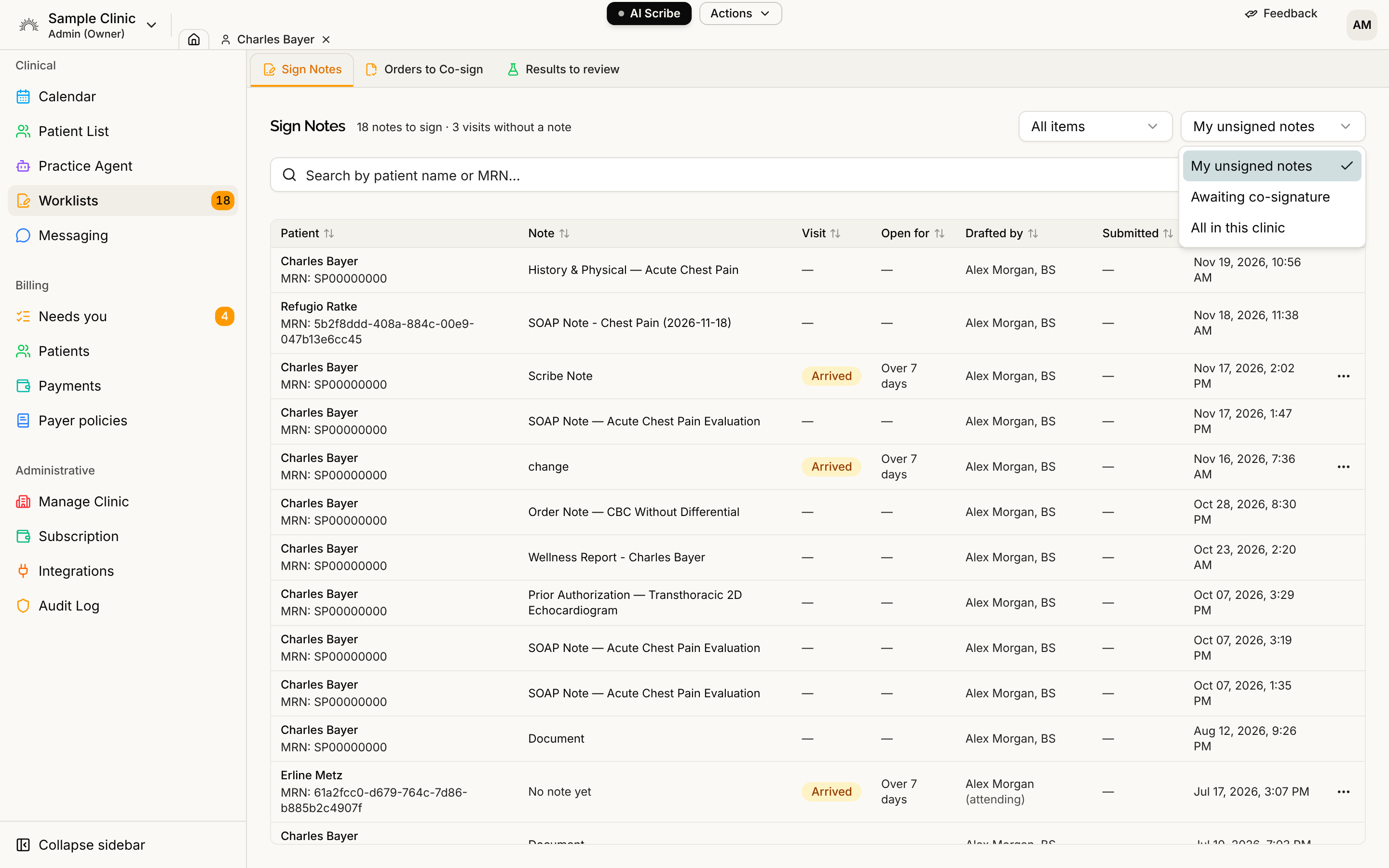
The dropdown at the top right has up to three lists:
- My unsigned notes is the default. It has notes you drafted. If your clinic uses visits, it also has notes filed under visits you attend and open visits you are on that have no note yet. A note on a visit you attend, which you did not draft, shows "(Your visit)" next to the drafter's name.
- Awaiting co-signature has notes that a physician assistant or medical assistant has submitted for a physician to co-sign. Everyone who can see the worklist sees this shared list, so a note does not get stuck when one physician is away.
- All in this clinic has every unsigned note in the clinic. Only people who can sign see it, which is Admins and Physicians. It is how an admin finds a colleague's unsigned notes.
For a physician assistant or medical assistant, My unsigned notes leaves out notes they have already submitted. Those move to Awaiting co-signature.
Step 3: Read the table
The header shows a count such as "3 notes to sign". Each row shows the Patient, the Note, the Drafted by name, when it was Submitted for review, and when it was Last updated. The most recently worked-on notes come first. Several column headings sort the list when you select them. The search box filters by patient name or MRN.
If your clinic uses visits, the list also shows open visits that have no note yet, with "No note yet" in the Note column. The Visit column shows the visit's status and Open for shows how long it has been open, such as Today, 1–2 days, 3–7 days or Over 7 days. The All items dropdown lets you switch to Open visits only.
Step 4: Open a note and finish it
Select a row to open the note in the patient's chart. Sign it there, or co-sign it, as described in Signing a Note and Co-Signing Notes. There is no sign button on the list itself, so you always sign from the open note.
When you sign, the note leaves the list.
Visit actions on a row
A row with an open visit has an Actions for visit menu with Mark visit finished, Reassign attending… and Void visit…. Which items you see depends on your role. On a note row, Mark visit finished is dimmed with "Sign this note first" until the note is signed. See Finishing a Visit.
What the list does and does not show
- It shows draft notes written in Serelora. It does not show signed notes or uploaded files.
- It does not show addenda that are still drafts.
- It shows up to 200 notes and 200 visits. If there are more, a notice says "Showing the most recently updated notes only" and the count has a plus sign.
- An empty list says what it is empty for, such as "You have no unsigned notes." or "No notes are waiting for your co-signature."
See also The Worklists Page, which explains every tab on the page.