Search documentation
Find a documentation page by the words on it.
Documentation
Recording a Visit on the Web
Record the visit while you talk with the patient. When you stop, Serelora turns the audio into a draft note in the patient's chart. You need a microphone and a browser that can record audio, such as Chrome or Edge.
Step 1: Open the AI Scribe
Select AI Scribe in the top bar. If you open it from a patient's chart, the note goes to that chart. If you open it from another page, such as the Patient List, you choose the patient after you stop.
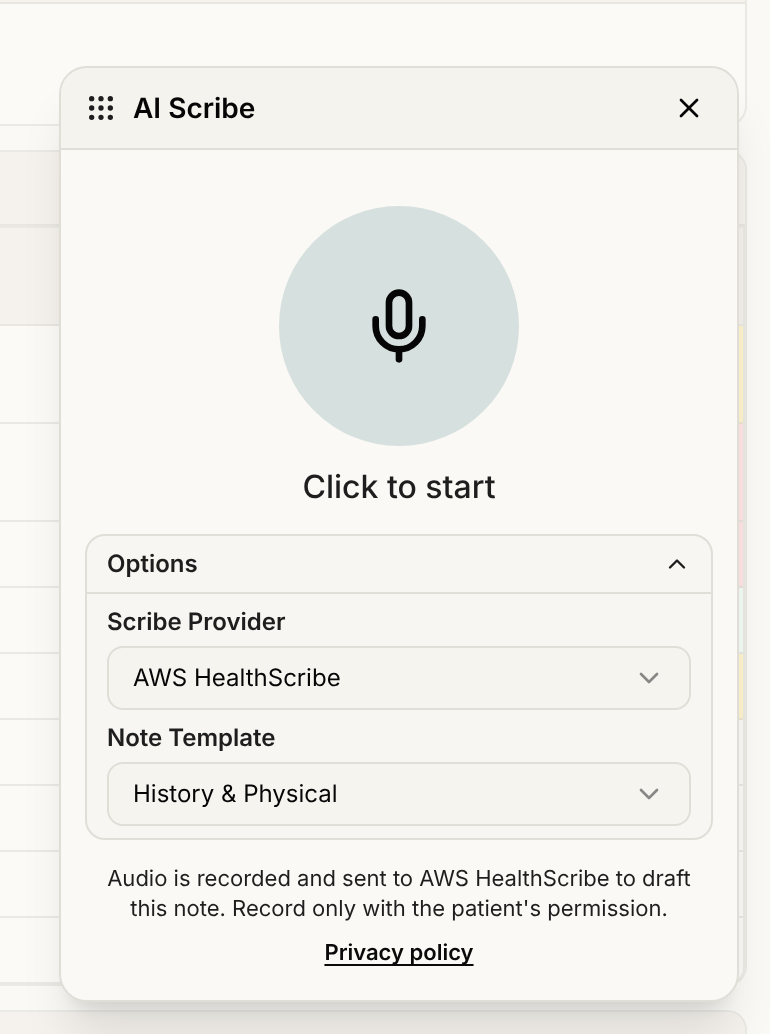
The panel is titled AI Scribe. Drag its title bar to move it.
Step 2: Pick a note template
Select Options in the panel. Scribe Provider shows AWS HealthScribe, the only provider available on the web. Note Template lists History & Physical, Physical SOAP, Behavioral SOAP, DAP, BIRP, GIRPP and SIRP. Pick one before you start, because the options are not shown while you record. Serelora remembers your choice for next time.
Step 3: Start recording
Select the large microphone circle, labeled Start Recording. The first time, Serelora shows the disclosure and asks you to agree; see AI Disclosure and Recording Consent. Your browser may also ask to use the microphone. Allow it.
A timer runs under the circle. Select Pause to hold the recording and Resume to continue. The audio uploads in pieces while you record, so a long visit does not wait until the end.
Step 4: Keep working if you need to
While a recording runs, you can minimize the panel but not close it. Select Minimize and the panel shrinks to a one-line recorder with the timer, a pause or resume button, Stop recording and Expand AI Scribe. Drag it to any corner.
If the microphone stops sending audio, for example it is unplugged or muted, the recording keeps running and a notice reads "No audio from your microphone." It picks up again by itself when a microphone is back.
Step 5: Stop and wait for the note
Select the red circle (Stop recording) when the visit ends.
- On a patient's chart, the panel closes and a notification says Scribe note is generating…. It changes to Scribe note is ready with a View note button.
- From another page, the panel shows Generating clinical note. When it is done you see "Your HealthScribe note is ready. Choose a patient to open it in the chart." Pick the patient under Assign note to patient, then select Open note in chart.
Stay on, or return to, the patient's chart before you press Stop. The note is filed to the chart that is open at that moment.
If something goes wrong
- If the note takes a long time, the panel says "This is taking longer than expected" and keeps working. The note still appears in the chart.
- If you stop with nothing recorded, you see "No audio was captured."
- If you reload, close the tab or lose your connection mid-visit, your recording is kept. See Recovering or Discarding an Unsent Recording.
- For microphone errors, see AI Scribe Microphone Problems.
Next, read Reviewing a Scribe Draft Note.
See also AI Scribe Note Not Generated for each message you may see.