Search documentation
Find a documentation page by the words on it.
Documentation
The Calendar
The Calendar is the first item in the sidebar, and it is where Serelora opens by default. It shows appointments, walk-in visits and blocked time in one place, in your clinic's time zone.
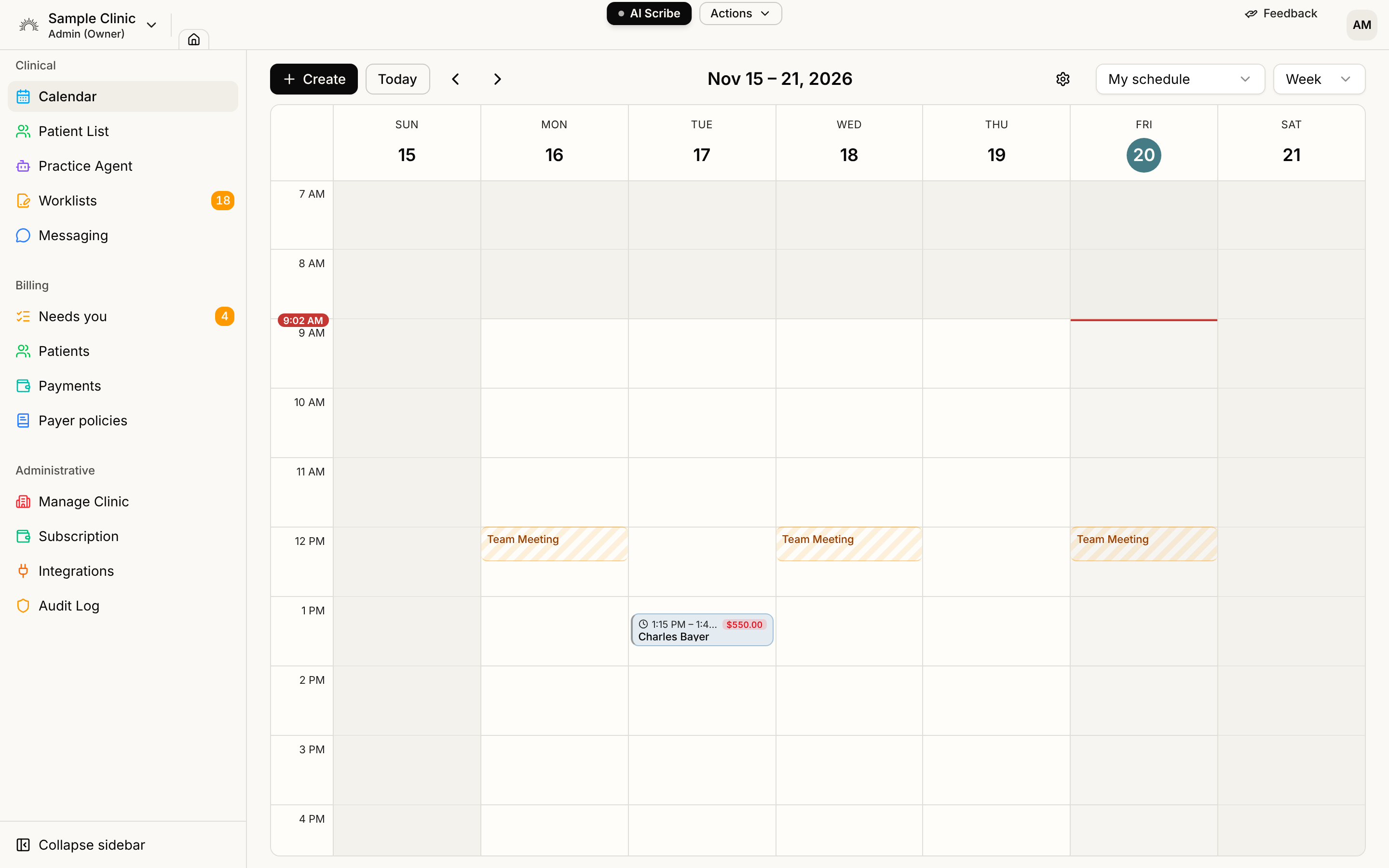
The controls along the top
- Create starts a new appointment at the next free half hour. See Booking an Appointment.
- Today returns to the current date. The arrows beside it step back or forward by the number of days on screen.
- The date range in the middle names what you are looking at.
- The gear, Calendar settings, opens working hours and appointment types. See Working Hours and Appointment Types.
- The schedule selector chooses whose appointments to show.
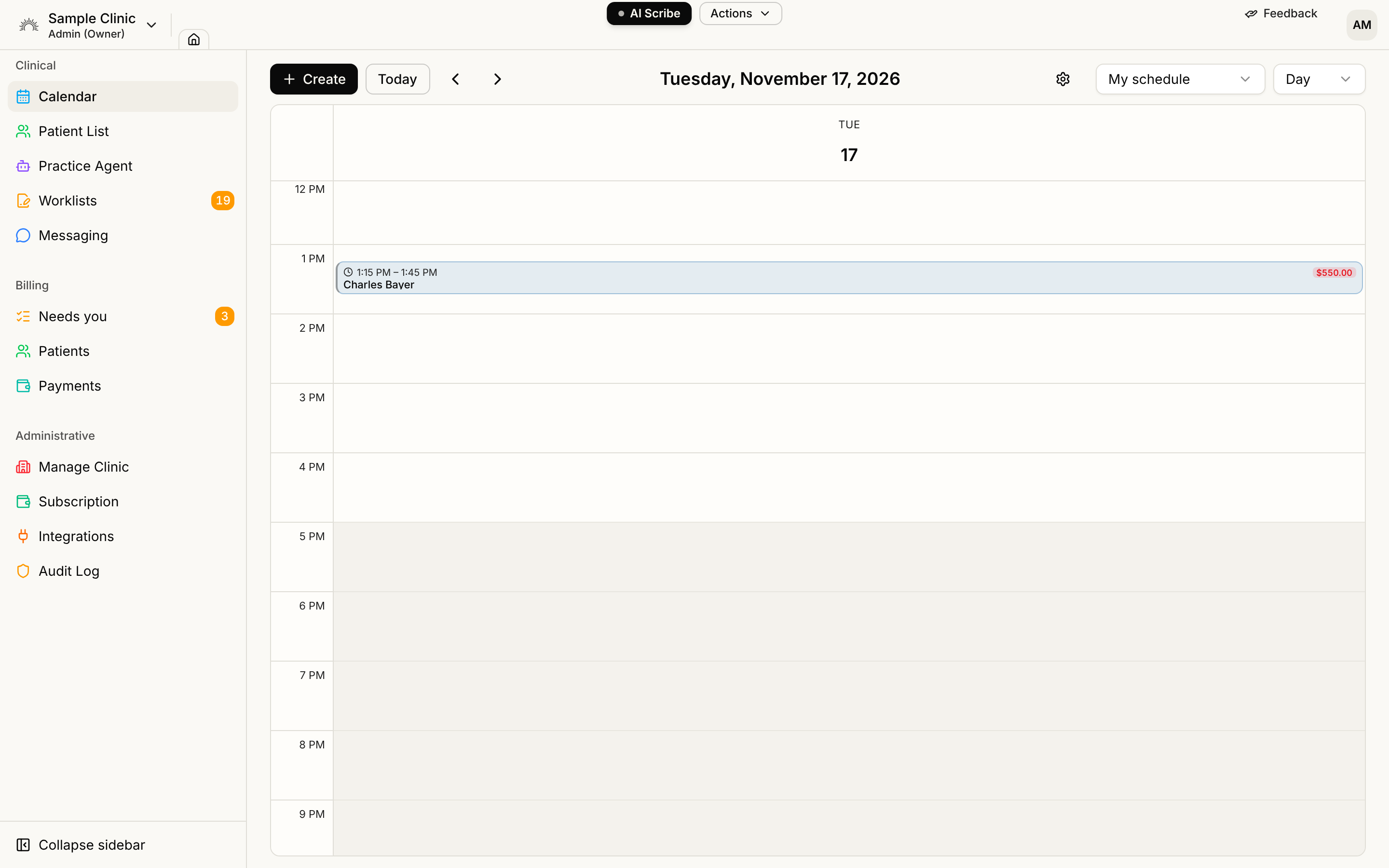
- The Calendar view menu switches between Week and Day. You can also select a day's heading to jump to that day, and select it again to return to the week.
Week view shows as many days as fit on your screen, up to seven. A red line marks the current time on today's column.
Whose schedule you see
The selector offers My schedule, All providers and each provider by name.
- My schedule is the default. It shows appointments where you are the provider or one of the additional providers. If you work the front desk and book for others, it may look empty. Choose All providers.
- Your last choice is remembered in the browser you used, per person.
- Hours outside your own working hours are shaded, but only under My schedule. For anyone else's schedule no shading is shown.
Reading a block
- Position and length show when the appointment starts and ends. A visit that crosses midnight is drawn on both days.
- Fill color shows where the appointment is in its life: not yet confirmed, booked, patient on site, with the provider, completed, or cancelled. Taller blocks also print the status as text. See Appointment Statuses.
- The bar on the left and a small shape show the appointment type your clinic assigned, such as a follow-up. Appointments with no type have a plain bar.
- A cancelled or no-show appointment has its time struck through. Appointments entered in error are hidden.
- A consent icon appears when the patient has consent forms outstanding for the visit, or has declined one. The block's card spells it out.
- Where your clinic uses visits, walk-in visits appear as their own blocks. See Walk-In Visits.
Select a block to open its card. From there you can check the patient in (where your clinic uses visits), open their chart, change the status, adjust the time, or open the full editor.
If you see a banner
If a week holds too many appointments to load, a banner reads "Some appointments in this week aren't shown. Switch to Day view to see them all."