Search documentation
Find a documentation page by the words on it.
Documentation
Spruce Teammate Mapping
This feature is controlled by the Spruce messaging feature flag. If you do not see it in your clinic, contact Serelora at support@serelora.com and ask for it to be turned on.
Spruce is not available to clinics yet. You will only see this tab at a clinic where Serelora has turned Spruce on. See Spruce Integration.
A mapping links one Spruce teammate to one Serelora staff member. It decides who a reply appears to come from in Spruce. Nothing is matched for you, so every mapping is a choice an Admin makes.
What you need
- The Admin role.
- A connected Spruce account. Until then the tab says "Connect a Spruce credential on the Setup tab before mapping teammates." See Spruce Account Connection.
Why map teammates
When someone replies to a Spruce conversation from Serelora, the reply is posted in Spruce as their mapped teammate. A staff member with no mapping posts as your Spruce organization instead. A mapping gives nobody any access and does not send anything by itself. See Replying to Spruce Conversations from Serelora.
Step 1: Open the Teammates sub-tab
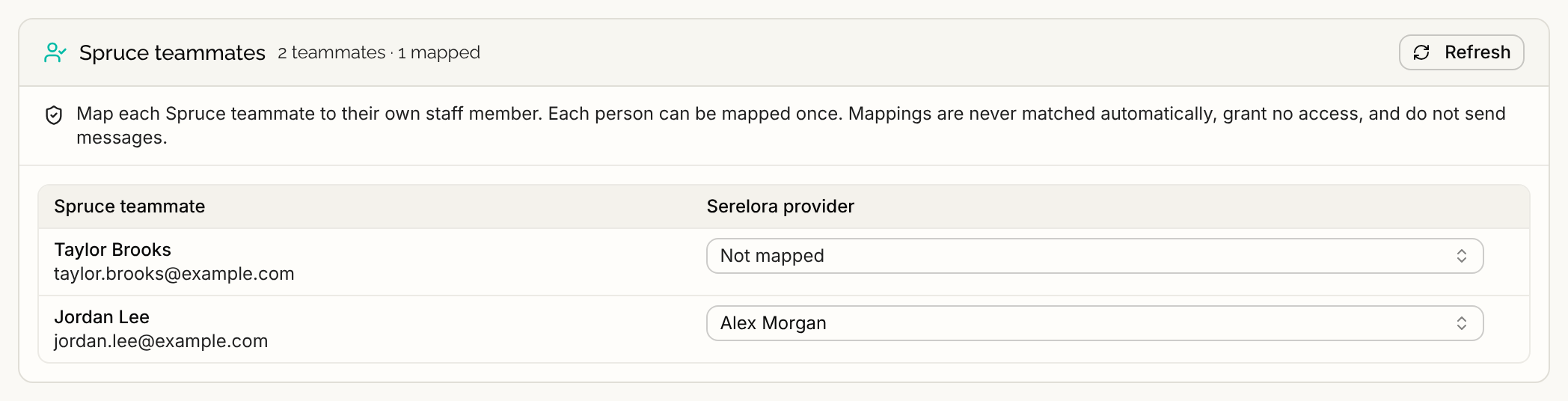
Open the Spruce tab and select Teammates. The card is called Spruce teammates. Its heading counts how many teammates your Spruce organization has and how many are mapped. The table loads at once. Select Refresh to read Spruce again.
It has one row per teammate, with these columns:
- Spruce teammate: the name, the email (or "No email in Spruce"), and a Suspended badge when Spruce has suspended them.
- Serelora provider: the staff member mapped to them, or Not mapped.
- The last column shows Save and Cancel only while you have a change waiting.
Step 2: Choose the staff member
On the teammate's row, open the box under Serelora provider and pick the staff member. A line under the box asks, for example, "Map Alex Morgan to Jordan Lee?" Nothing is saved yet.
Staff who cannot be picked are listed but greyed out. A person who is already mapped to another teammate reads "Mapped to" followed by that teammate's name. While a row is mapped, every other person reads "Remove this mapping first". Each person can be mapped once, and each teammate can be mapped once.
Step 3: Select Save
Select Save on the row, or Cancel to drop the change. Only Save writes the mapping.
Change or remove a mapping
Serelora never moves a mapping for you. To change it, set the row to Not mapped and select Save (the row asks, for example, "Remove Jordan Lee's mapping to Alex Morgan?"), then pick the new person and select Save again. A suspended teammate can be cleared but not mapped.
Create a provider from a teammate
If the person does not have a Serelora account yet, an Admin can open the box on an unmapped, active teammate and select Create new provider. It opens the Add Staff dialog already filled with the teammate's name and email, and nothing is sent until you submit that dialog. When Serelora creates a brand-new account, it maps it to that teammate straight away and says, for example, "Created Jordan Lee and mapped to Alex Morgan. We emailed them an invite." If the person already has an account, they are only invited. Map them here once they accept. If Spruce has no email address for the teammate, Create new provider is greyed out and says "Spruce has no email address for this teammate."
For more on adding staff, see Adding Staff.
Mappings that need attention
A mapping stays listed, with an amber note, when something changes. You can always remove it.
- "No longer an active clinic member. Remove this mapping." The staff member left or was deactivated.
- "This teammate is no longer in your Spruce organization. Remove or change this mapping." The row reads No longer in your Spruce organization.
- "This teammate is suspended in Spruce. Remove or change this mapping."
A reply sent while your own mapping needs attention is refused before anything goes out and shows Not sent. Ask an Admin to fix the row.
If it does not work
"This mapping changed since you loaded it. Reload teammates before trying again." means someone else changed it. Select Refresh and try again. "Spruce is busy right now. Wait a minute, then reload teammates." means Spruce asked Serelora to slow down. "That Spruce teammate is already mapped to another staff member. Remove that mapping first." means you must clear the other row first. See Spruce Problems and Messages for the rest.