Search documentation
Find a documentation page by the words on it.
Documentation
Needs You Worklist
Needs you is the billing worklist. It looks across the clinic's billing records and lists what someone still has to do, so nothing sits unbilled. The list is worked out from the billing records each time you open it.
This feature is controlled by the Billing feature flag. If you do not see it in your clinic, contact Serelora at support@serelora.com and ask for it to be turned on.
Step 1: Open Needs you
Select Billing in the sidebar, then Needs you. The number beside it counts the tasks that are yours. The page heading repeats it, for example "3 need you".
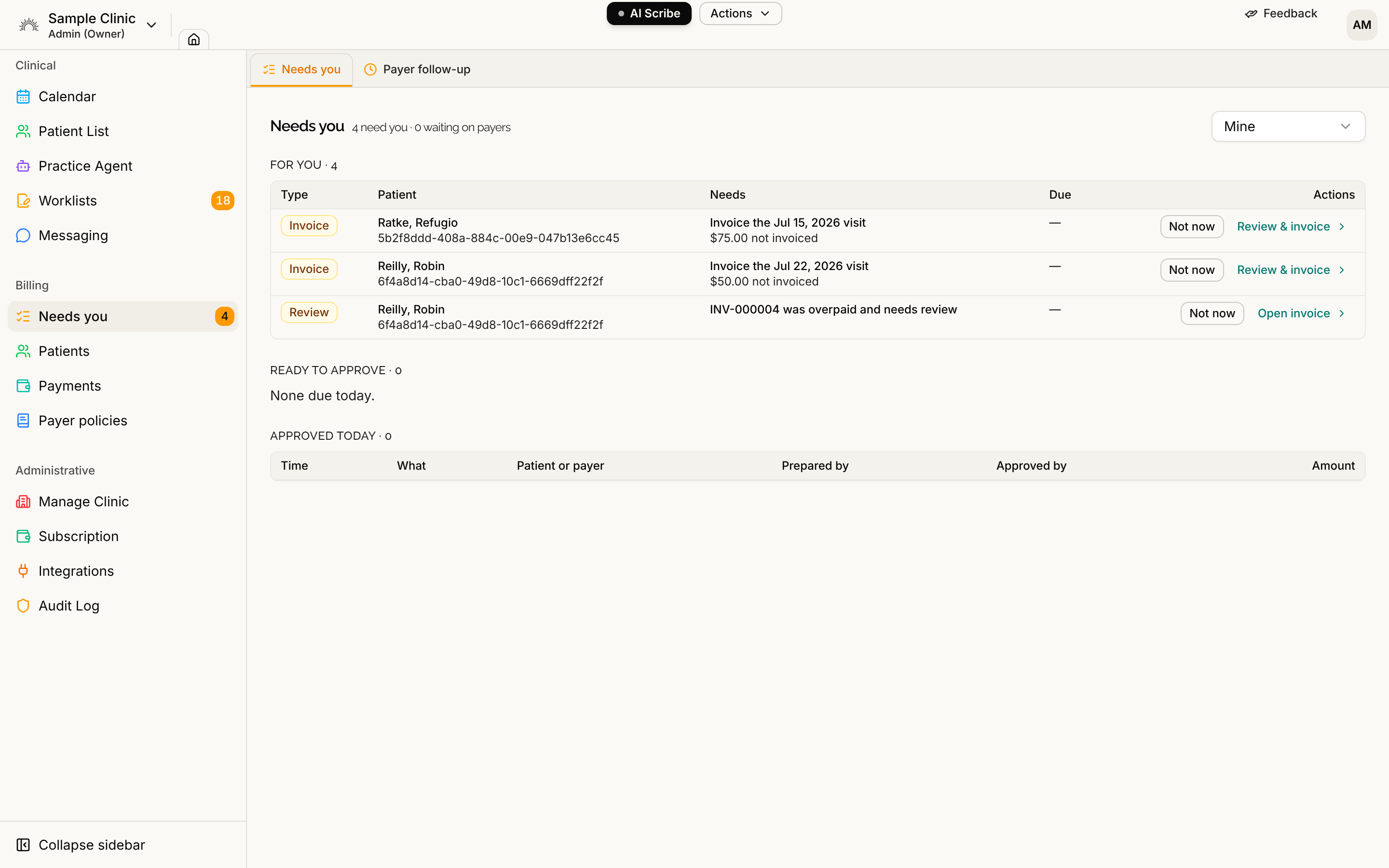
The Billing group is offered to Admins, Physicians, Office Managers and Administrative Assistants by default. See Billing Overview.
Step 2: Choose whose tasks to see
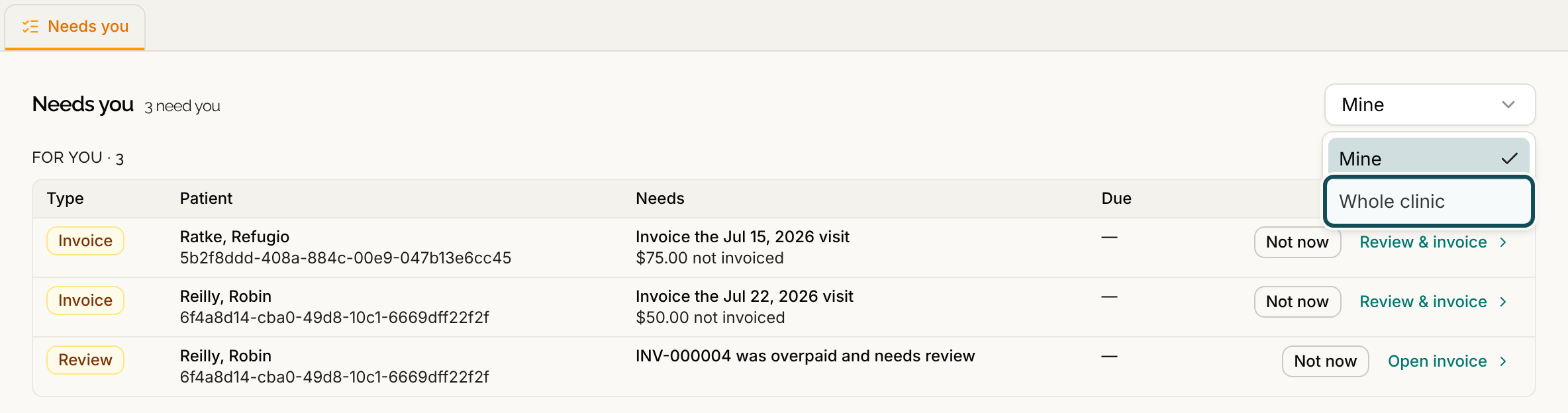
Use the menu at the top right of the page:
- Mine shows the tasks you can act on that are yours. This is the number in the sidebar.
- Whole clinic shows every task. A task you are not allowed to act on appears without buttons.
For a finished visit with no charges, "yours" means you were the visit's attending physician. Other tasks belong to anyone who can act on them.
Step 3: Work through the list
The For you table has a row per task, with the patient, what is needed, a due date where there is one, and buttons. Today's tasks are:
- Add charges for the visit. A finished visit has no charges. Select Add charges to open that visit's charges. See Adding Charges from a Visit.
- Invoice the visit. Charges are not on any invoice yet. Select Review & invoice. See Invoices.
- A payment is not applied. A patient's money is not attached to an invoice. Select Apply to choose the invoice right there. See Applying Payments to Invoices.
- An invoice was overpaid and needs review. Select Open invoice, then Mark reviewed once you have looked at it. See Recording a Payment.
A button appears only if your role can do that task. Adding charges needs the permission to add charges. Invoicing, applying payments and reviewing an invoice need the permission to issue invoices, which Admins and Office Managers hold by default.
When a task is done, it leaves the list. If a kind of task has many rows, a Show all button under the table loads the rest.
Step 4: Set a task aside
Select Not now on a row to hide it from your list until midnight, clinic time. A line under the table says how many are hidden until tomorrow. Select Bring back to show them again. Hiding a task changes nobody else's list.
Empty states
"All caught up" means nothing needs you right now. If you are on Mine, a See the whole clinic button switches the view. "No billing activity yet" means the clinic has not recorded visits, charges or payments.
The Approved today table at the bottom lists approvals made today. Other sections, such as Ready to approve, appear only for insurance billing tasks and are not covered here.