Search documentation
Find a documentation page by the words on it.
Documentation
Attaching Files and Reports to Messages
A secure message can carry more than words. You can attach a file from your computer, link a document that is already in the patient's chart, or, through the chart agent, send a report it generated. This page covers all three. The message itself must still have text: files and links ride along with a body, they cannot be sent alone.
This feature is controlled by the Patient messaging feature flag. If you do not see it in your clinic, contact Serelora at support@serelora.com and ask for it to be turned on.
You need the permission to send secure messages (Admin, Physician and Physician Assistant by default) and the Secure messaging switch on for your clinic.
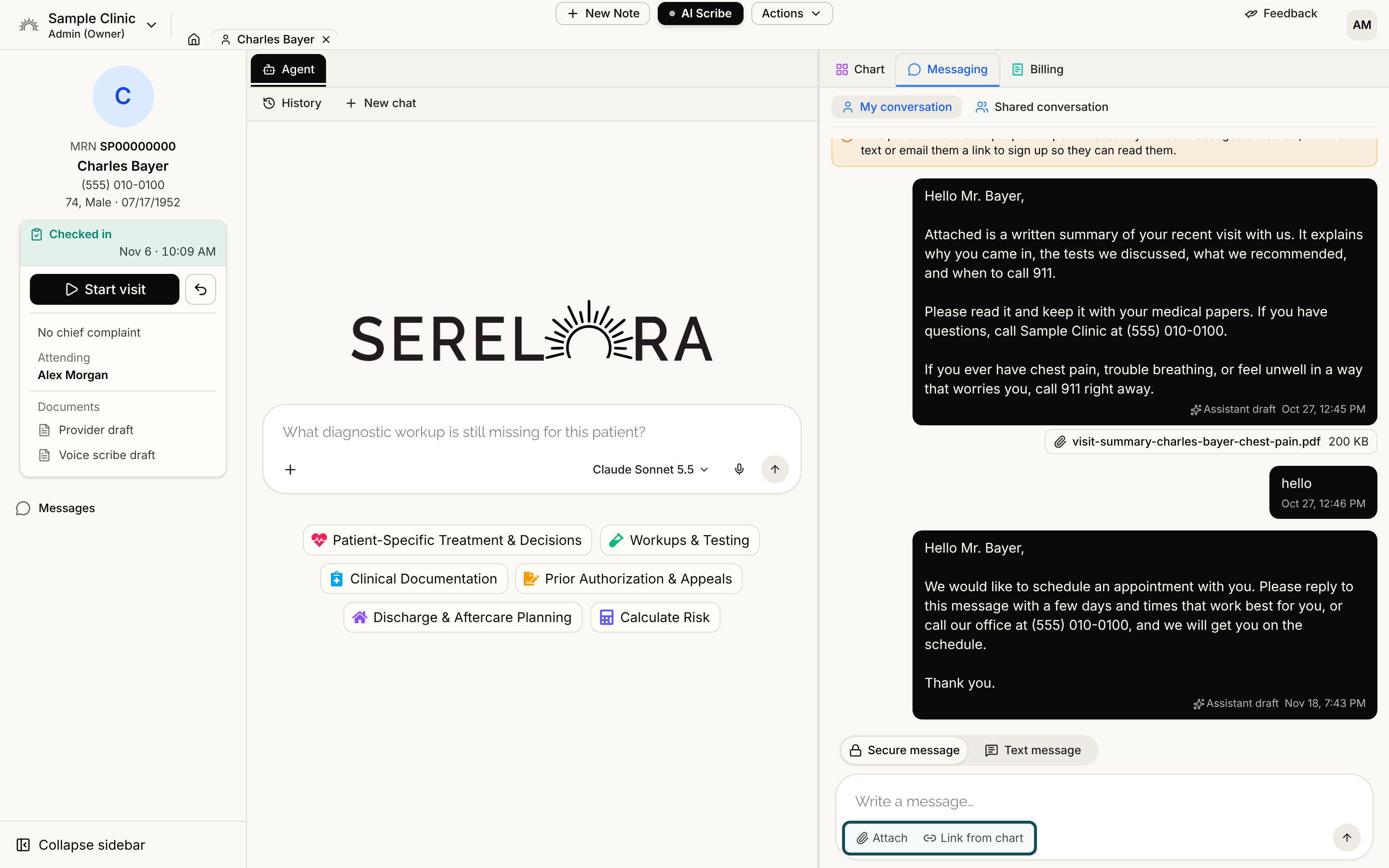
Attach a file from your device
- Open the conversation, in the chart's Messaging tab or the Inbox.
- Select Attach under the message box and choose a file.
- Wait for it to appear as a chip above the box. Files upload one at a time, and Send waits for the upload to finish.
- Write your message and send it.
Each file can be a PDF, JPEG or PNG of up to 10 MB, and a message can carry up to 5 files. Serelora checks the file itself, not its name. A HEIC photo is refused with "HEIC photos aren't supported yet. Save the photo as a JPEG and attach it again."
To take a file off the message before sending, use the remove button on its chip.
Link a document from the chart
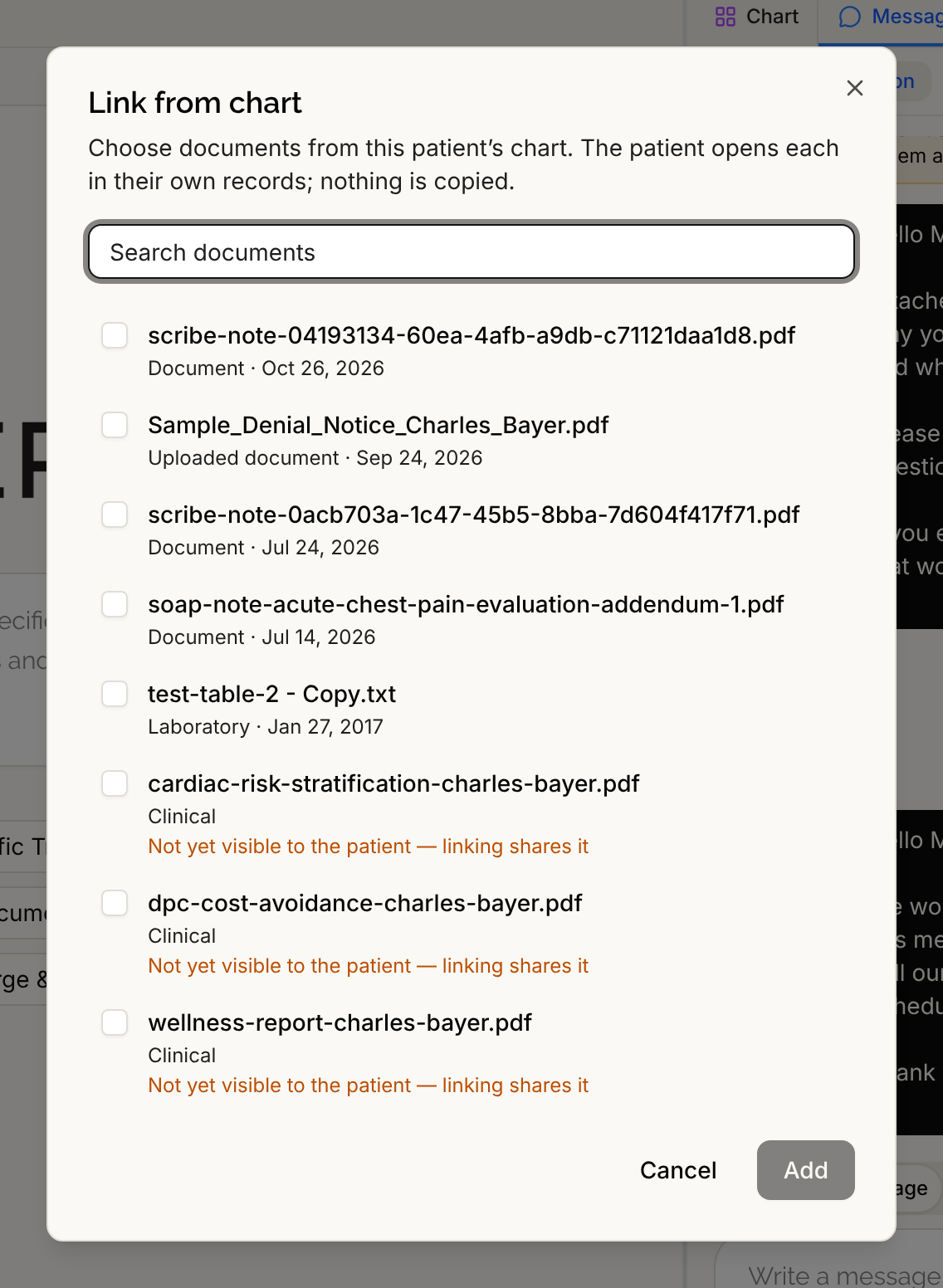
A link points at a document already in the patient's chart instead of copying it. The patient opens it in their own records, so they see where in their chart it lives.
- Select Link from chart. You see it only if you can read the chart, which all six standard roles can.
- In the Link from chart dialog, search the patient's documents and tick the ones to share, up to 5 per message.
- Select Add. Each chosen document shows as a chip.
- Write your message and send it.
The picker lists finished documents, with the category and date. A document the patient cannot open yet is marked as not yet visible to the patient, because linking it shares it. Once sent, the link stays; messages cannot be taken back.
If a linked document is later deleted from the chart, the patient sees "Document no longer available" in its place.
Send a generated report
You cannot attach a report from the message box. Ask the chart agent instead, for example "send her the report and her discharge summary". The agent prepares a Send a secure message card with the report and any documents shown as chips and the text in an editable box. You review it and select send.
- A report must be one you generated yourself, for the patient whose chart is open.
- A card can carry up to 5 reports and up to 5 linked documents.
- A report you saved to the chart stays hidden from the patient until a message you send includes it. Sending is what shares it.
- Linking a document needs the chart-read permission as well as the permission to send secure messages.
What does not work
- A text message cannot carry files or links. If you switch a draft to Text message, Attach and Link from chart are replaced by a character count. See Two-Way Text Messages.
- A generated report cannot be filed back to the chart from the message. A report is saved to the chart from the report itself.
Files a patient sends you are handled in Filing a Patient's Attachment to the Chart.