Search documentation
Find a documentation page by the words on it.
Documentation
Replacing the Spruce API Key
This feature is controlled by the Spruce messaging feature flag. If you do not see it in your clinic, contact Serelora at support@serelora.com and ask for it to be turned on.
Spruce is not available to clinics yet. You will only see this card at a clinic where Serelora has turned Spruce on. See Spruce Integration.
Replace the key when Spruce gives you a new one or you want to stop using the old one. A replacement keeps your conversations and patients, but several things stop until you set them up again, so plan for a few minutes.
What you need
- The Admin role.
- A new API key for the same Spruce organization that is already connected. Ask Spruce Support, through Spruce. Serelora refuses a key for a different organization.
Step 1: Paste the new key
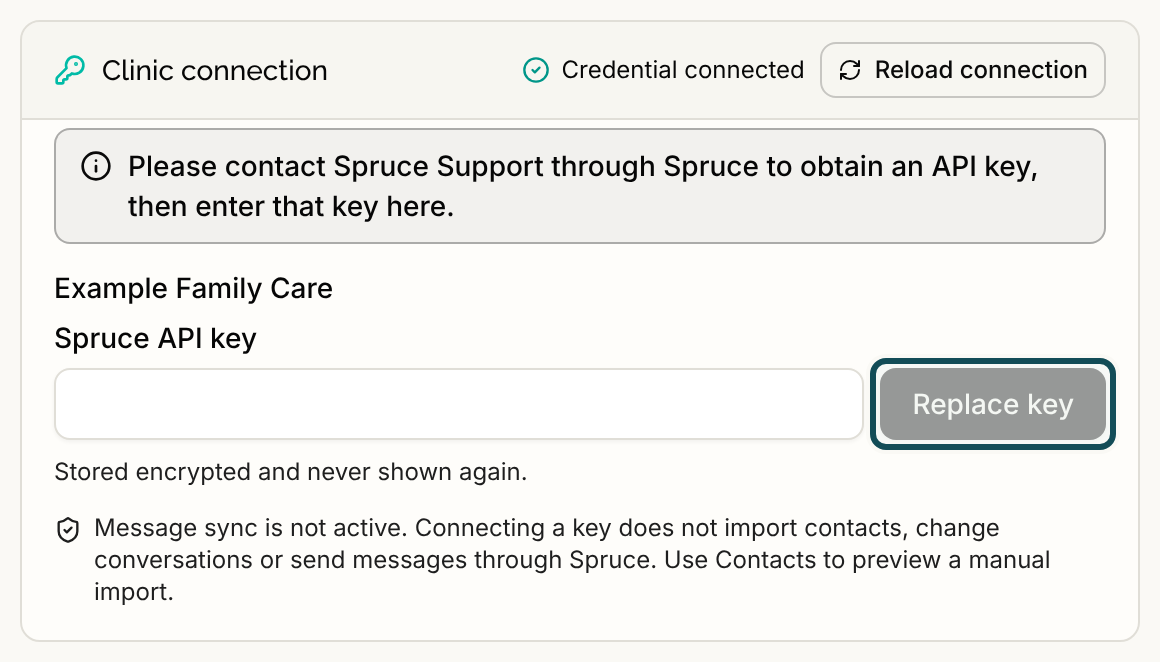
On the Setup sub-tab of the Spruce tab, find the Clinic connection card. The button beside the Spruce API key box reads Replace key instead of Connect. Paste the new key in the box and select Replace key. The box clears as soon as you select the button, and the key is stored encrypted and never shown again.
Step 2: Choose the endpoints again
A replacement clears the saved choices in the Messaging endpoints card. Choose Secure messaging, Text messaging and Email again and select Save endpoints. See Spruce Account Connection.
Step 3: Start receiving events again
Replacing the key stops the running receiver and erases its signing secrets. Events that were waiting for the old receiver are cancelled, which means conversations held from unsaved senders leave the held list. Select Start receiving events in the Event receiving card. See Spruce Event Receiving.
Step 4: Turn the rest back on
- Live sync. Earlier live sync permissions no longer import messages. The Live message sync card says how many "earlier authorizations from a previous credential or settings" remain. Turn live sync off to clear them, then use Turn on live sync again. See Spruce Live Sync.
- Contact sync. It turns off, and stays off until an Admin turns it on again. The Contact sync card says "If the Spruce credential was replaced, it stays off until an administrator turns it on again." See Spruce Contact Sync.
- History sync. The counts on the History sync card cover the current key and settings, so they start again.
What stays the same
Your Spruce organization, the patients and links you already created, the messages already copied into charts, and your teammate mappings all stay. Nothing is deleted.
If it does not work
- "Spruce did not accept this credential. Check the credential and your organization's API access." The key was refused. Nothing was saved.
- "This credential belongs to a different Spruce organization. Use a credential for the organization already connected to this clinic."
- "These settings have changed. Reload this page before trying again." Select Reload connection.
- "The result could not be confirmed. Reload the connection before trying again." Select Reload connection and check the card before trying again.
See Spruce Problems and Messages for the rest.