Search documentation
Find a documentation page by the words on it.
Documentation
Member Roster Import and Management
Your member roster is the list of people your practice serves. This page brings that list into Serelora, shows where member details live afterward, and shows how to get a roster list back out as a file. Serelora does not have a separate member record: every member is a patient on your clinic's Patient List.
What you need
- A file exported from your current system. It must be a CSV or .xls file. An .xlsx file has to be saved as CSV first.
- Nothing special for importing. Anyone signed in to the clinic can open the importers.
- To export a roster file at the end, the Practice Agent turned on for your clinic and the export permission, which only the Admin role has by default.
Step 1: Choose the importer
Select Patient List, then Import. There is one importer for patient lists from Office Ally, one for the NextGen Office Demographics report, one for FHIR files, and Raw Spreadsheet for any other system that can export a CSV. Most membership practices coming from other software use Raw Spreadsheet. See Importing Patients.
Step 2: Match your columns and review
For a spreadsheet, you tell Serelora which column is which. Each patient needs a name, and everything else is optional. Nothing is saved until you review the result. Each row is sorted as Will import, Already imported, Possible duplicate, Repeated in file or Cannot import. See Spreadsheet Import.
Step 3: Confirm the import
Select Import N patients. The import runs on the server, so it finishes even if you close the page. Uploading the same file again is safe, because patients already created show as Already imported. If an import stops partway, see Resuming an Interrupted Import.
Step 4: Check the size of the roster
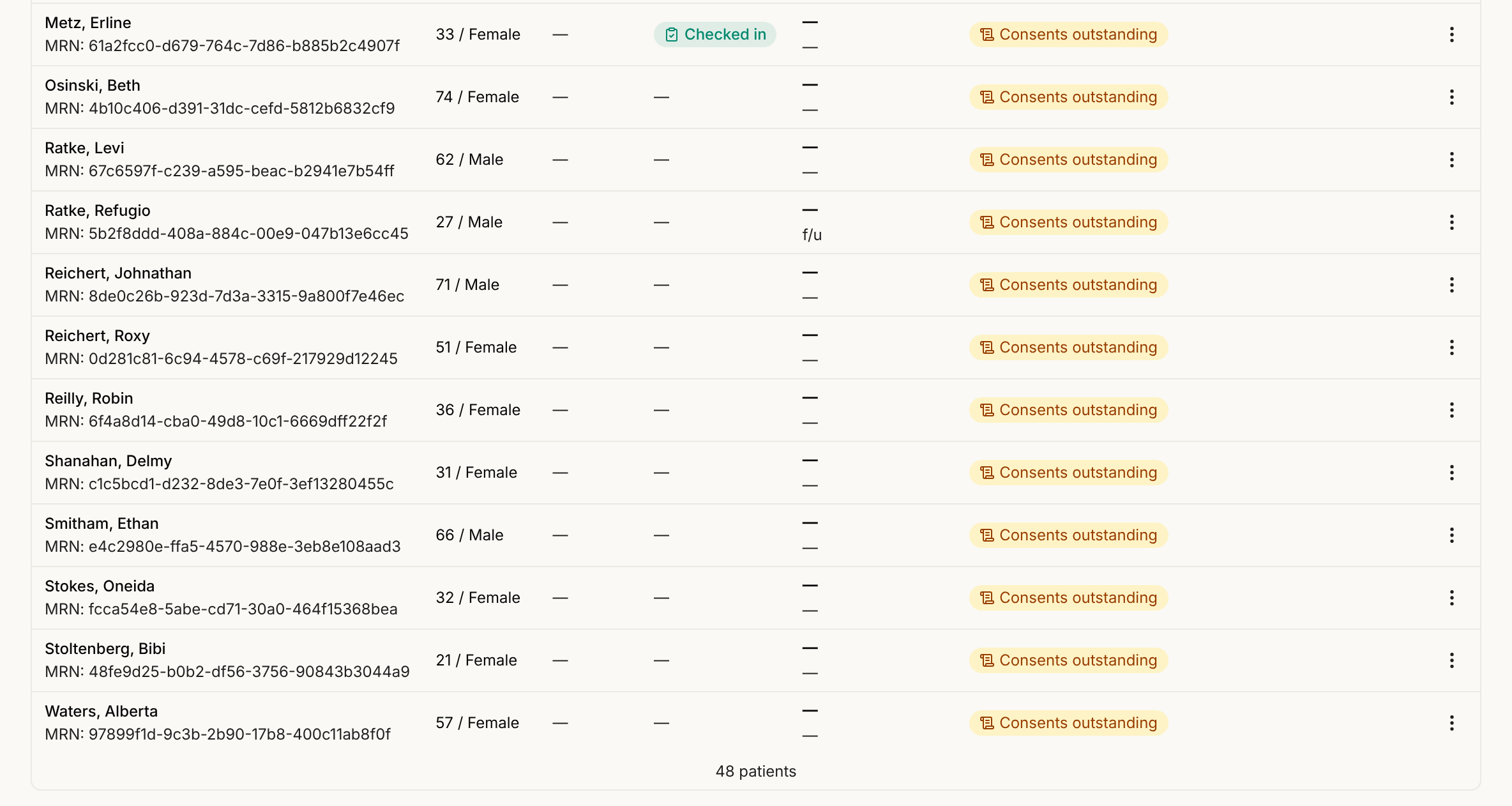
Open Patient List, clear the search box and scroll to the bottom. When every row has loaded, the list shows your total, such as "12 patients".
Step 5: Keep member details current
Open a member's chart and select the Patient record tab. Edit demographics, contact details, addresses and identifiers, then select Save. See The Patient Record Editor. Under Demographics you will also find Account status, Account type, Primary provider and Alerts. They are free text, so you can use them as notes for your own team. Serelora does not search, count or report on them. The employer a member works for is on the Insurance & Guarantor section, on its Employer card.
Step 6: Export a roster list
The Patient List has no export button. To get a file, use the Practice Agent. Open Practice Agent and ask for everyone on the panel.
Show me every patient on my panel.
Open the cohort tab and select Export CSV. Tick the box that says you will handle the file according to your clinic's privacy policies, then select Download. The file has the columns Name, Date of birth, Age, Sex at birth, MRN, Email, Phone, Registration, Last visit and Matched because. See Practice Agent and Cohorts.
What Serelora does not do
- A roster import brings in who your members are, not their charts. It does not bring notes, labs or medications. To add those, upload documents to a chart. See Bringing in a New Member's Outside Records.
- The spreadsheet importer has no column for a membership plan, start date or renewal date. Serelora has no membership plan or status to put them in.
- Removing a member is not offboarding. Remove patient is for a chart created by mistake and refuses a chart that has real records. See Transferring Records and Member Offboarding.