Search documentation
Find a documentation page by the words on it.
Documentation
Attaching Files to a Chat
You can add a file to a chart chat and ask the agent about it, for example to summarize an outside referral letter. The file stays in the conversation. It is not added to the patient's chart unless you ask the agent to file it.
Step 1: Add the file
Open the patient's chart and the Agent tab. Select the plus button beside the input, then Add documents, and choose your files. You can also drag a file onto the chat pane.
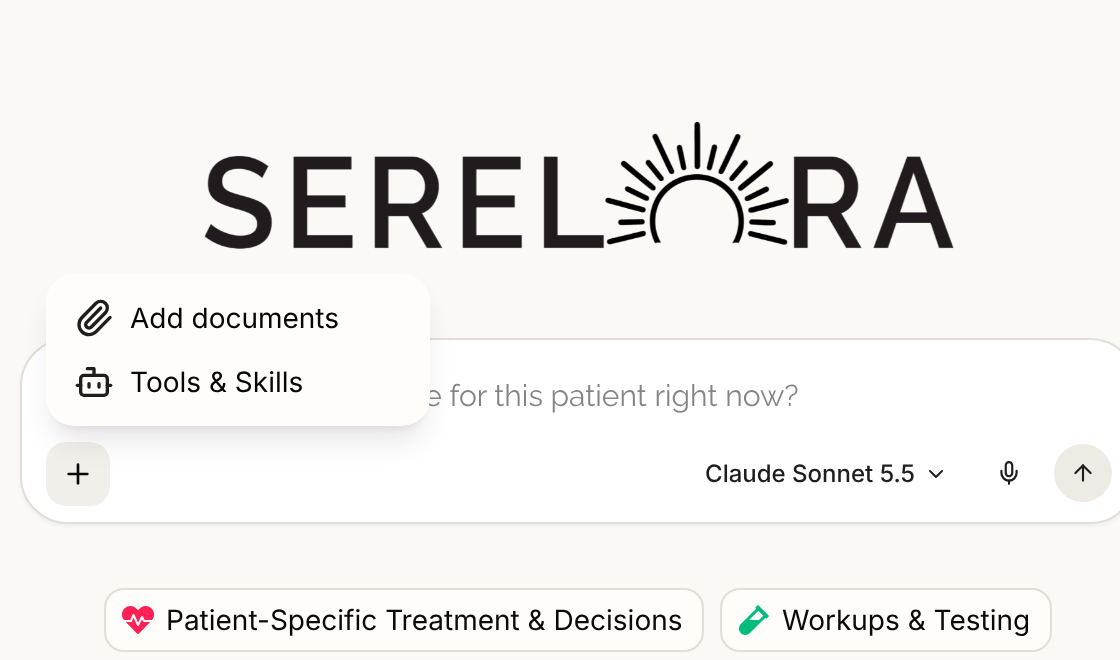
A chat accepts PDF, text, Markdown, JPEG, PNG and TIFF files. A single file can be up to 128 MB, one message can carry up to ten files, and a chat can hold up to twenty-five files in total. If a type is not accepted, you see a notice and nothing is uploaded. The Practice Agent chat takes no attachments.
Step 2: Ask about it
Type your question and send. The files upload as the message goes out, each shown as a chip under your message. The agent reads the file before it answers. A scanned PDF or TIFF is read with text recognition, and a JPEG or PNG is shown to the model as an image where the chosen model can see images.
What does this referral letter ask for?
Select a chip to open the original file in a tab beside the chat. PDFs and images preview there. A text or Markdown file offers a download instead, with a note that this kind of file cannot be shown.
If a file was saved but could not be read, you are told, for example "We saved referral.pdf but couldn't read it", and the agent cannot answer from it. If every upload fails, nothing is sent and your text and files return to the input so you can try again.
Step 3: File it to the chart, only if you want to
Ask the agent in your own words:
Save that PDF to her chart.
The agent files the attachment as a chart document straight away, with no card, and confirms "Added the attachment to the chart." The chip then reads In chart with a link to the document. Filing the same file twice does not create a second copy. The agent never files an attachment on its own initiative.
Filing needs permission to edit the chart, which Admin, Physician, Physician Assistant and Medical Assistant hold by default. Adding and reading a file in the chat needs only permission to read the chart.
Good to know
- A file in the chat is not in the chart. Other staff cannot see it, and the agent in another chat cannot read it.
- A chat that reaches its file limit shows "This chat has the most files it can hold. Start a new chat to add more."
- To fill out a PDF form you attached, see Filling and Signing PDF Forms.
- The plus menu and the other controls around the chat box are in Chat Input and Message Controls.
In the Serelora Provider phone app, a file you attach is still filed to the chart as a document, unlike on the web. Attach from the web if you want the file to stay in the chat only.