Search documentation
Find a documentation page by the words on it.
Documentation
Imaging
The Imaging sub-tab under Diagnostics lists the patient's imaging reports, one row per report. Reports arrive from documents you upload and from health record files that carry radiology results.
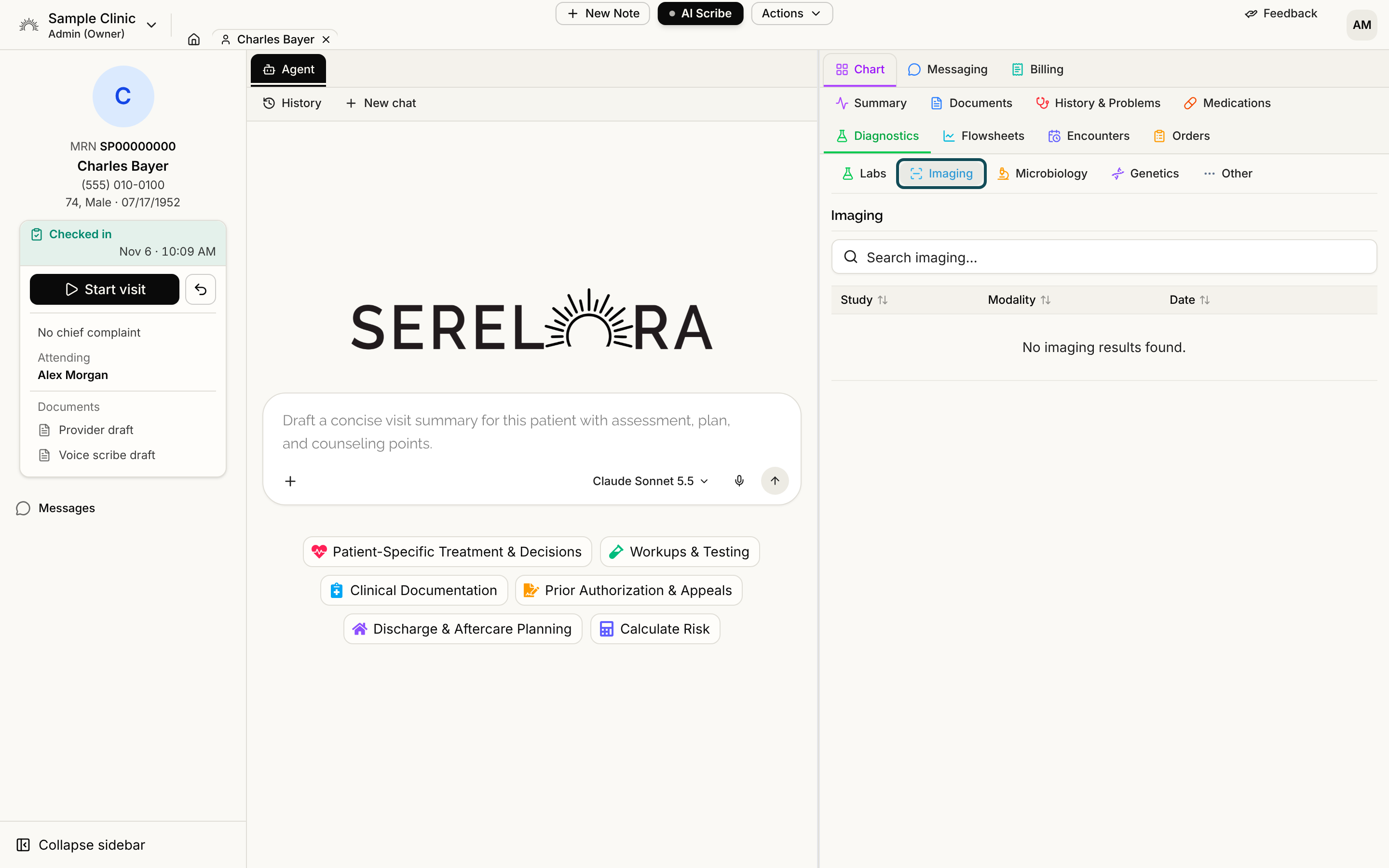
What the tab shows
Each row has these columns: Study, Modality, Body site, Date and Impression. Rows are ordered with the newest study first. Use the search box to filter by study, modality, body site or impression. A dash means the source did not say. If there is nothing to show, the tab says No imaging results found.
If Serelora knows of a study that has no matching report, it appears as its own row with No report as the impression. These rows cannot be opened, edited or corrected, because there is no report entry behind them.
Step 1: Open the report
Select the Open report button at the end of the row to open the source document in its own tab. The button is disabled when the row has no document.
Step 2: See where the report came from
Select the row itself to open its claim detail, where you can see the source and the passage it was read from. See Claim Detail and Where a Fact Came From.
Step 3: Correct an entry
The row menu at the end of the row offers Edit…, Confirm, Refute (ruled out) and Mark entered in error, for roles that can edit the chart. Edit… lets you change the Impression and the Study date. See Correcting a Claim.
What is not available
Serelora does not show the images themselves. The Imaging tab lists reports and studies, and there is no image viewer in the chart.