Documentation
Rescheduling and Cancelling Appointments
You can change when an appointment happens, or close it out, without leaving the Calendar. Closing out never erases anything: the appointment keeps its status on file.
Rescheduling
Drag the block
- Drag the appointment up or down to change its time. Drag it sideways to another day when you are in week view.
- Drag the top or bottom edge to change when it starts or ends.
- Release. A dialog titled Reschedule appointment? appears when the day changed, or Update appointment time? when only the time changed. It reads "Change" the patient's name "to" the new time.
- Select Confirm. A message reads Appointment updated. Select Cancel and the block returns to where it was.
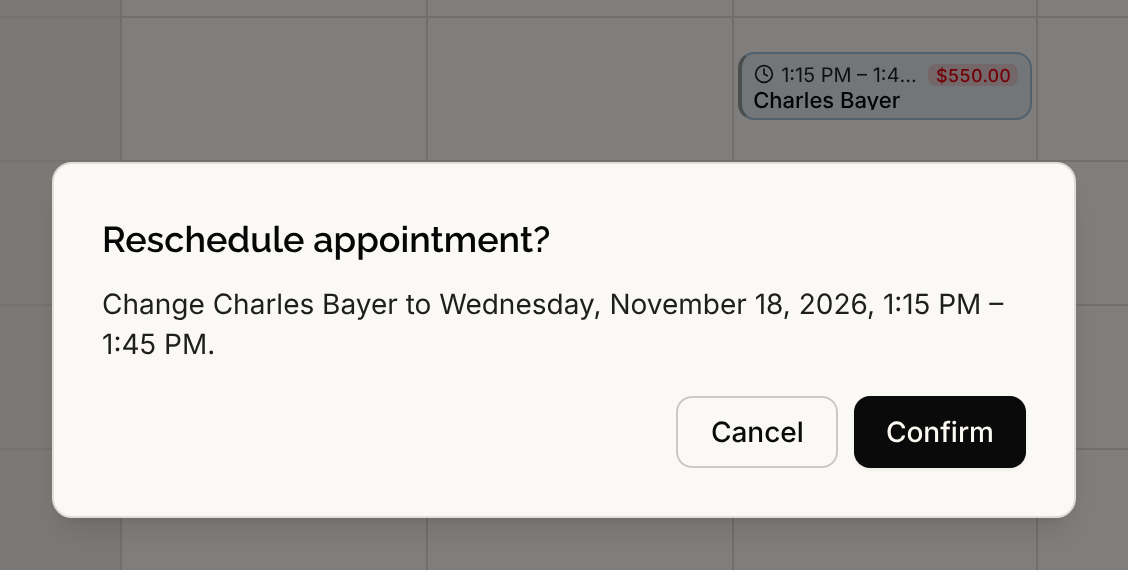
Blocks snap to 15 minute steps. A visit that crosses midnight can be dragged like any other.
Edit the time in the card
Select the appointment, then select its date and time line to expand it. Change the date, Start or End. A change saves as soon as you finish it, showing Saving… and then Saved. Tick Ends next day if the visit ends after midnight.
Edit in the full editor
From the card, select the details line to open Edit appointment. Change the date, times, provider, type, location, reason or notes, then select Save changes. If someone else changed the appointment while you were editing, the save is refused and you are asked to reload.
Cancelling or removing
Open the appointment's card. There are two ways in.
From the status menu. Select the status badge and choose Cancelled. A Cancel appointment dialog asks for a Cancellation reason (optional). Select Cancel appointment to confirm, or Go back to leave it alone.
From the trash button. Select the trash button, Delete appointment, and choose one outcome. Nothing is preselected, so the button stays disabled until you pick.
- No-show. The patient did not arrive. The block stays on the Calendar, crossed off.
- Cancellation. The block stays crossed off, and the patient is sent a cancellation notice unless they have opted out. A Cancellation reason (optional) box appears.
- Entered in error. The appointment was made by mistake. It is removed from the Calendar.
Then select Delete appointment.
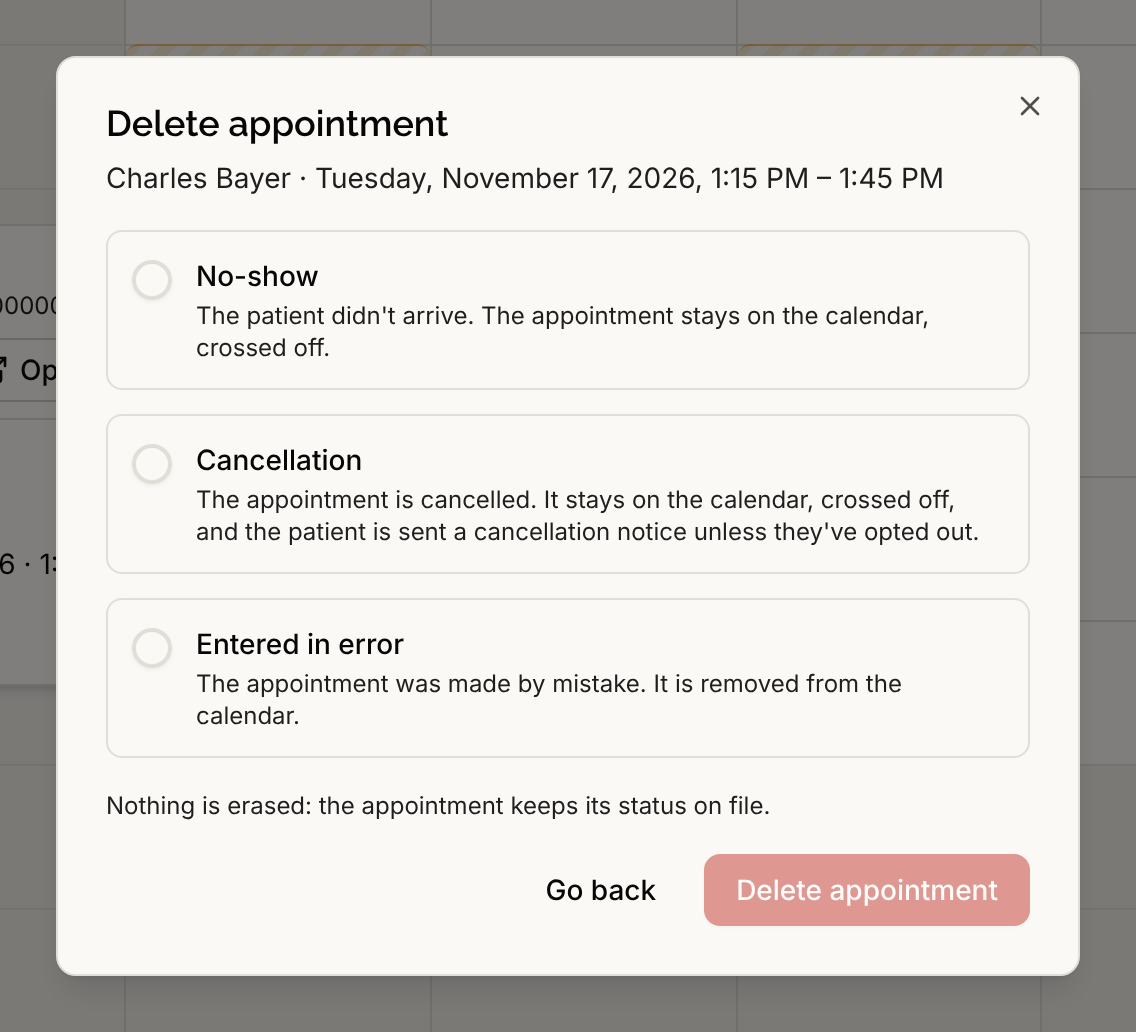
Delete means off the schedule, not erased. To bring a cancelled or no-show appointment back, choose Booked or Pending from the status menu. If reminders are on, the patient is sent a message that it is back on the schedule.
When you cannot change the status
- If the patient has been checked in and the visit is open, the status shows as a plain label with no menu. Use Undo check-in in the chart first. See Undoing a Check-In.
- An appointment that is already cancelled, completed, a no-show or entered in error cannot be cancelled again.
Patient messages
If your clinic has appointment reminders turned on, moving an appointment to a new time sends the patient a message about the new time, and cancelling sends a cancellation notice. No-show and entered in error send nothing. See Appointment Reminders.
All six standard roles can reschedule and cancel appointments.
See also What Patients See About Their Appointments, which covers how patients reschedule and cancel for themselves.
Search documentation
Find a documentation page by the words on it.