Search documentation
Find a documentation page by the words on it.
Documentation
Skills
A skill is a short written procedure that tells the assistant how your practice does a task, for example a discharge checklist or a prior authorization letter outline. The assistant reads the list of available skills with each request, and loads the full text of one when it fits what you asked. You never have to type a command.
This feature is controlled by the Skills feature flag. If you do not see it in your clinic, contact Serelora at support@serelora.com and ask for it to be turned on.
Who can add skills
There are three levels:
- Platform skills are written by Serelora and apply to every clinic that has Skills turned on.
- Clinic skills are written by your admin and apply to every member of the clinic.
- Personal skills are yours alone, and follow you between clinics.
Every role can create personal skills by default. Only an Admin can create clinic skills. If two skills share a slug, the broader level wins, so a platform skill beats a clinic skill, and a clinic skill beats a personal one. You cannot save a skill whose slug is already taken at a broader level.
Step 1: Open Skills
In any chat, select the plus button beside the input, then Tools & Skills. The window opens on the Skills tab. An Admin can also manage the clinic's skills in Manage Clinic, on its Skills tab.
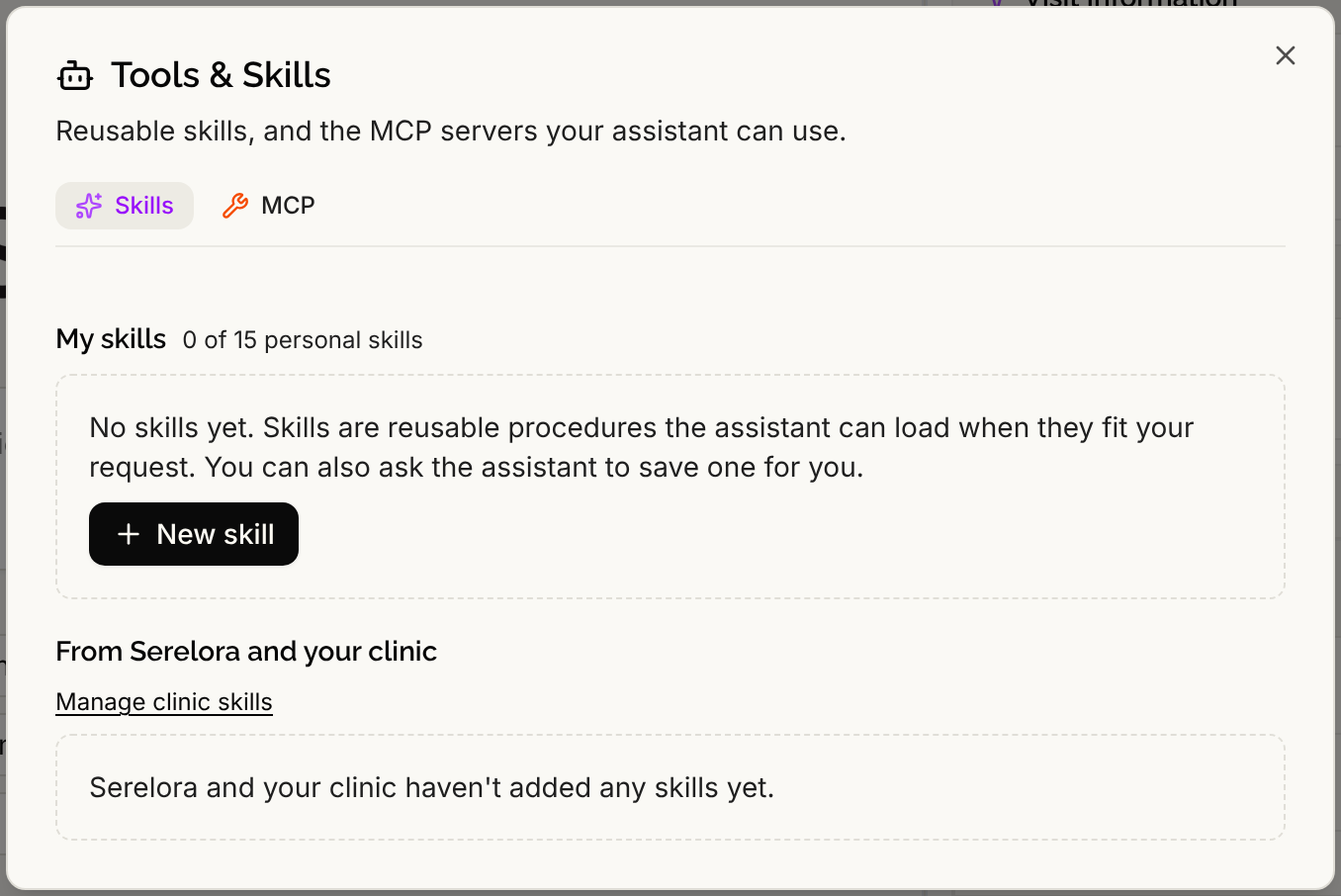
If you see "Skills aren't turned on for your clinic", contact Serelora to turn them on.
Step 2: Create a skill
Select New skill and fill in:
- Name, up to 80 characters.
- Slug, a short identifier of letters, numbers and hyphens, up to 64 characters.
- Description, one line of up to 200 characters. The assistant reads it to decide whether the skill fits.
- Works in, which sets where the skill is offered: Chart, Practice or Both.
- Instructions, the procedure itself, up to 16,000 characters.
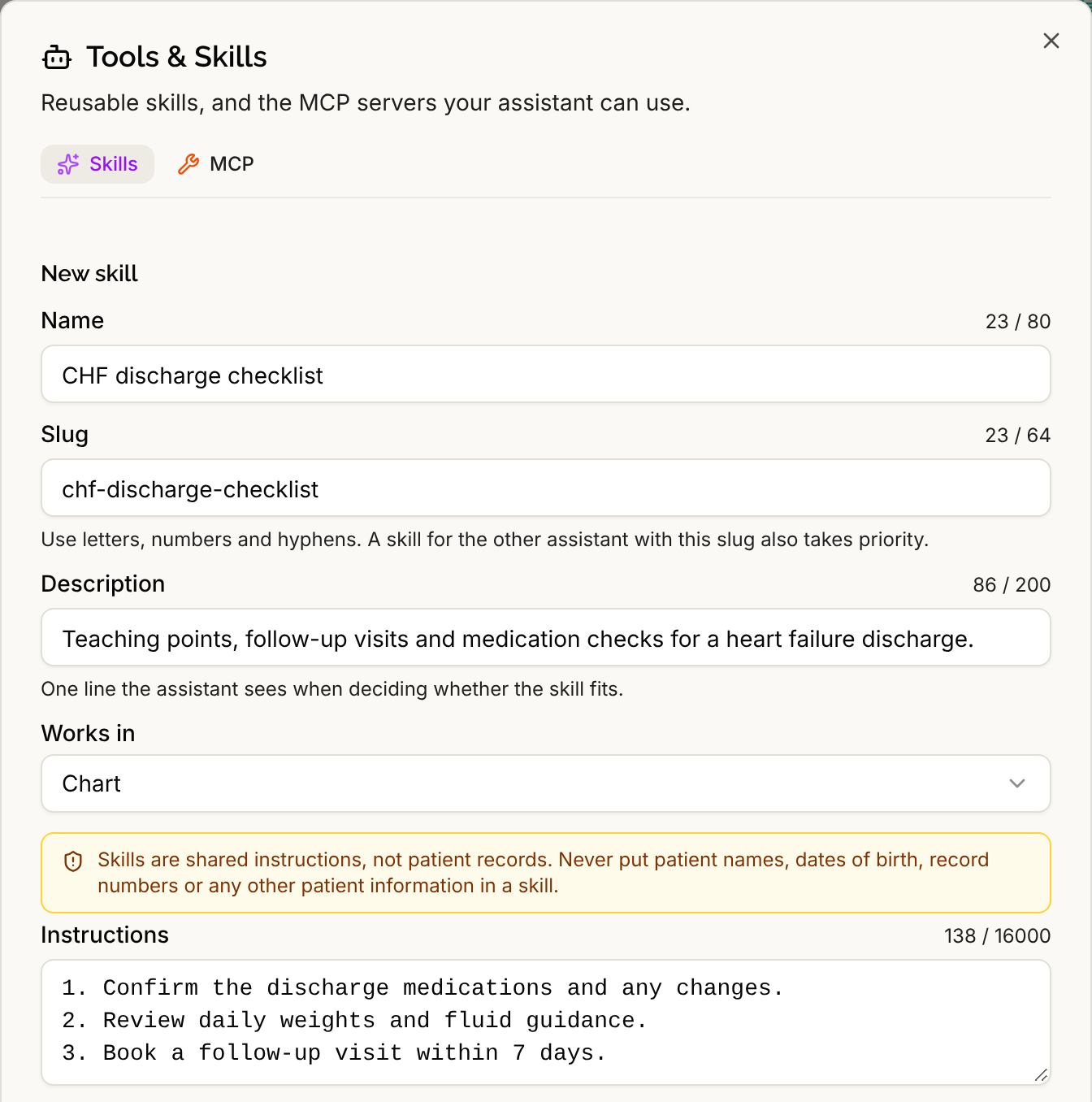
For example, a clinic skill named CHF discharge checklist might list the teaching points, follow-up visits and medication checks to cover at discharge. Select Create skill. A personal skill is limited to fifteen skills per person and a clinic to thirty.
Skills are shared instructions, not patient records. Never put patient names, dates of birth, record numbers or any other patient information in a skill.
Serelora blocks the obvious identifiers and warns if the text looks like it contains an email address, phone number or date of birth.
Step 3: Use it
Ask for the task in normal words. When your request matches a skill's description, the assistant loads it and follows it. A skill grants nothing. It cannot give the assistant a tool or a permission you lack, and it cannot override privacy or access rules or your own instructions.
Step 4: Ask the assistant to save a skill for you
After a workflow goes well, you can say:
Save that workflow as a skill.
The assistant drafts the skill and shows a card titled Add a personal skill, or Add a clinic skill if you hold the clinic permission and asked for one. The card is read-only. To change the text, ask the assistant. A long skill must be scrolled to the end before the button works, and a clinic skill needs a tick to confirm it applies to every member.
Select Approve and save, or Cancel. After saving, the card reads "Saved. Find it under Tools & Skills." The assistant drafts a skill only when you ask for one, and never a platform skill.
Manage your skills
Each row offers Edit, Duplicate as new skill and Delete, depending on what you may change, and platform skills offer View. The Enabled switch turns a skill off without deleting it. Use Hide for me to stop the assistant using a skill for you, or, as an Admin, Hide for this clinic for a platform skill. A skill can also carry blank PDF forms and a destination email, as described in Filling and Signing PDF Forms.
Your personal skills apply in a clinic only where your role is allowed to manage its own skills. If that is removed, they are switched off there and not deleted.