Search documentation
Find a documentation page by the words on it.
Documentation
Spruce Event Receiving
This feature is controlled by the Spruce messaging feature flag. If you do not see it in your clinic, contact Serelora at support@serelora.com and ask for it to be turned on.
Spruce is not available to clinics yet. You will only see these controls at a clinic where Serelora has turned Spruce on. See Spruce Integration.
Event receiving is how Spruce tells Serelora that something happened, such as a new message. You start it once after connecting your account. Receiving only records that an event arrived. Importing messages is a separate step.
What you need
- The Admin role.
- A connected Spruce account, showing Credential connected on the Clinic connection card.
Step 1: Open the Event receiving card
On the Setup sub-tab of the Spruce tab, find the Event receiving card. Before anything is set up it reads "Receiving has not been set up." and shows a Start receiving events button.
Step 2: Select Start receiving events
Select Start receiving events. Serelora registers one endpoint at Spruce and stores the signing secrets Spruce returns, encrypted. The card then shows a receiver whose status moves from Waiting to register to Registering to Receiving enabled. While it is working, the card refreshes itself about every five seconds.
You can only start a receiver when the connection is ready, no receiver is already running, and no old receiver still needs cleanup.
Step 3: Check the card
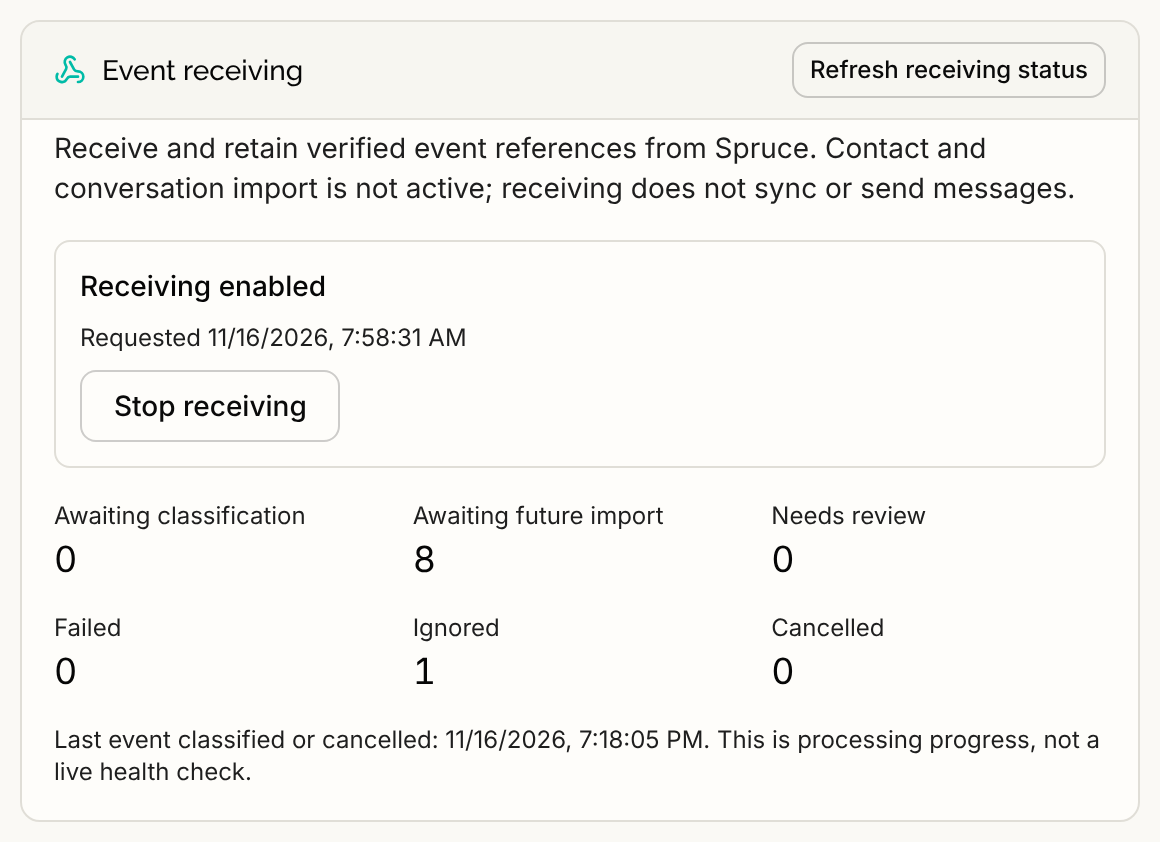
When it works, the receiver reads Receiving enabled with the time it was requested. Under it are six counts:
| Count | What it means |
|---|---|
| Awaiting classification | Events Serelora has received and not yet sorted. |
| Awaiting future import | Events about a Spruce contact or conversation, kept until they can be imported. |
| Needs review | Events whose route Serelora did not recognize, set aside. |
| Failed | Events Serelora could not process. |
| Ignored | Events Serelora does not use, such as scheduled messages, internal notes and fax. |
| Cancelled | Events dropped because their receiver was stopped or replaced. |
Below the counts, the card shows the oldest pending event and the last time an event was classified or cancelled. It says "This is processing progress, not a live health check." A quiet card is not a sign of trouble.
Select Refresh receiving status to read it again.
Retry a failed event
Failed events are listed with the time they arrived and how many attempts were made. Select Retry event to try one again. The card lists the first 25 failed events. Retry some and reload to see more. A failed event whose receiver is no longer active shows "Receiver no longer eligible for retry".
Recover a receiver
- Registration needs recovery means Serelora could not tell whether Spruce accepted the registration. The card says "The registration result is unknown. Recover it before starting another receiver." Select Recover registration.
- "Spruce endpoint cleanup is still needed." means an old endpoint is still registered at Spruce. Select Retry cleanup. If your Spruce key was disconnected, reconnect a key for the same Spruce organization first, or remove the endpoint in Spruce yourself.
Stop receiving
Select Stop receiving. The card asks "Stop accepting events and cancel pending work for this receiver? Previously saved references remain." Select Confirm stop receiving to go ahead or Cancel to keep it. Do not stop receiving unless you mean to: events waiting for import are cancelled, and live sync needs receiving to be on.
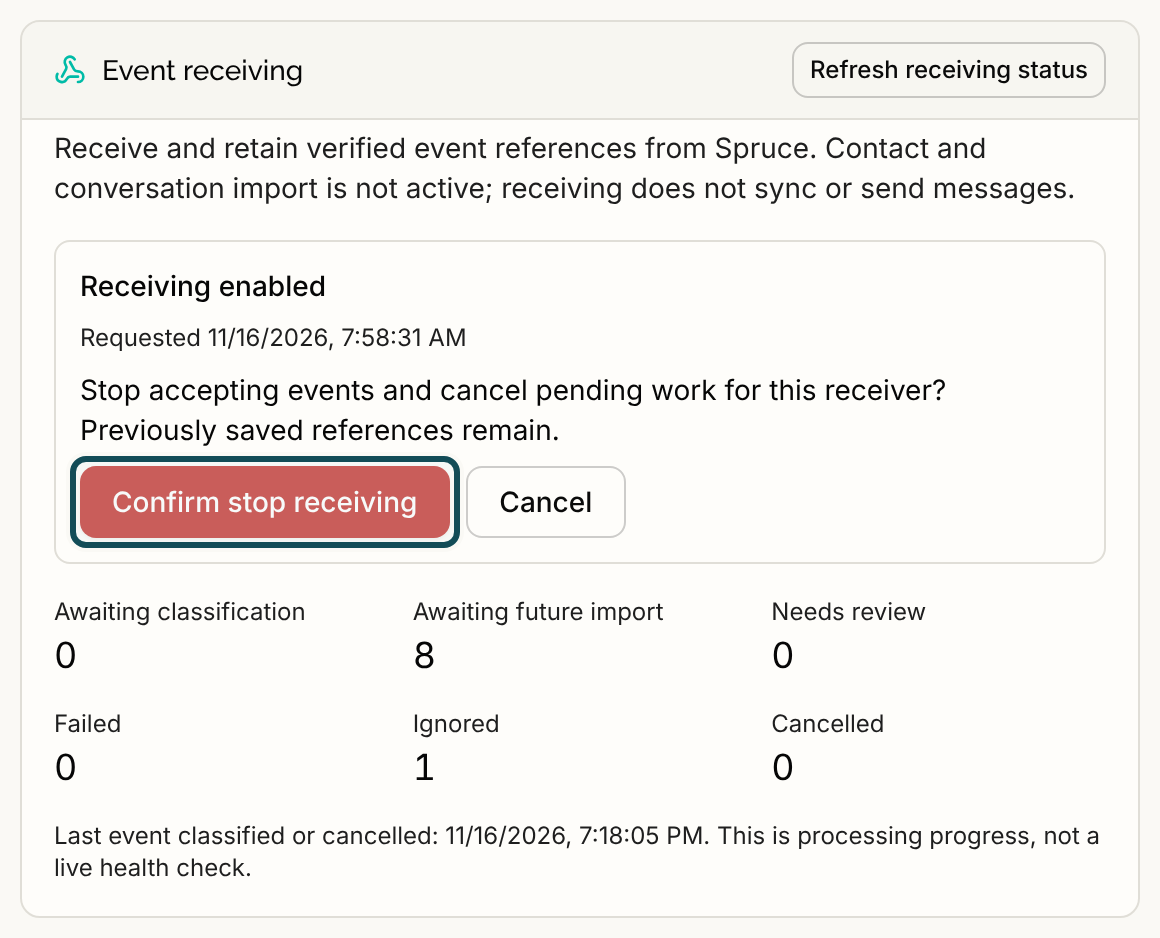
After a stop, the receiver reads Receiving stopped. To start again, select Start receiving events.
What it does not do
The card says "Receive and retain verified event references from Spruce." Receiving stores a reference to each event, not the patient's message. Bringing messages into a chart is done by history sync and live sync.
Replacing your API key also ends the running receiver, so you have to start receiving again. See Replacing the Spruce API Key.
If a control does not work, see Spruce Problems and Messages.