Search documentation
Find a documentation page by the words on it.
Documentation
Spruce Account Connection
This feature is controlled by the Spruce messaging feature flag. If you do not see it in your clinic, contact Serelora at support@serelora.com and ask for it to be turned on.
Spruce is not available to clinics yet. You will only see the steps below at a clinic where Serelora has turned Spruce on. See Spruce Integration.
Connecting Spruce means giving Serelora an API key for your clinic's Spruce account. Connecting only saves the key. It does not import contacts, change conversations or send messages.
What you need
- The Admin role. Only an Admin can connect, replace or disconnect the key.
- Spruce turned on for your clinic by Serelora, including Secure messaging.
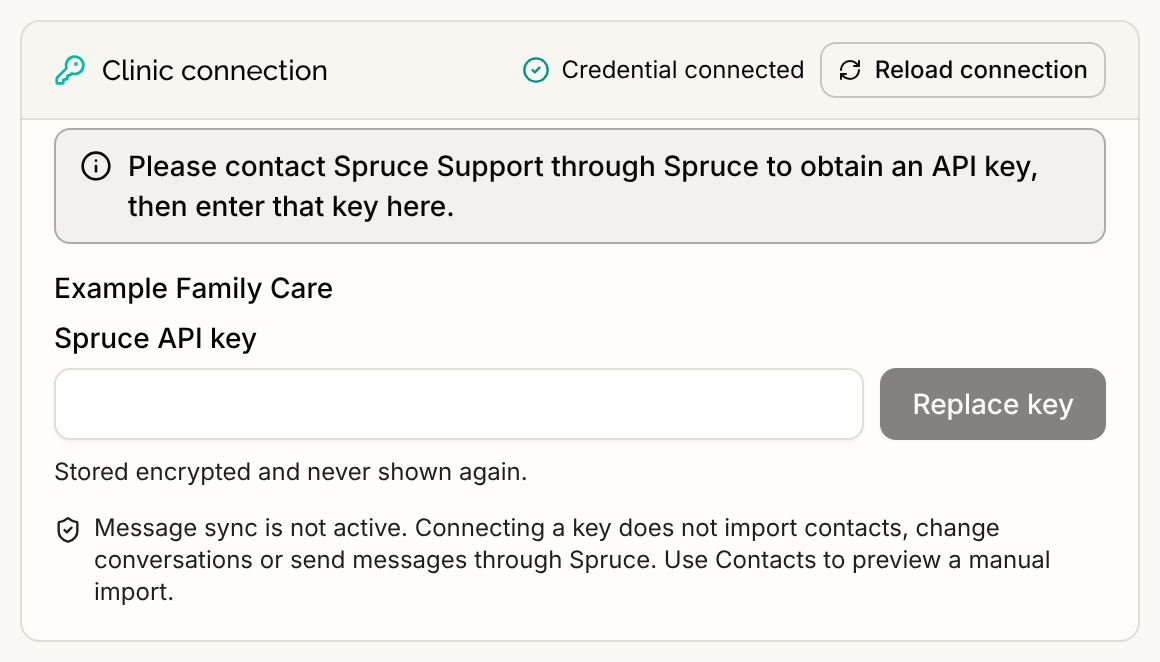
- An API key for your Spruce organization. The Setup tab says "Please contact Spruce Support through Spruce to obtain an API key, then enter that key here." Ask Spruce Support, through Spruce, for the key.
Step 1: Open the Spruce tab
Select Integrations in the sidebar, then the Spruce tile under Communication. The tile opens as a Spruce tab. Stay on the Setup sub-tab. The first card is Clinic connection.
Step 2: Paste the API key
In the Spruce API key box, paste the key and select Connect. The box hides what you type. As soon as you select Connect, the box is cleared, so the key is not kept on your screen while Serelora checks it.
Serelora checks the key with Spruce by reading your organization before it saves anything. The button reads Saving… while it works. The key is stored encrypted and is never shown again.
Step 3: Check that it connected
The card now reads Credential connected and shows your Spruce organization's name above the key box. The button now reads Replace key.
The card also says "Message sync is not active. Connecting a key does not import contacts, change conversations or send messages through Spruce." That sentence is about the key itself. Importing and syncing are separate steps that you start yourself.
Your clinic is tied to this one Spruce organization. If you later enter a key for a different organization, Serelora refuses it. See Spruce Problems and Messages.
Step 4: Choose the messaging endpoints
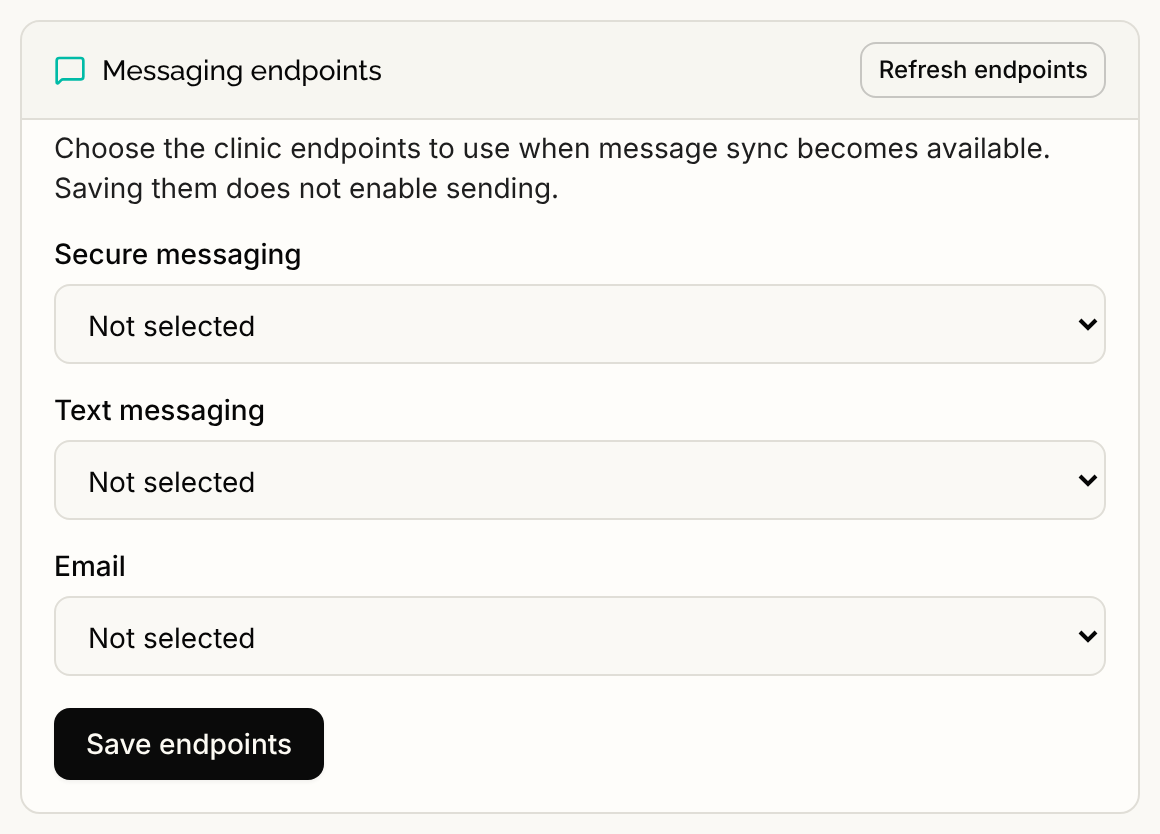
Once connected, a Messaging endpoints card loads the endpoints in your Spruce account. It has three boxes:
- Secure messaging
- Text messaging
Each box starts at Not selected. Choose the endpoint you want for each channel and select Save endpoints. Select Refresh endpoints to read the list from Spruce again.
The card says "Choose the clinic endpoints to use when message sync becomes available. Saving them does not enable sending." If a saved endpoint has since disappeared from Spruce, its box reads "Previously selected endpoint is unavailable". Choose again.
What happens next
A connected clinic still has nothing flowing. Continue with Spruce Event Receiving, then Spruce Teammate Mapping and Spruce Contact Import.
If the card shows an error, select Reload connection to see the current state. To change the key, see Replacing the Spruce API Key. To remove it, see Disconnecting Spruce.